How to Adjust Gain and Expo Tuning on DJI Drone

Peter Leslie
22 May 2026

If a DJI drone feels too twitchy under the sticks for cinematic shots, too soft to react when you fly Sport, or you want different stick feel from one mode to the next, the screen you are looking for is Gain and Expo Tuning inside DJI Fly. It lives in the same place on every current DJI drone — one row inside the Control category — and the sliders inside it shape how the drone responds to every stick input.
Drones this applies to
DJI Neo 2, DJI Mini 5 Pro, DJI Avata 2, DJI Air 3 Pro, DJI Mavic 4 Pro. The same procedure works on any DJI drone with a twin-stick remote controller running DJI Fly v1.21.2 or later — only the available slider ranges and the exact axis labels vary slightly between models.
Quick guide
To adjust Gain and Expo Tuning on DJI Drone, go to DJI Fly → Settings → Control → Gain and Expo Tuning. Pick the Cine, Normal, or Sport tab, then nudge the speed, brake, angular velocity, expo, and gimbal sliders for that mode. Reset at the bottom rolls the mode you are on back to factory.
Step-by-step: How to Adjust Gain and Expo Tuning on DJI Drone
Follow these top to bottom the first time, and you will know the path off by heart the second time. The labels and order are identical on every drone in the callout above.
Open the DJI Fly Settings menu from the camera view
With the drone powered on and connected to the remote controller, tap the Settings icon in the top right of the camera view. The Settings panel slides in from the right with the category tabs down the left edge.

Tap the Control category in the Settings panel
Control is the first tab down the left of the Settings panel, above Safety. Tap it and the right-hand pane updates to show the gimbal, stick, and remote controller options for the connected drone.

Scroll down inside Control until the Gain and Expo Tuning row appears
Scroll past the gimbal mode block, the stick mode block, and the gimbal calibration row. The Gain and Expo Tuning row sits a little further down, and opens a full tuning screen when you tap it.
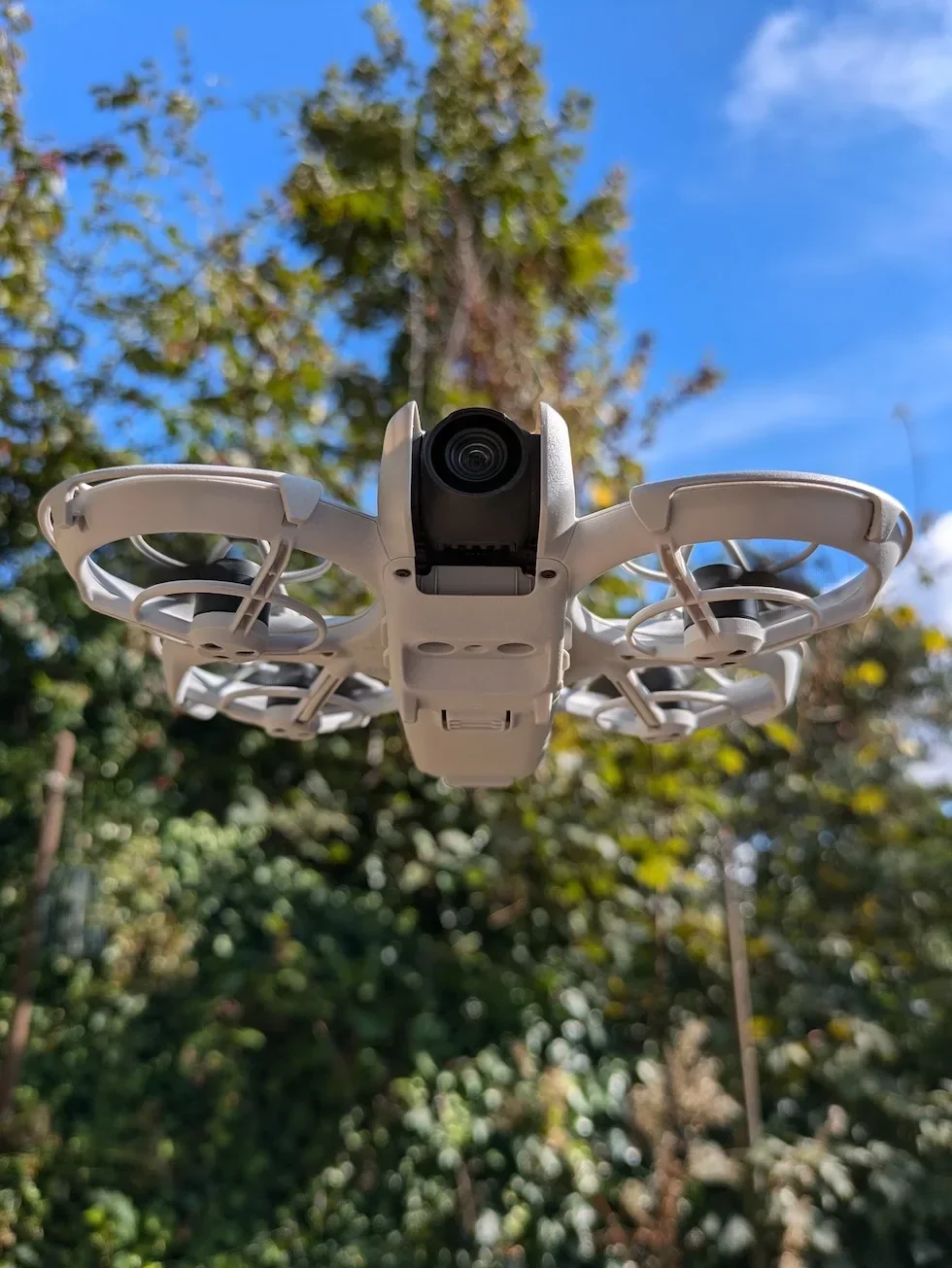
Pick the Cine, Normal, or Sport tab at the top of the tuning screen
Cine, Normal, and Sport sit as three tabs across the top of the Gain and Expo Tuning screen. Each tab stores its own independent set of slider values, so tap the tab for the mode you fly most before you touch any of the sliders below. A change on Cine does not carry across to Normal or Sport.

Set the maximum horizontal, ascent, and descent speed sliders for the selected mode
The first three sliders cap how fast the drone is allowed to travel sideways, up, and down in the selected flight mode. Pull them back to slow the drone for cinematic motion, or push them forward for sharper response when you fly Sport. The exact upper limit on each slider varies between drone models.

Set the brake sensitivity slider for that flight mode
Brake sensitivity controls how aggressively the drone stops when you centre the sticks. Lower values give a soft, drifting halt that suits video work; higher values lock the drone in place faster for tracking shots and Sport flying.

Set the maximum angular velocity sliders for pitch, roll, yaw, and the up and down axis
Maximum angular velocity is the rotation cap on each axis — how fast the drone is allowed to nose down, bank, yaw round, or climb under full stick. Each axis has its own slider, so you can stiffen yaw for tracking shots while keeping pitch and roll relaxed.

Set the expo sliders for pitch, roll, yaw, and the up and down axis
The expo block is the next set of sliders down, with one curve per axis. A higher expo value softens the area around stick centre so small wrist movements barely move the drone; a lower value gives near-linear response and feels twitchier in the middle. Expo is where most twitchy-feel complaints get fixed.

Set the maximum gimbal tilt speed and tilt smoothness sliders at the bottom of the screen
The last block on the screen tunes the gimbal rather than the airframe. Maximum gimbal tilt speed caps how fast the camera can tilt under the wheel, and tilt smoothness controls how gently the tilt eases in and out at each end of a move. Lower values pay off for cinematic reveals; higher values track action faster.
Tap Reset at the bottom of the tab to roll the mode back to factory
Each flight mode tab carries its own Reset option at the bottom of the slider list. Tap it and every slider on that tab snaps back to its factory value, leaving the other two tabs untouched — the safety net for a tune that goes wrong mid-session.
Peter's tip
I tune one mode per session and one axis at a time. Cine first, two sliders maximum, then a five-minute hover to feel the change. Trying to dial in three modes and a dozen sliders in one sitting is how you end up forgetting which change caused the twitchy yaw — and reaching for Reset more than you should.
Frequently asked questions
What does Gain and Expo Tuning actually change on a DJI drone?
Gain sets the upper limit and rate of response on each control channel, and expo curves how that response builds around the centre of the stick. Together they decide how aggressive the drone feels when you give it a stick input — whether a half-stick yaw is a slow pan or a brisk turn, whether the brake locks the drone in place or eases it to a hover, and how fast the gimbal tilts when you spin the wheel.
Are the Cine, Normal, and Sport sliders separate?
Yes — every slider on the Gain and Expo Tuning screen is stored independently for Cine, Normal, and Sport. A change you make on the Cine tab does not carry across to Normal or Sport, so you can keep one mode dialled in for smooth video work and another set up for sharper response without one tune overwriting the other.
Can I tune one axis without touching the others?
Yes. The angular velocity and expo blocks both expose separate sliders for pitch, roll, yaw, and the up and down channel. You can stiffen yaw response for tracking shots while leaving pitch and roll cinematic, or soften the up and down channel for slow reveals without slowing the horizontal stick at all.
How do I undo a Gain and Expo Tuning change?
Open the flight mode tab you want to revert and tap the Reset option at the bottom of the tuning screen. Reset only affects the mode tab you are currently on, so a reset on Sport leaves your Cine and Normal tunes alone. There is no per-slider undo — Reset is the all-or-nothing roll back to factory.
Should I tune Gain and Expo before my first flight?
No — fly the factory defaults for the first few batteries so you know what stock feels like. Tuning is a refinement step that only makes sense once you can feel which channel is too sharp or too soft for the shots you want. Drone pilots who tune blind end up undoing changes the next session.
Do Gain and Expo Tuning changes affect intelligent flight modes like FocusTrack and QuickShots?
No. FocusTrack, QuickShots, and other intelligent routines use their own internal speed profiles and ignore the gain and expo sliders you set. Your tune only takes effect when you are flying the drone yourself on the sticks in Cine, Normal, or Sport.
Why does my drone feel twitchy after a tune?
Twitchy stick feel almost always traces back to expo set too low on pitch, roll, or yaw — a low expo number gives a near-linear curve, so a small wrist movement at stick centre throws a big control input. Raise expo on the offending axis by a few notches, fly another short hover, and the centre region softens. If it still feels off, hit Reset and start from factory.
Do all current DJI drones have the same Gain and Expo Tuning screen?
The menu path is the same on every drone in the Drones this applies to callout above, but the available slider ranges and the exact axis labels can shift between models. Avata 2 exposes slightly different angular velocity caps than Mini 5 Pro, for example, and the cinema-rated Mavic 4 Pro has finer brake-sensitivity steps. The procedure walks the same; the numbers vary slightly per drone.
Gain and Expo Tuning is the screen that turns a stock DJI drone into a drone that flies the way you want for the shots you are taking. Tune one mode at a time, fly a real hover between changes, and lean on Reset whenever a session goes sideways.
Got a slider combination that feels great on Cine but breaks Sport, or a yaw axis that refuses to feel right at any expo value? Drop a note to peter@hiredronepilot.uk with your numbers and I will come back to you directly. The video version of this walkthrough is on YouTube and the comments are open.
References
Primary source material for this article is the official DJI user documentation for each drone in the callout and DJI Fly. External links open in a new tab.
- DJI Fly — App download and release notes · The app where the Gain and Expo Tuning row, the Cine, Normal, and Sport tabs, and the Reset action all live across every current DJI drone. Release notes record any menu reshuffles between versions.
- DJI — UK consumer drone product line-up · Per-drone user manuals carry the available slider ranges, the angular velocity caps, and the gimbal tilt specification under §Flight Modes and §Remote Controller.
- UK Civil Aviation Authority — The Drone and Model Aircraft Code (CAP2320) · The visual-line-of-sight framing that explains why stick feel and brake response matter for keeping the drone where the operator can see it.
Peter Leslie
Founder & GVC Drone Pilot
Peter is the founder of HireDronePilot. With thousands of logged commercial flight hours, he writes about drone technology, commercial surveying tactics, and UK aviation compliance.
Connect on LinkedIn