How to Enable or Disable the Histogram on DJI Drone

Peter Leslie
22 May 2026

If you are flying a DJI drone in bright sunlight and the footage keeps coming back with blown highlights, the overlay you are looking for is the Histogram toggle inside DJI Fly. You might switch it on to read the exposure at a glance over snow, water or pale stone, or leave it off when the camera view is already clean and you want to keep the framing uncluttered.
Drones this applies to
The Histogram toggle lives at the same path in DJI Fly on the DJI Neo 2, DJI Mini 5 Pro, DJI Avata 2, DJI Air 3 Pro, DJI Mini 4 Pro, DJI Mavic 4 Pro and any other current DJI drone flown through DJI Fly. The menu path, the on-screen labels and the draggable behaviour are identical on each one — only the sensor feeding the graph changes.
Quick guide
To enable or disable the Histogram on DJI Drone, go to DJI Fly → Settings → Camera → Histogram. On paints an RGB brightness graph on the live camera view that you can drag to any corner; off hides the overlay completely and the recorded footage is identical either way.
Step-by-step: How to Enable or Disable the Histogram on DJI Drone
Follow these top to bottom the first time, and you will know the path off by heart the second time.
Open the DJI Fly Settings menu from the camera view
With the drone powered on and the remote controller connected, tap the Settings icon in the top right of the camera view. The settings panel slides in from the right with the category tabs running down the left edge.

Tap the Camera category in the Settings panel
Camera is the third tab down the left of the Settings panel, sitting below Control and Safety. Tap it and the right-hand pane swaps to the camera options for the drone.

Scroll down to the Histogram row inside the Camera menu
Scroll past the format rows at the top of the Camera page, then past the grid lines and the centre point options. The Histogram row sits in the lower half of the page on its own line, with a small graph icon next to the label.
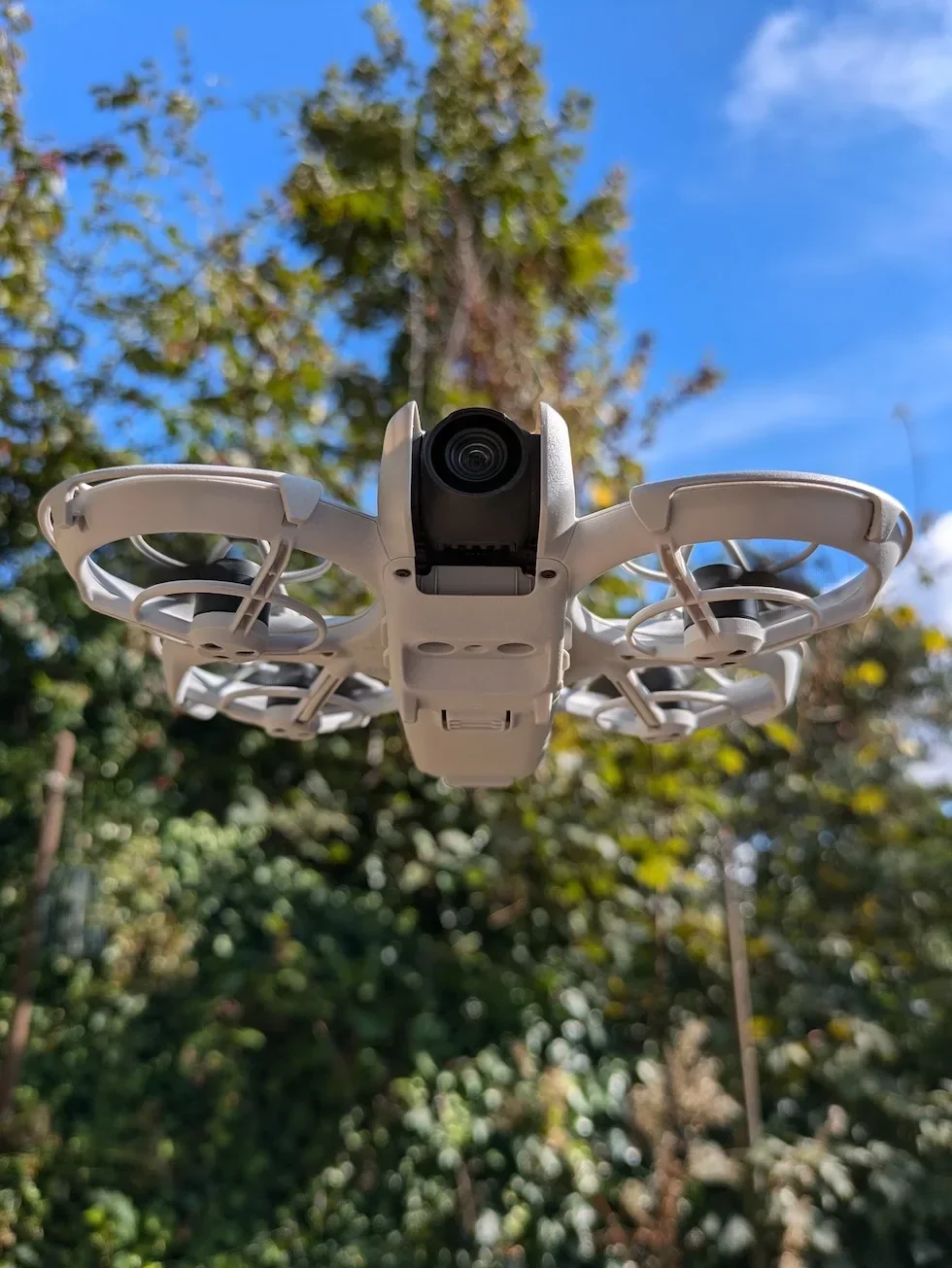
Tap the Histogram toggle to switch it on or off
A single tap flips the state. Green is on — the RGB histogram is painted on top of the live camera feed. Grey is off — the overlay is hidden and the camera view returns to the clean default.

Close the Settings panel and check the camera view
Tap outside the Settings panel to return to the live camera view. With the toggle on, the histogram appears as a small floating graph in the corner you last left it in. With the toggle off, the overlay is gone and the framing is back to a clean feed.

Drag the histogram into a corner that does not cover the subject
Press and hold on the graph itself, then drag it to any of the four corners of the camera view. DJI Fly remembers the position between flights, so once the overlay is parked out of the way you only have to set it once.

Peter's tip
I leave the histogram on for every paid flight and switch it off for the casual ones where I am happy eyeballing the camera view. The single moment it pays for itself every time is the first take-off shot of a bright day — if the right edge of the graph is mashed against the wall, I land, drop the exposure value a third of a stop, take off again, and the next clip comes back clean.
Histogram on vs off on DJI Drone
Two states, one decision. Pick from this table when you are deciding whether the overlay earns its place on the camera view for a specific flight.
| State | What you see on the camera view | When it earns the screen space |
|---|---|---|
| On | A small draggable RGB graph painted on top of the live feed. Shadows on the left, highlights on the right, three coloured channels stacked on the same axes. | Paid work, bright sunlight, snow, water, glass, pale stone, or any scene where you cannot fully trust the phone screen. The graph flags clipping long before the eye does. |
| Off (default) | A clean camera view with no overlay. Framing is uncluttered and the subject occupies the full screen. | Quick recreational flights, even lighting, or any time the framing matters more than the exposure and you trust the camera view as displayed. |
Frequently asked questions
Is the Histogram on by default on DJI drones?
No. The toggle ships in the off position out of the box on every current DJI drone, so a new owner does not see the graph anywhere on the camera view until they turn it on inside the Camera settings. DJI Fly remembers the choice across power cycles, so once you switch it on it stays on for the next flight.
What does the Histogram on a DJI drone actually show?
It shows the brightness distribution of the live camera feed as an RGB graph, with red, green and blue plotted on the same axes. Shadows sit on the left, highlights sit on the right. A spike pushed hard against either edge means data is being clipped, which is the practical signal a drone pilot uses to decide whether the exposure value, ISO, or shutter speed needs an adjustment before pressing record.
When should I turn the Histogram on?
Any flight where the shot quality matters more than the framing speed. Bright sunlight bouncing off water, snow, glass or pale stonework is where the histogram earns its place — it surfaces blown highlights long before they are obvious on a phone screen in daylight. For quick recreational flying where the camera view is already easy to read, leaving it off keeps the framing cleaner.
Can I move the Histogram around the DJI Fly screen?
Yes. Once the overlay is on the camera view you can drag the graph to any corner with a finger. Most drone pilots park it in a corner that does not overlap the subject, then leave it there for the rest of the session. DJI Fly remembers the position between flights.
Does the Histogram affect the recorded footage?
No. The overlay is a viewfinder aid only — it is painted onto the live camera feed inside DJI Fly and never burns into the recorded video or photo file. Switch it on or off as freely as you like, the JPEG and the MP4 come back identical either way.
Does the Histogram look the same on every DJI drone?
Yes. The Histogram toggle lives at the same path under Settings → Camera in DJI Fly on the DJI Neo 2, DJI Mini 5 Pro, DJI Avata 2, DJI Air 3 Pro, DJI Mini 4 Pro and DJI Mavic 4 Pro, and the RGB graph behaves the same way on each one. Same axes, same draggable position, same viewfinder-only behaviour. The only thing that changes is the sensor feeding the graph.
Why does the Histogram graph look flat on some shots?
A flat graph stacked in the middle means the scene is low contrast — overcast skies, an evenly lit interior, or a shot with no deep shadows or bright highlights. That is normal. The graph is reading the scene honestly. The histogram only earns its keep on the high-contrast flights, so a flat reading is a sign you are in easy lighting, not that the overlay is broken.
Does the Histogram work in photo mode as well as video?
Yes. The overlay sits on the live camera feed regardless of whether you are framing a photo or a video clip, so the same graph paints in both modes. The reading is more useful in photo mode for a single exposure decision, and more useful in video mode for confirming the exposure holds as the drone moves through changing light.
The Histogram is one of those DJI Fly toggles that costs nothing to leave on and saves a reshoot the first time the lighting catches you out. Flip it on for paid work, drag it into a corner, and trust the graph to flag the clipped highlights before the camera view does.
If the overlay is doing something you do not expect — the graph refusing to drag, the toggle resetting itself between flights, or the histogram disappearing the moment you start recording — drop me a note at peter@hiredronepilot.uk with what DJI Fly is showing and I will come back to you directly. The video version of the walkthrough is on YouTube if you prefer to watch the menu path in real time.
References
Primary source material for this article is the official DJI documentation and DJI Fly. External links open in a new tab.
- DJI Fly — App download and release notes · The app version under verification (v1.21.2). Release notes track any change to the Camera settings layout between versions.
- DJI consumer drones — Product range (UK) · Current DJI Fly compatible models covered by the same Histogram menu path.
- DJI Support — User manuals and downloads · Camera settings reference and the recommendation to check camera settings before each flight.
Peter Leslie
Founder & GVC Drone Pilot
Peter is the founder of HireDronePilot. With thousands of logged commercial flight hours, he writes about drone technology, commercial surveying tactics, and UK aviation compliance.
Connect on LinkedIn