How to Enable or Disable Manual Obstacle Avoidance on DJI Drone

Peter Leslie
22 May 2026

If your DJI drone keeps braking on a clean line of sight, or you want it to brake automatically when the sensors spot something in the flight path, the setting you are looking for is Manual Obstacle Avoidance inside DJI Fly. The toggle is one tap deep into the Safety menu and decides what the drone does when its vision sensors see an obstacle during pilot-driven flight.
Drones this applies to
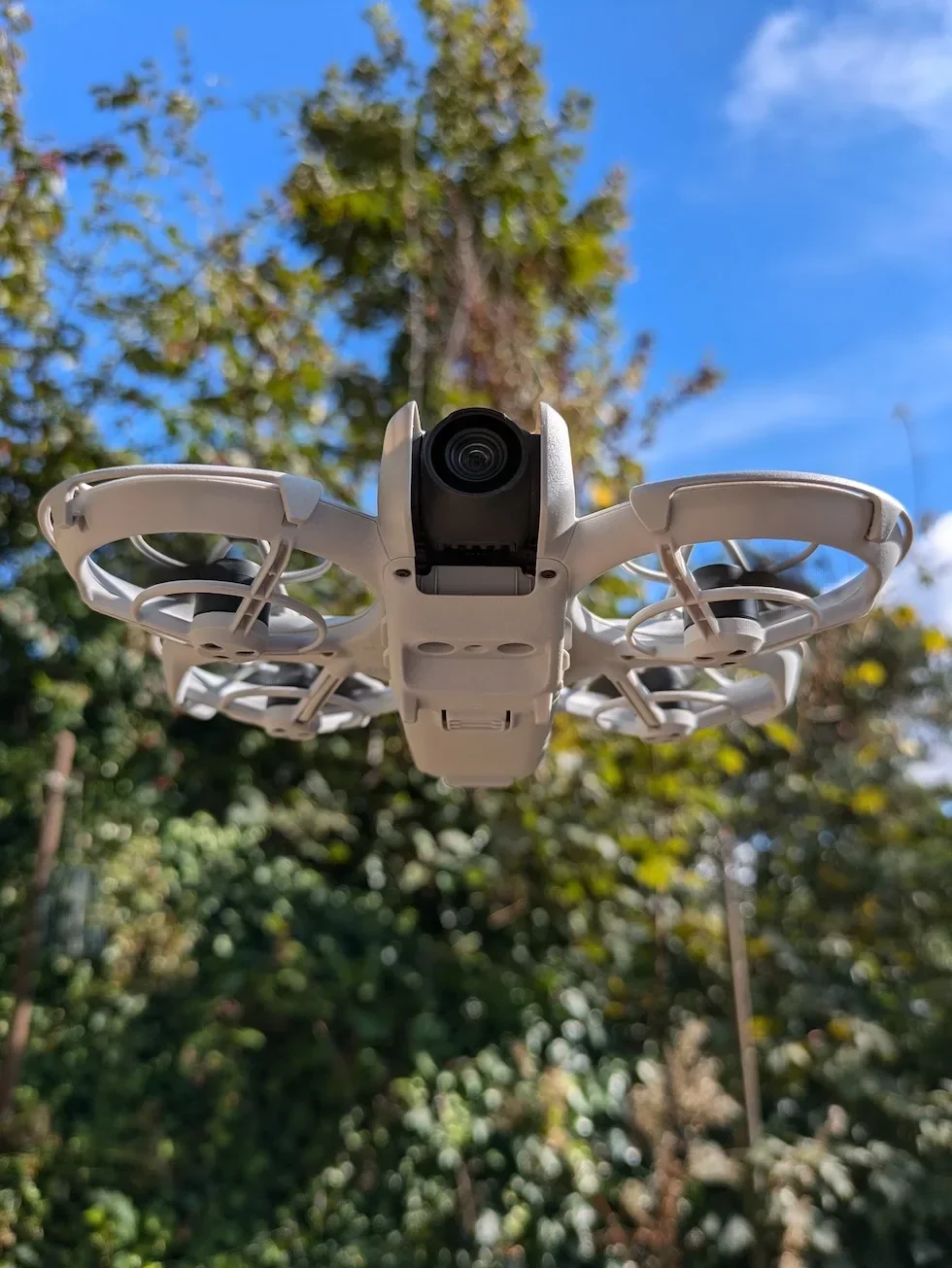
DJI Neo 2, DJI Mini 5 Pro, DJI Avata 2, DJI Air 3 Pro, DJI Mavic 4 Pro. The same Settings → Safety → Manual Obstacle Avoidance path works on any drone running DJI Fly v1.21.2 or later. Sensor coverage is not the same on every drone, though — some have full omnidirectional avoidance, some are forward only, and the original DJI Avata 2 has very limited coverage. Check the per-drone table further down before flying a tight pass.
Quick guide
To enable or disable Manual Obstacle Avoidance on a DJI drone, go to DJI Fly → Settings → Safety → Manual Obstacle Avoidance. Tap Bypass or Brake to enable the protection; tap Off to disable it and fly with raw stick response.
Step-by-step: How to Enable or Disable Manual Obstacle Avoidance on DJI Drone
Follow these top to bottom the first time, and you will know the path off by heart the second time.
Open the DJI Fly Settings menu from the camera view
With the drone powered on and connected to its remote controller or your phone, tap the three dots in the top right of the camera view. The settings panel slides in with the category tabs down the left.

Tap the Safety category at the top of the Settings panel
Safety is the first tab down the left of the settings panel, above Control. Tap it and the right-hand pane updates to show the obstacle avoidance, RTH, and flight protection options for the connected drone.

Find the Manual Obstacle Avoidance row at the very top of Safety
Manual Obstacle Avoidance is the first row inside Safety — no scrolling needed. The current state, either Bypass, Brake, or Off, is displayed on the right of the row.
Tap Brake to enable the standard hover-and-wait protection
Brake is the default and the safest pick for everyday flying. When the sensors see an obstacle the drone brakes hard and hovers, then waits for you to centre the sticks and decide what to do next.

Tap Bypass to let APAS plan a path around the obstacle
Bypass enables Advanced Pilot Assistance Systems. The drone keeps moving and plans a new path around what it sees, instead of stopping. On the bigger drones a second row appears underneath labelled Bypassing Options with two choices, Normal and Nifty.
Pick Normal or Nifty inside Bypassing Options
Normal gives the drone a wider buffer and a calmer flight around obstacles. Nifty flies faster, smoother, and closer to obstacles for tighter footage but the crash risk genuinely is higher in Nifty, so start in Normal and only switch when you have a shot that needs the tighter path.

Tap Off to disable Manual Obstacle Avoidance
Off switches the sensors out of pilot-driven flight entirely. The drone takes no obstacle action and follows your stick inputs straight into whatever sits in front of the camera, so only flip this when you have a deliberate close-range pass in mind.

Back out of Safety and confirm the state on a slow test flight
Exit the Safety menu and fly a slow ten-second hover with a soft obstacle a couple of metres in front of the drone. Watch the camera view in DJI Fly to confirm the drone behaves the way the setting you chose says it should before you commit to a real shot.
Peter's tip
I leave Brake on for everything bar two situations — a planned close-range reveal where a sudden hover would kill the shot, and a tight gap that the sensors are going to read as a wall. For those, I switch to Off, fly the one pass, and tap straight back to Brake before the next take. Leaving the protection off because Brake annoyed you once is how you write off a drone.
Manual Obstacle Avoidance states — what each one does
| State | What the drone does when it sees an obstacle | Best for |
|---|---|---|
| Bypass | Plans a new path around the obstacle using APAS and keeps following your stick input. Normal flies the wider, calmer path; Nifty flies faster and closer. | Tracking shots, following moving subjects, flying over uneven ground where you do not want the drone to keep stalling on every bush and branch. |
| Brake | Stops the drone in a hover when an obstacle is detected and waits for you to centre the sticks before doing anything else. | Everyday flying, learning the drone, anything where the safer move is for the drone to stop and let you reassess. |
| Off | No obstacle action during pilot-driven flight. Stick inputs flow straight to the motors with no override from the sensors. | Deliberate close-range shots, threading a gap the sensors will misread, tight reveals where a sudden brake would ruin the move. |
Obstacle sensor coverage by drone
The Manual Obstacle Avoidance menu looks identical on every current DJI drone, but the directions the drone can actually see in are not the same. The full-fat camera drones have omnidirectional coverage; the smaller models are forward-only or close to it. Know which one you are flying before you trust the Brake to save you.
| Drone | Sensor coverage |
|---|---|
| DJI Neo 2 | Forward LiDAR plus omnidirectional monocular vision and downward sensors. No backward stereo coverage. |
| DJI Mini 5 Pro | Forward, backward, downward and upward vision sensors. No full side coverage. |
| DJI Avata 2 | Forward and downward sensors only. No backward, side, or upward coverage. |
| DJI Air 3 Pro | Full omnidirectional binocular vision — forward, backward, left, right, up, and down. |
| DJI Mavic 4 Pro | Full omnidirectional binocular vision plus forward LiDAR for low-light obstacle detection. |
On a drone with forward-only sensors, Manual Obstacle Avoidance only protects you flying forward. Reverse moves, sideways slides, and ascents into a low ceiling do not trigger the brake at all — because the drone literally cannot see in those directions. Plan the move accordingly.
Frequently asked questions
Is Manual Obstacle Avoidance on by default on a DJI drone?
Yes — every current DJI drone with obstacle sensors ships with Manual Obstacle Avoidance enabled and the obstacle avoidance action set to Brake. The drone brakes and hovers when the forward, downward, or omnidirectional vision sensors detect something in the flight path. You have to go into Settings and tap Off to switch the feature out of pilot-driven flight entirely.
What is the difference between Bypass and Brake on a DJI drone?
Bypass lets the drone fly around the obstacle using APAS — it plans a new path and keeps following your stick input. Brake stops the drone in a hover when an obstacle is detected and waits for you to centre the sticks. Bypass keeps you moving; Brake is the safer default if you are still learning the drone.
When should I switch Manual Obstacle Avoidance off on a DJI drone?
When you want fully predictable stick response — flying close to a structure for a deliberate clearance shot, threading the drone through a gap that the sensors will read as a wall, or filming a tight reveal where a sudden brake would ruin the move. Switch it back on as soon as the deliberate close-range pass is finished.
Does Manual Obstacle Avoidance work in Sport mode on a DJI drone?
No — obstacle avoidance is disabled automatically in Sport mode regardless of how Manual Obstacle Avoidance is set in DJI Fly. Sport mode unlocks the full speed and turns the sensors out of the loop so the drone responds instantly to stick input. Fly Normal or Cine mode when you want the obstacle protection in play.
What is the difference between Normal and Nifty inside Bypass on a DJI drone?
Normal gives the drone a wider buffer around obstacles and flies the bypass path at a calmer speed. Nifty flies faster, smoother, and closer to obstacles for tighter footage but increases the risk of clipping something the sensors fail to read. Start in Normal and only switch to Nifty when you have a deliberate shot that needs the tighter path.
Do all current DJI drones have full omnidirectional obstacle avoidance?
No. Omnidirectional coverage — forward, backward, left, right, up, and down — is reserved for the bigger camera drones. The DJI Mavic 4 Pro and DJI Air 3 Pro have full omni avoidance. The DJI Mini 5 Pro has forward, backward, downward and upward sensors but not full side coverage. The DJI Neo 2 has a forward LiDAR plus omnidirectional monocular vision; the original DJI Avata 2 has forward and downward sensors only. Check the per-drone capability table above before flying any tight pass.
Why is Manual Obstacle Avoidance not stopping my DJI drone from hitting things?
The vision system needs good light and clean sensor glass to work. Obstacle avoidance struggles with thin objects like tree branches and power lines, glass and water surfaces, and very dark or very bright scenes. Even with the toggle on Brake or Bypass, fly with caution near branches, fences, wires, and reflective surfaces — the sensors cannot guarantee a stop.
Does Manual Obstacle Avoidance need to be on for Return to Home to work on a DJI drone?
No — RTH uses its own obstacle handling on drones that support Advanced RTH. The RTH path will brake and hover if it detects an obstacle that the set RTH altitude does not clear. The Manual Obstacle Avoidance toggle only governs how the drone reacts to obstacles during pilot-driven flight, not during an automated RTH.
Manual Obstacle Avoidance is a thirty-second setting that decides whether your DJI drone protects itself or follows your sticks blind. Leave it on Brake for everyday flying, switch to Bypass when you want APAS to plan around things, and only turn it Off for a deliberate close-range pass — and remember the smaller drones can only see in the directions their sensors point.
Got a drone that brakes on something the camera cannot see, or a Bypass routine that flew too close on Nifty? Drop a note to peter@hiredronepilot.uk with the message DJI Fly is showing and I will come back to you directly. If you prefer the video version of this walkthrough, the comments are open on YouTube.
References
Primary source material for this article is the official DJI user documentation for each drone in the callout and DJI Fly. External links open in a new tab.
- DJI Fly — App download and release notes · The app where the Manual Obstacle Avoidance row and the Bypassing Options sub-menu live across every current DJI drone. Release notes record any menu reshuffles between versions.
- DJI — UK consumer drone product line-up · Per-drone product pages and user manuals list the obstacle sensor configuration that decides whether the brake fires on forward, side, backward, or vertical encounters.
- UK Civil Aviation Authority — The Drone and Model Aircraft Code (CAP2320) · The remote pilot is responsible for maintaining safe separation from people and property regardless of what the obstacle sensors do or do not see.
Peter Leslie
Founder & GVC Drone Pilot
Peter is the founder of HireDronePilot. With thousands of logged commercial flight hours, he writes about drone technology, commercial surveying tactics, and UK aviation compliance.
Connect on LinkedIn