How to Connect the DJI Neo 2 to Your Phone in DJI Fly

Peter Leslie
22 May 2026

If you have just opened the DJI Neo 2 box and DJI Fly is sitting on the phone with no idea the drone exists, the answer is the Connection Guide tucked away in the bottom right of the app's home screen. From there you pick the drone model, then pick the route — either through the DJI RC-N3 remote controller over USB-C, or straight to the drone over Wi-Fi.
The cable route gives you longer range, physical sticks, and the full controller-only flight modes. The direct Wi-Fi route is the lighter setup — no controller in the bag, capped at sixty metres of altitude, but everything else the app gives you is still on the table. Most drone pilots end up using both at different times.
Quick guide
To connect the DJI Neo 2 to your phone, go to DJI Fly → Connection Guide → DJI Neo 2 → choose route. The cable route runs through the DJI RC-N3 USB-C link; the direct route taps Connect via Mobile Device and pairs over Wi-Fi.
Step-by-step: How to Connect the DJI Neo 2 to Your Phone in DJI Fly
Follow these top to bottom the first time, and you will know the path off by heart the second time.
Power on the DJI Neo 2 and wait for the self-diagnostics
Press the drone power button once, then press and hold for two seconds. Remove the gimbal protector first — leaving it on interferes with the self-diagnostics and the connection will not complete cleanly.

Enable Bluetooth, Wi-Fi, and location services on the phone
All three phone radios have to be on for DJI Fly to find the drone in the next step. Bluetooth announces the drone to the app, location feeds the geo-awareness system, and Wi-Fi carries the actual data link once the pairing kicks off.

Launch DJI Fly and tap Connection Guide on the home screen
Open DJI Fly on the phone. The Connection Guide entry sits in the bottom right of the home screen with a small icon next to it. Tap it to open the device picker.

Select DJI Neo 2 from the device model list
DJI Fly shows a grid of compatible drones. Find the DJI Neo 2 entry and tap it. The next screen offers the connection method options for that drone.
Pick the route — through the DJI RC-N3 cable, or direct over Wi-Fi
For the cable route, slot the phone into the DJI RC-N3 mobile device holder, plug the USB-C end of the controller cable into the phone, and pick the remote controller option. For the direct route, tap Connect via Mobile Device to bind the phone straight to the drone over Wi-Fi with no controller in the loop.

Select the DJI Neo 2 from the search results
DJI Fly begins scanning and your drone appears in the search list after a few seconds. Tap the entry to start the pairing. On Android, if a USB connection prompt appears when the cable route is used, pick the charge only option — the other options will cause the link to fail.

Press and hold the power button on the DJI Neo 2 to confirm
On a first-time pairing the app prompts you to confirm the link from the drone itself. Press and hold the power button on the DJI Neo 2 until the LEDs flash through the confirmation pattern. After the first time the drone reconnects automatically.
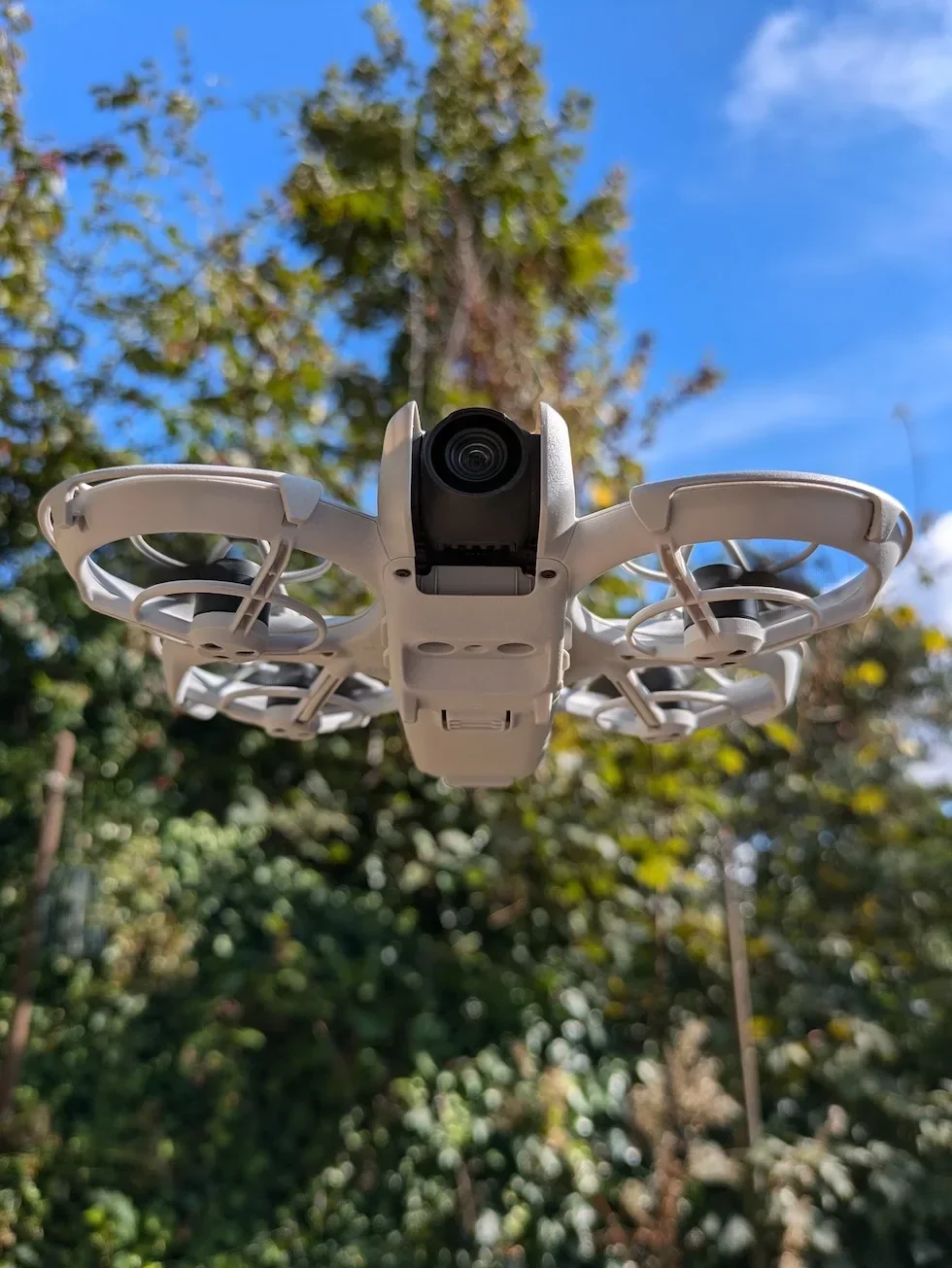
Wait for the Controls view with the live camera feed to load
DJI Fly switches to the Controls view with the live camera feed across the centre of the screen. That is the signal that the link is up and the phone is now the active control device. Let any prompted firmware update run before you fly.
Peter's tip
After the first pairing, skip the Connection Guide entirely. The Wi-Fi Devices panel on the DJI Fly home screen jumps straight to the live preview, and the drone is in the air thirty seconds faster every session. The Connection Guide is really only the first-time flow and the rebuild-it-from-scratch flow when you swap phones.
| Route | What it gives you | What it costs you |
|---|---|---|
| Through the DJI RC-N3 (USB-C cable) | Physical sticks, the long-range OcuSync link, Auto Takeoff and Auto Landing, FocusTrack tracking, QuickShots, and the higher altitude and distance ceilings the DJI Neo 2 reserves for controller flying. | Carrying the controller and a charged cable. Android phones occasionally need the charge only USB mode picked for the link to come up. |
| Direct to the drone (Wi-Fi) | Phone-only flight with virtual joysticks, voice control, audio recording, live preview, the full Smart Snaps menu, and Return-to-Home support. No controller needed. | A sixty metre altitude ceiling on Mobile App Control, plus the usual Wi-Fi interference risks in crowded radio environments. |
Frequently asked questions
Which route should I use — the DJI RC-N3 cable or direct Wi-Fi to the drone?
The DJI RC-N3 cable route gives you the longer-range link, physical sticks, Auto Takeoff and Auto Landing, FocusTrack tracking, QuickShots, and the higher altitude and distance ceilings the DJI Neo 2 reserves for controller flying. The direct Wi-Fi route is what you use when the controller is not in the bag — Palm Control style flying with virtual joysticks, voice control, audio recording, and a sixty metre altitude cap. Most owners default to the controller route for serious shooting and the direct route for quick selfie work.
Why is DJI Fly not finding the DJI Neo 2 on the search screen?
Almost always one of three things. Bluetooth, Wi-Fi, or location services are off on the phone — all three have to be on, and DJI Fly fails silently if location is denied. A DJI RC-N3, DJI RC Motion 3, or DJI Goggles N3 within range is still powered on and stealing the link — power those off before tapping scan. Or the drone has not finished the self-diagnostics yet — wait for the LEDs to settle before searching.
Do I have to do this every time I fly the DJI Neo 2?
No. After the first successful pairing the DJI Neo 2 remembers the phone, and the next session is a one-tap reconnect from the DJI Fly home screen. The full Connection Guide flow is really the first-time activation and any time you swap to a brand new phone. The Wi-Fi Devices panel on the home screen is the shortcut on every flight after that.
What if the USB cable connection fails on Android with a prompt about file transfer?
When an Android phone shows a USB connection prompt after plugging into the DJI RC-N3, pick the charge only option. The other options — file transfer, MIDI, photo transfer — can cause the controller link to fail to come up. Once the cable is set to charge only, DJI Fly sees the controller and the live preview opens normally.
Can I connect the DJI Neo 2 to a phone that already had the original DJI Neo paired?
Yes. DJI Fly handles multiple drones from the same install, and the Connection Guide list will show both DJI Neo and DJI Neo 2 entries when you tap it. Pick the DJI Neo 2 entry and the app runs the pairing afresh. The previous Neo binding stays intact for when you next pick that drone up.
Does the DJI Neo 2 fly without a phone connected at all?
Yes, in Palm Control — but only after a phone has paired with the drone at least once. Palm Control runs the Smart Snaps from the drone alone, with no live preview and no joysticks. The first-ever flight has to go through a phone for the activation, and any mid-flight trouble is best recovered by connecting a phone over Wi-Fi to take manual control.
What altitude can the DJI Neo 2 reach on a direct phone connection?
Sixty metres on Mobile App Control, with no hard distance cap, plus full Return-to-Home support. That is double the thirty metre ceiling the original DJI Neo had on phone-only flight, and it covers most recreational flying inside the legal one hundred and twenty metre UK height limit anyway.
Why is takeoff locked when the phone connects after a long gap?
The DJI Neo 2 disables takeoff in Mobile App Control when the phone has not logged in to DJI Fly for longer than ninety days, or when there is no internet during the connection. Reconnect the phone to a network with DJI Fly open and the lock clears within a minute. This catches owners who fly the drone in summer, then pull it out the following spring with no signal in the field.
Pairing the DJI Neo 2 to a phone is the first thing every new owner does, and once it is done the second flight is a one-tap reconnect from the Wi-Fi Devices panel. The Connection Guide is really the first-time hurdle — after that the drone and the phone find each other on their own.
Got a stubborn pairing that will not come up, or an Android quirk this article did not cover? Drop a note to peter@hiredronepilot.uk with the prompt DJI Fly is showing and I will come back to you directly. If you prefer the video version of this walkthrough, the comments are open on YouTube.
References
Primary source material for this article is the official DJI Neo 2 documentation and DJI Fly. External links open in a new tab.
- DJI Neo 2 — Downloads (User Manual, Quick Start Guide, firmware notes) · Connection Guide flow, Mobile App Control sixty metre altitude limit, DJI RC-N3 USB-C cable connection procedure, ninety day login window.
- DJI Neo 2 — Product page (UK) · Bundle configurations including the DJI RC-N3 paired remote and the Motion Combo with goggles, plus the hardware overview of the controller cable port.
- DJI Fly — App download and release notes · The app where the Connection Guide, Wi-Fi Devices, and Mobile App Control live. Release notes record any pairing flow changes between versions.
Peter Leslie
Founder & GVC Drone Pilot
Peter is the founder of HireDronePilot. With thousands of logged commercial flight hours, he writes about drone technology, commercial surveying tactics, and UK aviation compliance.
Connect on LinkedIn