How to Adjust Advanced RTH Mode on the DJI Neo 2

Peter Leslie
21 May 2026

If your DJI Neo 2 has been planning return paths that worry you near power lines or tree lines, the toggle you are looking for is Advanced RTH inside DJI Fly. Optimal lets the drone plan the shortest route home, and Preset forces it to climb to your stored RTH Altitude before flying back in a straight line.
Picking the right mode before takeoff is the difference between a clean return and a clipped propeller on a power cable you forgot was on the route. Most drone pilots who run into trouble with Advanced RTH have left the drone on Optimal at a site where the vision system was always going to struggle — heavy shade, repeated patterns on the ground, or a horizon full of cables.
Quick guide
To adjust Advanced RTH on the DJI Neo 2, go to DJI Fly → Settings → Safety → Return to Home (RTH) → Advanced RTH. Optimal plans the shortest path home using the vision system; Preset climbs to your stored RTH Altitude and flies back in a straight line.
Step-by-step: How to Adjust Advanced RTH Mode on the DJI Neo 2
Follow these top to bottom the first time, and you will know the path off by heart the second time.
Open the DJI Fly Settings menu from the camera view
With the DJI Neo 2 powered on and connected to the controller, tap the Settings icon in the top right of the camera view. The settings panel slides in with the category tabs down the left.

Tap the Safety category in the Settings panel
Safety is the second tab down the left of the settings panel, below Control. Tap it and the right-hand pane updates to show every safety-related option for the DJI Neo 2.

Scroll down to the Return to Home (RTH) block inside Safety
Scroll past Max Altitude and Max Distance until the Return to Home (RTH) sub-heading appears. The Advanced RTH row sits inside that block, just below the RTH Altitude slider.

Tap the Advanced RTH row to open the selection
Tap the Advanced RTH row and the panel expands to show two options stacked vertically — Optimal at the top, Preset below it. The current selection is highlighted in the brand blue so you can read where the drone is set before you change anything.

Tap Optimal to let the vision system plan the return path
Optimal is the default. With it selected, the drone uses its forward-facing LiDAR and omnidirectional vision system to plan the shortest practical route home and ignores the RTH Altitude value as long as the lighting and surroundings are suitable. If the vision system loses confidence mid-flight, the drone falls back to Preset on the stored altitude.
Tap Preset to force a fixed-altitude climb before the return
Preset forces the drone to climb vertically to the stored RTH Altitude before flying back in a straight line. It is the right pick when there are power lines, transmission towers, or tall trees on the likely return path that the drone cannot safely bypass at low level. Use it at dusk and in low-contrast scenes where the vision system is going to struggle anyway.

Check the RTH Altitude value before you back out of the menu
The RTH Altitude slider sits a row above Advanced RTH and runs from 10 to 120 metres. Preset will obey that number as a hard floor, so set it above every obstacle on the likely return path before you back out. A Preset climb to an altitude lower than your tree line is the worst of both worlds.
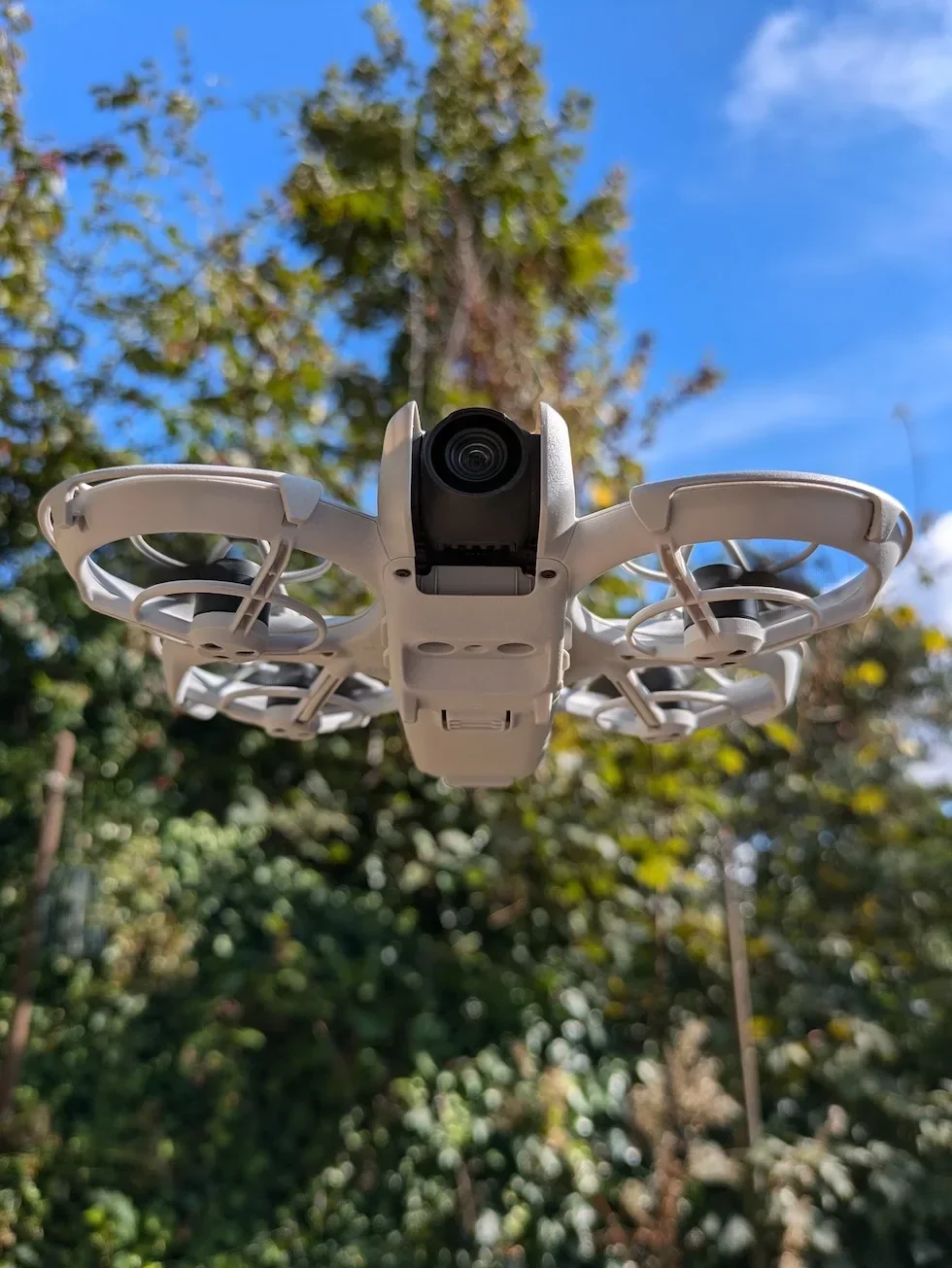
Back out of Safety and confirm the choice on the camera view
Close the Settings panel and glance at the camera view to confirm DJI Fly is not throwing a yellow warning about an unsafe RTH path. The selection is live straight away, including in the air — you do not need to land and restart for the new Advanced RTH mode to take effect.
Peter's tip
My default is Optimal on a clean open site and Preset the moment the return path passes anywhere near a cable run or a tree line. I set RTH Altitude before I take off — not when DJI Fly throws the warning mid-flight — and I move the slider up by ten metres past whatever I think the tallest obstacle is, because trees are always taller than they look from the launch spot.
Frequently asked questions
What is the difference between Optimal and Preset on Advanced RTH?
Optimal lets the drone plan the shortest path home using its forward-facing LiDAR and omnidirectional vision system, ignoring the RTH Altitude value when the lighting and surroundings are good enough to see obstacles. Preset forces the drone to climb vertically to the RTH Altitude you have set, then fly home in a straight line at that height before descending over the Home Point.
When should I switch the DJI Neo 2 to Preset RTH?
Switch to Preset whenever there are power lines, transmission towers, or tall trees on the likely return path that the drone cannot safely bypass at low altitude. Preset is also the safer pick at dusk or in low-contrast scenes where the vision system struggles. The manual lists power lines and transmission towers as the specific case for Preset, and asks you to make sure the RTH Altitude is set higher than every obstacle.
Does the RTH Altitude value matter in Optimal mode?
Only as a fallback. In Optimal the drone plans the shortest path and adjusts altitude based on what its vision system sees, regardless of the RTH Altitude setting. If the lighting drops or the surroundings stop being suitable for the vision system, the drone falls back to Preset behaviour and uses the RTH Altitude value you have stored. Setting that value sensibly is still worth doing.
Can I change Advanced RTH while the drone is returning home?
Yes, and the drone will brake and reroute to the new setting once you change it. The RTH Altitude itself cannot be changed mid-RTH, but flipping between Optimal and Preset is allowed. If you drop the max altitude below the current flight altitude during RTH, the drone descends to the new max first and then continues home.
What does Original Route RTH mean and how is it different from Advanced RTH?
Original Route RTH is an automatic failsafe the drone falls back to when the lighting and environment are not suitable for the vision system and the remote controller signal has been lost. The drone retraces fifty metres of its outbound flight path before entering Preset RTH for the rest of the trip home. It is not a user selection — Advanced RTH only exposes Optimal and Preset in the menu.
Does Advanced RTH work the same way in Mobile App Control?
No. When the DJI Neo 2 is flown phone-only without a remote controller or motion controller, RTH route settings are not supported and the drone always returns along the optimal path. The Advanced RTH menu row will not give you a Preset option in that mode. To force a Preset return path you need the DJI RC-N3 or the DJI Motion Controller 3 connected.
What if I cannot find the Advanced RTH row in DJI Fly?
Make sure the drone is powered on and connected to the controller — some safety options are hidden until the link is live. Then check you are inside the Safety category, not Control or Camera, and scroll all the way down to the Return to Home (RTH) block. If the row still does not appear, update DJI Fly to the current build and restart the app so the new safety section loads.
Advanced RTH is one of the Neo 2 settings that rewards a thirty-second pre-flight tap and punishes the drone pilots who leave it on the factory default at every site. Pick Optimal on clean open ground, pick Preset wherever cables or trees are on the route, and check the RTH Altitude every time you move launch spots.
Got a Neo 2 that picked the wrong return path on its last flight, or a Preset climb that did not clear something on the way home? Drop a note to peter@hiredronepilot.uk with the launch site and the RTH Altitude you had set and I will come back to you directly. If you prefer the video version of this walkthrough, the comments are open on YouTube.
References
Primary source material for this article is the official DJI Neo 2 documentation and DJI Fly. External links open in a new tab.
- DJI Neo 2 — Downloads (User Manual, Quick Start Guide, firmware notes) · §4.3 Return to Home — Advanced RTH, RTH Procedure, RTH Settings (Optimal and Preset), Failsafe RTH and Original Route RTH behaviour, and the Notice block on power lines and transmission towers.
- DJI Neo 2 — Product page (UK) · Drone hardware overview, forward-facing LiDAR and omnidirectional vision system that the Optimal RTH path planner relies on.
- DJI Fly — App download and release notes · The app where the Advanced RTH row, the Optimal and Preset selection, and the RTH Altitude slider all live, inside Settings → Safety → Return to Home (RTH).
Peter Leslie
Founder & GVC Drone Pilot
Peter is the founder of HireDronePilot. With thousands of logged commercial flight hours, he writes about drone technology, commercial surveying tactics, and UK aviation compliance.
Connect on LinkedIn