Key Takeaways
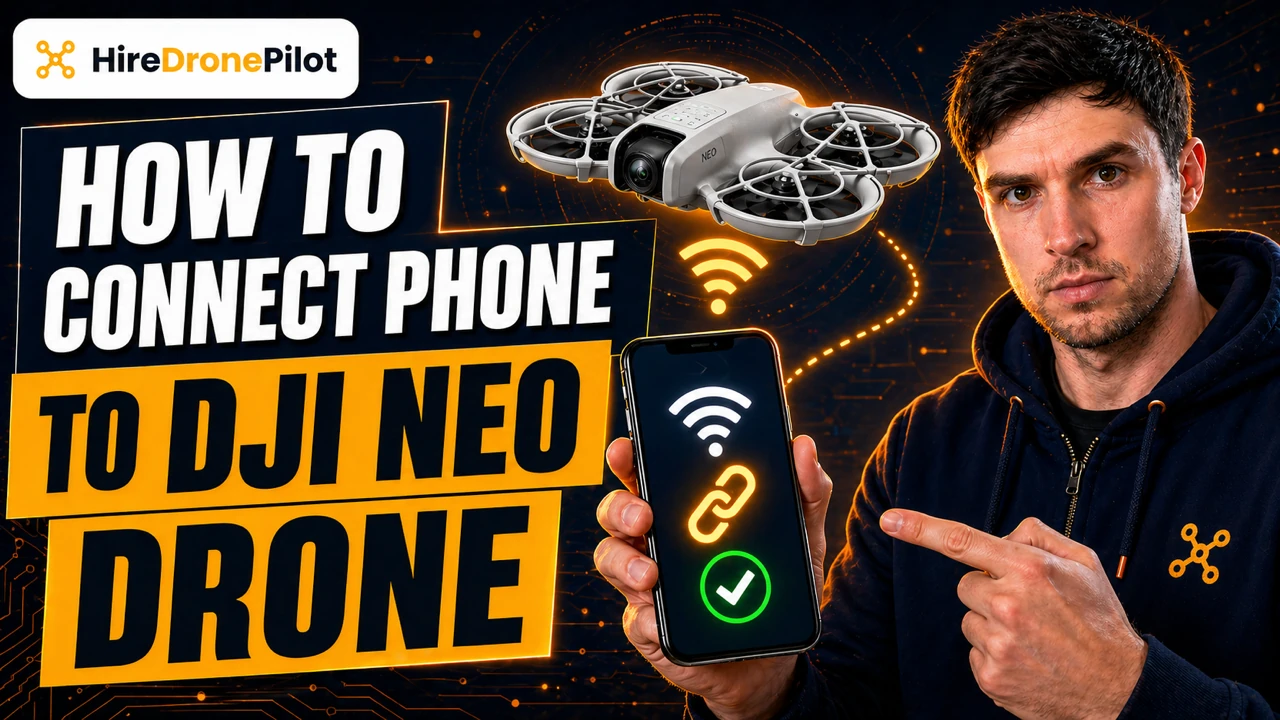
- Connecting the phone to the DJI Neo happens inside the DJI Fly app, over the Wi-Fi link the DJI Neo creates on power-up
- Activation on first use requires an internet connection on the phone, so keep mobile data on until the activation prompt closes
- The manual pairing path is DJI Fly home screen, Connection Guide at the bottom right, select DJI Neo, then Connect via Mobile Device
- Once the phone is connected, the DJI Fly camera view gives you a live preview, Smart Snaps, Manual Control with virtual joysticks, audio recording, and voice control
- The DJI Neo can only talk to one control device at a time, so any DJI RC-N3 or DJI Goggles N3 already linked must be powered off first
Connecting your phone to the DJI Neo is the step that opens up the part of the drone most new owners are actually excited about. A live camera preview on the phone, the full Smart Snaps cinematic menu, virtual joysticks for manual flight, audio recorded from the phone microphone into the video, and spoken voice commands that the DJI Neo will obey.
None of that is available in pure Palm Control. The moment you pair a phone over Wi-Fi, the DJI Fly Controls view shows up and the DJI Neo becomes a proper flying camera. For a lot of drone pilots who bought the DJI Neo on its own rather than the Fly More Combo, this is the default way they fly the DJI Neo every day.
This guide walks through the whole procedure in order, straight from the DJI Neo User Manual v1.2. If you have not powered the DJI Neo up yet, the setup guide covers unboxing and first-time activation. If you are pairing a DJI RC-N3 instead of a phone alone, jump to the controller-connection guide.
What you need before you try to connect: DJI Fly installed, the DJI Neo charged and activated, and the phone radios on
Before you tap anything inside DJI Fly, run through three short checks. Skip any of them and the pairing stalls halfway through, and diagnosing a stall is slower than preparing properly in the first place.
First, DJI Fly must be installed on the phone. The manual points you to the QR codes on page three of the user manual, or direct to dji.com/downloads/djiapp/dji-fly. On iPhone the app is in the App Store. On Android the manual prefers the DJI website download because the Play Store version is not always the current release.
Second, the DJI Neo must be charged. The Intelligent Flight Battery ships in hibernation mode to keep it safe in transit, and the quick start guide is explicit: charge to activate the Intelligent Flight Battery before using for the first time. Plug a USB-C charger of ten watts or more (five volts, two amps) into the port on the DJI Neo. The battery activates the moment it starts charging.
Third, the DJI Neo must be activated. Activation is a one-time step on first use and it happens inside DJI Fly. The app needs an internet connection on the phone to talk to DJI servers during activation, so keep mobile data enabled until the activation screen closes.
There is one more gotcha on the phone side. The DJI Neo can only bind to one control device at a time. If you have a DJI RC-N3 or DJI Goggles N3 already linked and powered on, the DJI Neo will disconnect from the phone the moment those other devices come within range. The manual is explicit on this — power off the remote control devices and goggles that are connected to the aircraft before using Mobile App Control.
Peter's tip
On Android, if Google Play has installed an older DJI Fly and you then side-load the latest APK from the DJI site on top of it, the app can refuse to open at all. I have had that happen on a Pixel and on an older Samsung.
The cleanest fix is to uninstall the Play Store version, clear the cache, and install the DJI APK fresh. After that the DJI Neo pairs first time every time.
Connecting your phone to the DJI Neo uses the DJI Fly Connection Guide flow over Wi-Fi
The manual calls this mode Mobile App Control, and the connection procedure lives in section 3.2 on page thirty-four under Connecting DJI Neo. Four ordered steps take you from a boxed DJI Neo to a live camera view on the phone.
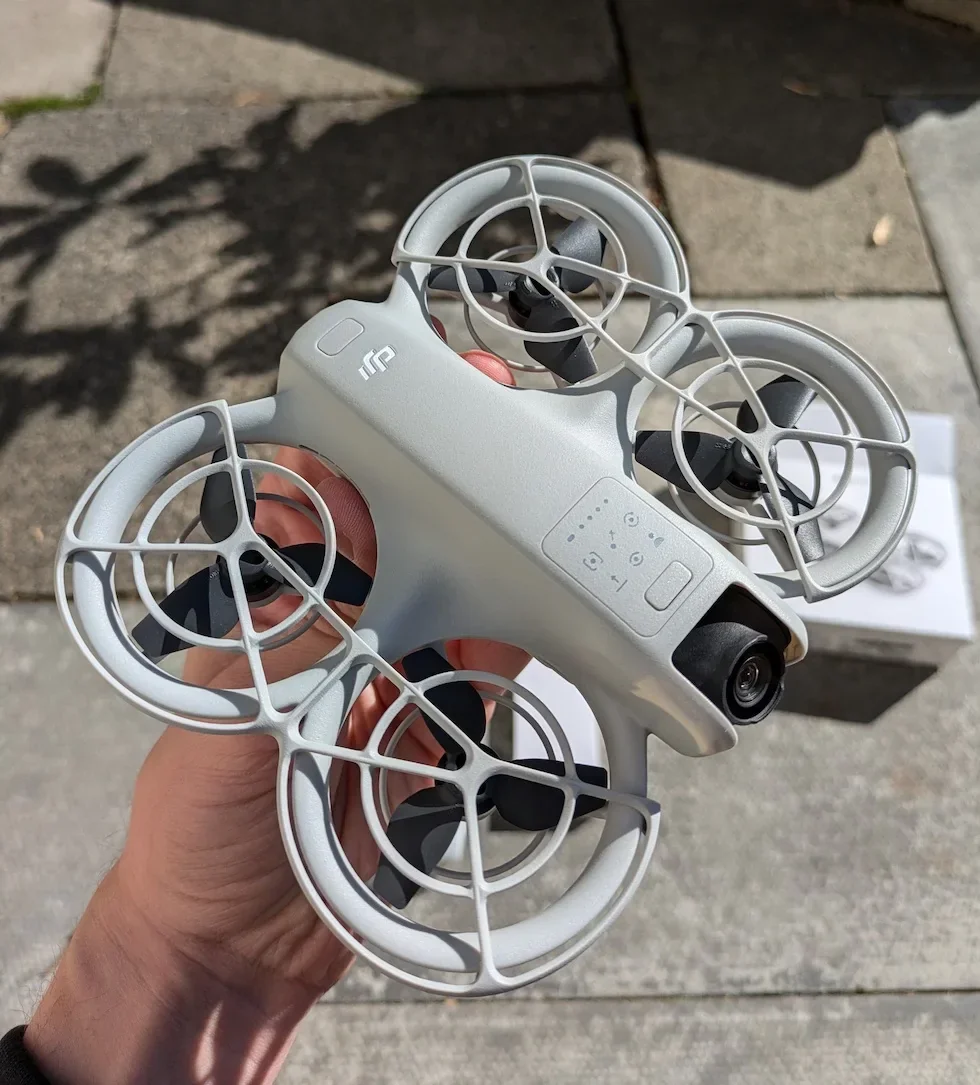
Power on the DJI Neo and wait for system self-diagnostics to finish
Power on the DJI Neo by pressing the power button once, then pressing and holding for two seconds. Remove the gimbal protector first — the manual warns that leaving it on will affect the system self-diagnostics. Set the DJI Neo down on a flat surface and do not pick it up until the startup chime and the battery LED sequence finish. The manual lists this step as Power on DJI Neo and wait for the system self-diagnostics to complete.
Enable Bluetooth, Wi-Fi, and location services on the phone
In the phone settings, switch on Bluetooth, switch on Wi-Fi, and grant location services to DJI Fly. The manual lists all three as required. Bluetooth announces the DJI Neo to the app, location feeds the geo-awareness system, and Wi-Fi is the actual data link once the two devices are paired. Any one of the three missing will stall the scan.
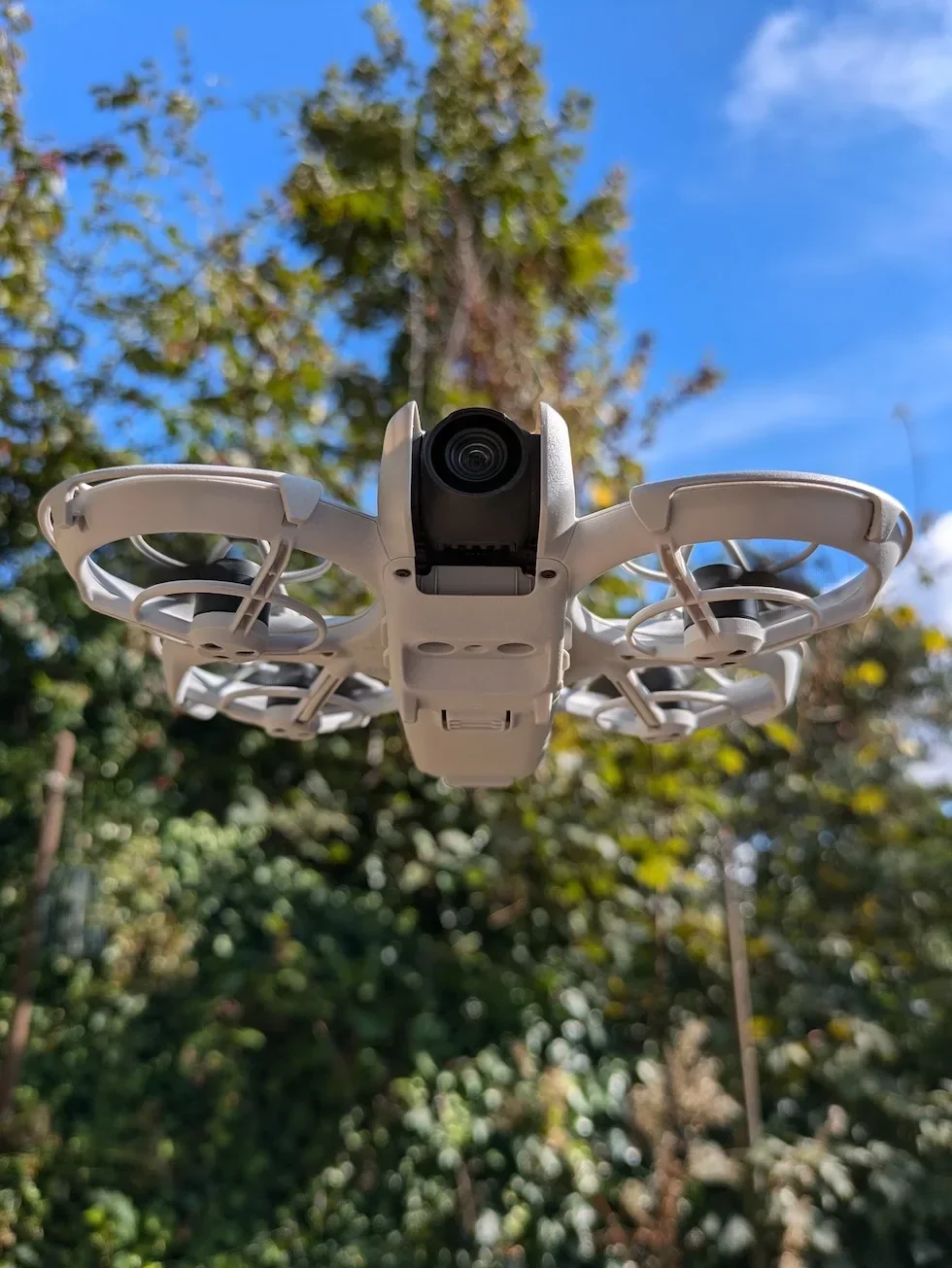
Open DJI Fly, tap Connection Guide, select DJI Neo, then choose Connect via Mobile Device
Launch the DJI Fly app. At the bottom right of the home screen, tap Connection Guide. A list of DJI drones appears. Select DJI Neo. On the next screen choose Connect via Mobile Device. That is the exact path the manual names, and it is the one that skips a remote controller and binds the phone directly to the DJI Neo.
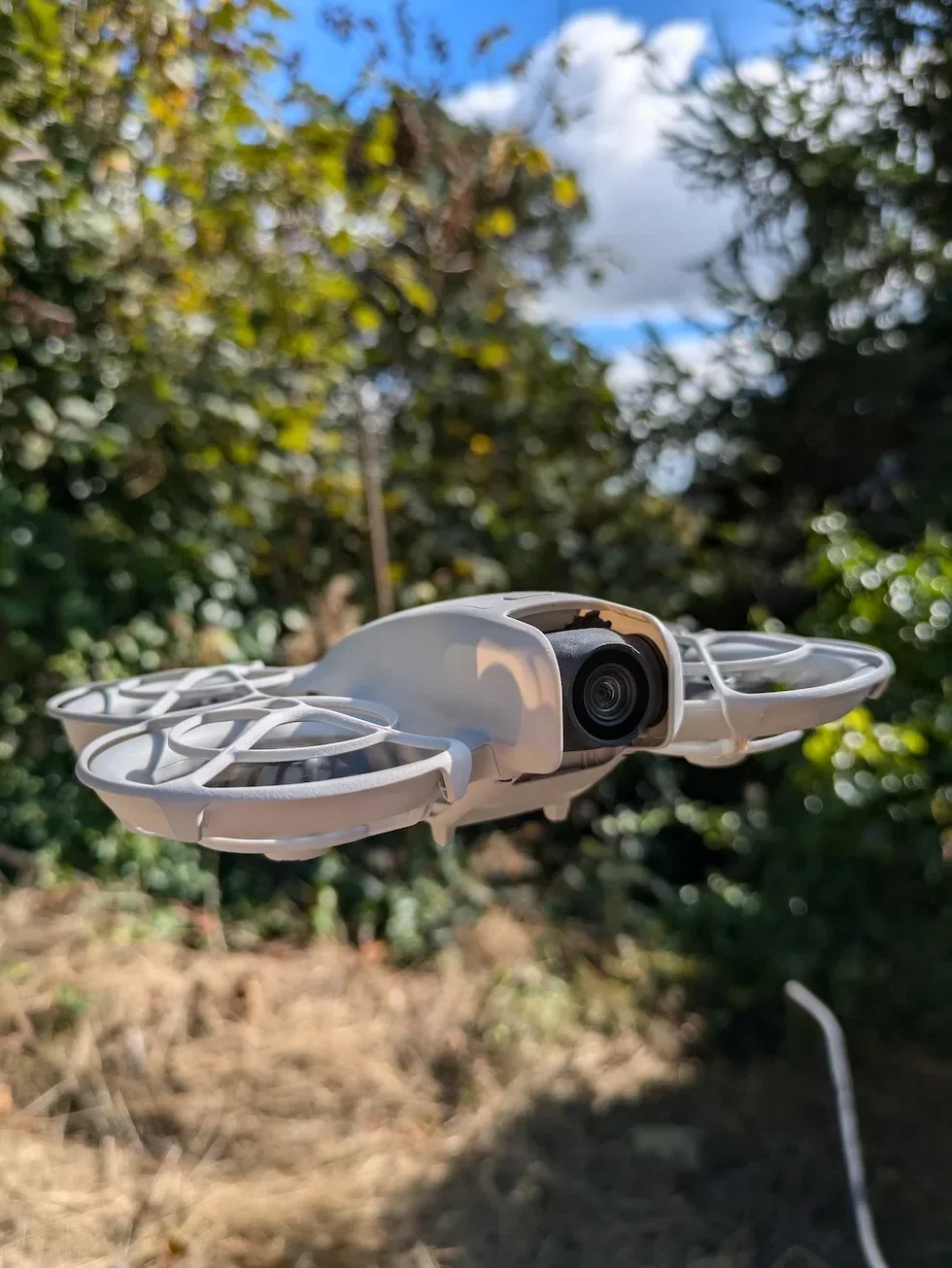
Select the DJI Neo in the search results and press and hold the power button to confirm
DJI Fly begins scanning. When your DJI Neo appears in the search results, tap it to select it. On the first-time pairing the manual instructs you to press and hold the power button on the DJI Neo to confirm. The Controls view then opens with a live camera feed coming across from the DJI Neo, which confirms the Wi-Fi link is up and the phone is now the active control device.
Peter's tip
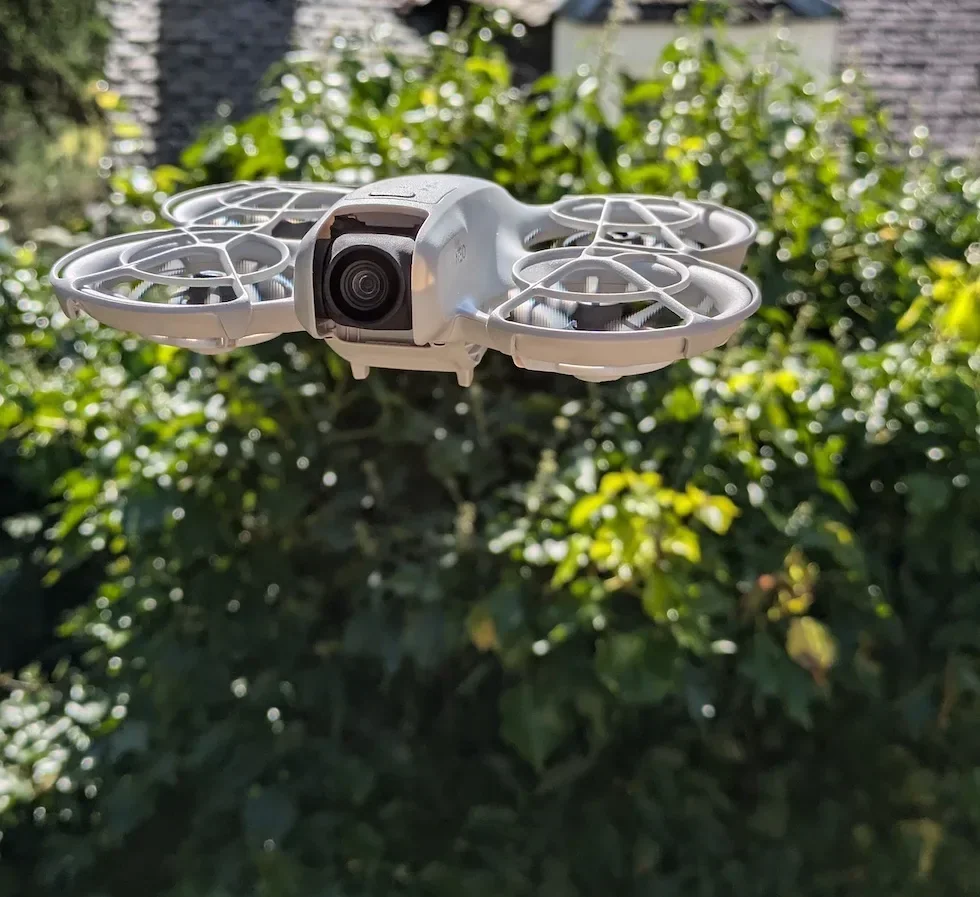
The manual also flags a faster path once you have paired once already. You can tap QuickTransfer or the Wi-Fi Devices panel on the DJI Fly home screen to jump straight to a Wi-Fi connection without walking through the Connection Guide again.
I use that every session after the first pairing. Saves thirty seconds and keeps the on-ramp to flying short.
Two more notes from the manual. DJI Fly will prompt for a firmware update on first use — let it run. The battery firmware is bundled inside the DJI Neo firmware, so skipping the update leaves the battery on an older revision. And to switch the DJI Neo to a different phone later, disable Bluetooth and Wi-Fi on the currently connected phone first, otherwise the DJI Neo keeps re-joining the old device.
What the DJI Fly camera view gives you once the phone is connected over Wi-Fi
The Controls view is where the phone connection actually earns its place. Section 3.2 of the manual lists five distinct capabilities that Palm Control alone does not offer. All five sit in the same camera view once the phone is paired.
A live camera feed and the full Smart Snaps menu under the Settings view
Smart Snaps is the DJI Fly version of the mode selector on top of the DJI Neo. The Settings view lists all six modes — Follow, Dronie, Circle, Rocket, Spotlight, and Custom. Custom opens out into DirectionTrack, Helix, and Boomerang. Tap any mode to enter its parameter screen and set distance, height, and camera mode. Tap Camera Settings to apply the same camera parameters to every Smart Snaps mode at once.
To run a Smart Snap, place the DJI Neo stably with the camera facing the subject, open the Controls view, pick the mode, and tap the big green START button. The DJI Neo confirms the subject, counts down, and lifts off. If the subject is obstructed or the environment lighting is poor, confirmation can fail — moving a metre or two for better contrast usually clears it.
Manual Control with virtual joysticks and a tap-and-hold takeoff
Tap the mode list in the Controls view and select Manual Control. The interface switches to two virtual joysticks and a takeoff icon. Tap and hold the takeoff icon and the DJI Neo starts the motors and automatically rises to a height of 0.6 metres above the ground, then hovers waiting for your stick input.
Left stick controls altitude and yaw, right stick controls pitch and roll — the same Mode 2 layout as a physical DJI controller. Tap and hold the landing icon when you are done. For the takeoff details see the takeoff guide, and for landing see the landing guide.
Audio recording from the phone microphone merged into the video file
In the Controls view, tap the microphone icon on the right of the screen. Grant DJI Fly microphone permission when the phone asks. The built-in microphone of the phone — or a paired DJI Mic 2, DJI Mic, or a compatible Bluetooth earphone — records while the DJI Neo is recording video. When you view or download the clip from the Album view, the audio is merged into the video file automatically.
The manual is strict on two points: audio recording can only be enabled or disabled before recording starts, and you must not turn off the screen or switch to another app during recording. Do either and the audio track cuts.
Voice control over the DJI Neo through the phone
Tap the voice-control icon on the right of the Controls view to enable voice control. For hands-free wake-up, go to More Settings > Control > Voice Control Settings and enable Voice Wake-up. Say Hey Fly to trigger the system and then issue a command. Voice control supports English or Mandarin according to the app language, and only while Mobile App Control is active.
Troubleshooting a connection that will not complete before you reinstall anything
Most failed phone pairings trace to one of four root causes. The fixes below are ordered by how often they solve the problem in practice, so start at the top.
First, the DJI Neo is still linked to a different device. Turn off any DJI RC-N3 or Goggles N3 within range. The DJI Neo will only bind to one control device at a time, and a nearby RC that is powered on will keep stealing the link.
Second, location services are off. On iOS, check Settings > Privacy and Security > Location Services and confirm DJI Fly is set to allow location while using the app. On Android, check the DJI Fly permissions and make sure precise location is granted. DJI Fly will silently stall its scan if location is denied.
Third, an old Wi-Fi profile is blocking the new link. In the phone Wi-Fi settings, find the saved DJI_Neo network from a previous session and forget it. Close DJI Fly, reopen it, and try the Connection Guide flow again.
Fourth, takeoff itself is blocked because the activation window is stale. The manual states that in Palm Control and Mobile App Control, takeoff is disabled when the DJI Neo has not connected to the DJI Fly app for longer than ninety days, or when the phone has no internet access during that period. Reconnect the phone to the internet while DJI Fly is open and the takeoff lock clears.
Peter's tip
If those four fixes do not work and DJI Fly still refuses to see the DJI Neo, plug the DJI Neo into the phone over USB-C and open the Wi-Fi Devices panel in DJI Fly. Occasionally the direct USB handshake is what finally kicks the Wi-Fi pairing into life, and once the two devices have handshaken once they will then pair over Wi-Fi reliably from then on.
A phone-connected DJI Neo covers roughly eighty percent of the flying most new owners want to do. Live preview, Smart Snaps, virtual joysticks, audio, voice — all of it flows from the same single Wi-Fi pairing. The altitude is capped at thirty metres and the distance at fifty metres in this mode, but for garden and courtyard flying that is rarely the limit that bites.
When you do want the altitude ceiling lifted and Return-to-Home unlocked, the next step is the DJI RC-N3 pairing procedure covered in the controller-connection guide linked above. Got a phone-pairing error this guide did not cover? Drop a note to peter@hiredronepilot.uk and I will come back to you directly. If you prefer the video version of this guide, the comments are open on YouTube.
References
Primary source material for this article is the DJI Neo User Manual v1.2 (November 2024). External links open in a new tab.
- DJI — Neo User Manual v1.2 (November 2024) · Mobile App Control connection procedure, Smart Snaps, Manual Control, audio recording, voice control
- DJI — Neo Quick Start Guide v1.0 · Battery activation on first use and DJI Fly Connection Guide overview
- UK CAA — The Drone and Model Aircraft Code (CAP2320) · UK flight safety requirements that apply on every DJI Neo flight

Peter Leslie
Founder & GVC Drone Pilot
Peter is the founder of HireDronePilot. With thousands of logged commercial flight hours, he writes about drone technology, commercial surveying tactics, and UK aviation compliance.
Connect on LinkedIn