How to Re-Pair the Remote Controller and the DJI Neo 2

Peter Leslie
21 May 2026

If your DJI Neo 2 keeps dropping the radio link, sits on a Disconnected banner that refuses to clear, or has just come back from being flown against a different DJI drone, the procedure you are looking for is Re-pair to Aircraft inside DJI Fly.
The procedure itself is a short two-device handshake: tap one menu item on the controller, then hold the power button on the drone for more than four seconds. Most drone pilots who cannot get the link to land are sat more than half a metre apart from the drone, or they let go of the power button at the usual shutdown moment instead of holding past it.
Quick guide
To re-pair the remote controller and the DJI Neo 2, go to DJI Fly → Settings → Control → Re-pair to Aircraft, then press and hold the drone power button for more than four seconds. Keep the two devices within fifty centimetres of each other until you hear two short beeps from the controller — that is the successful link.
Step-by-step: How to Re-Pair the Remote Controller and the DJI Neo 2
Follow these top to bottom the first time, and you will know the path off by heart the second time.
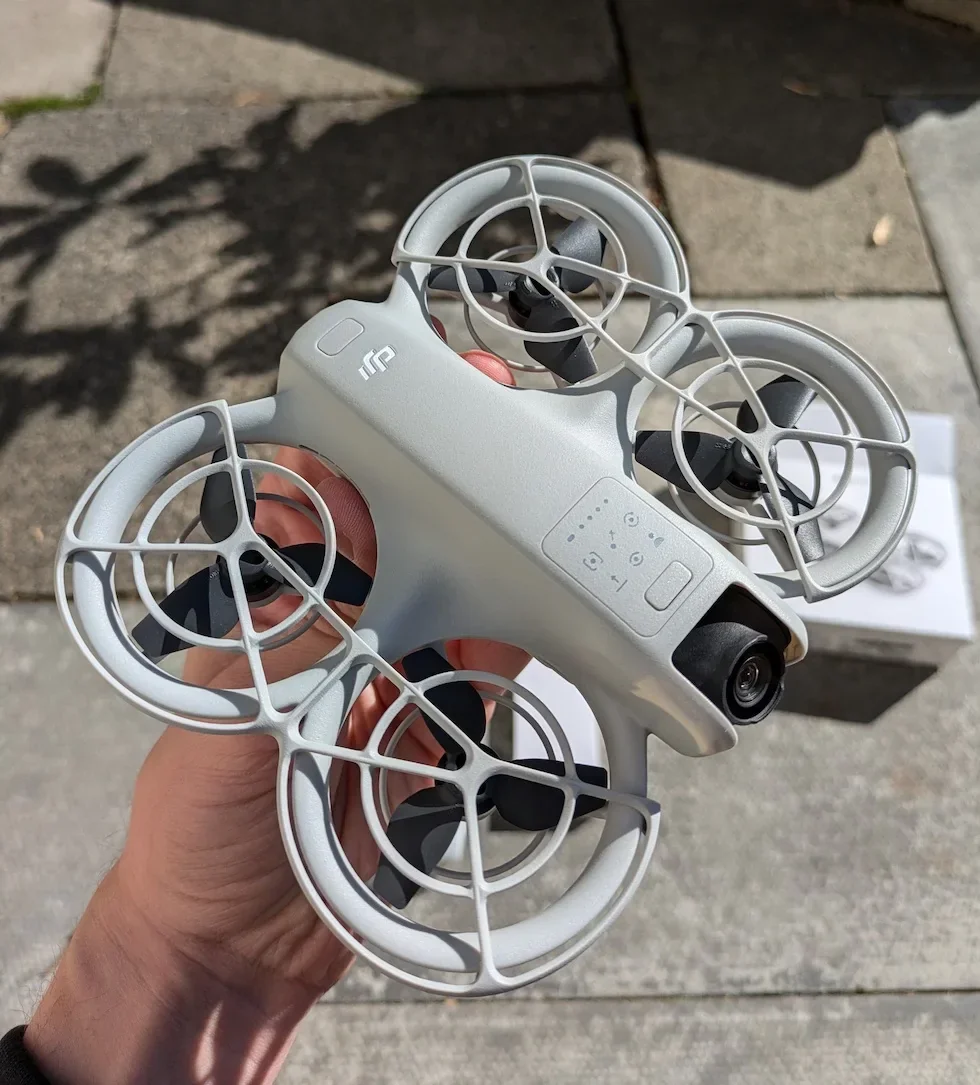
Place the DJI Neo 2 and the remote controller within half a metre of each other
Sit the two devices side by side on a flat surface, no more than fifty centimetres apart. DJI requires close-range proximity during the link so the radios can complete the handshake without interference from walls or other 2.4 gigahertz devices.
Power on the DJI Neo 2 and the remote controller
Press the power button on the drone once to wake it, then press and hold for around two seconds to bring it fully on. Repeat on the controller. Wait for the status LEDs on both devices to settle into a steady pattern before moving to the next step.
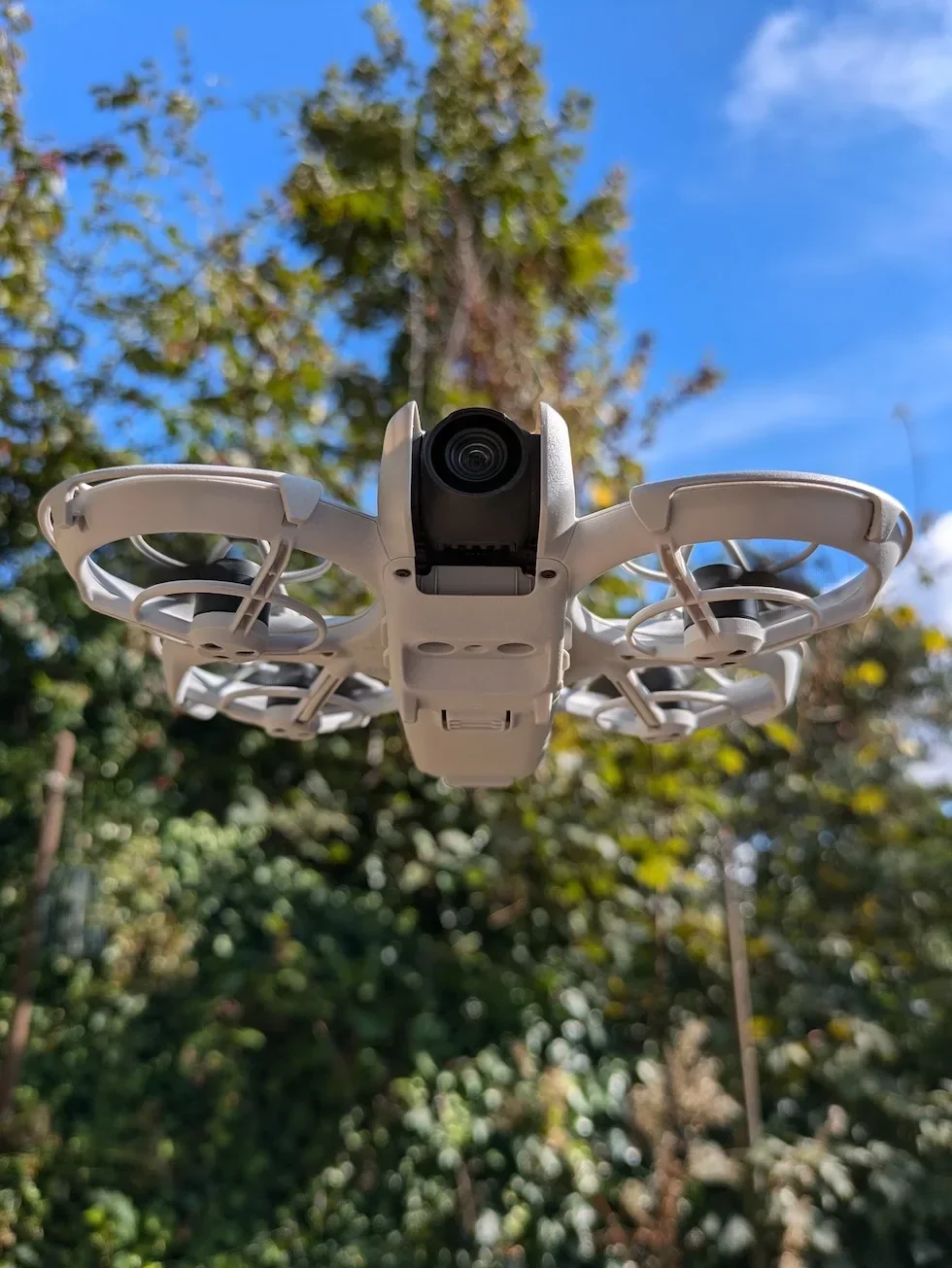
Launch DJI Fly on the phone slotted into the remote controller
Open the app and wait for the camera view to load. Even if the link is glitchy, the app needs to recognise the controller before the re-pair menu becomes useful.

Open the DJI Fly Settings menu from the camera view
Tap the Settings icon in the top right corner of the camera view. The settings panel slides in with the category tabs running down the left edge.

Tap the Control category in the Settings panel
Control is the first tab down the left of the Settings panel, above Safety. Tap it and the right-hand pane fills with the controller-related options for the DJI Neo 2 — stick mode, gimbal behaviour, EV bias, and the re-pair row at the foot of the list.

Scroll to the bottom of the Control list to find Re-pair to Aircraft
Scroll past stick mode, gimbal mode, EV bias, and the controller customisation rows. The Re-pair to Aircraft option sits at the very bottom of the Control list — DJI tucks it there so it does not get tapped by accident.

Tap Re-pair to Aircraft and wait for the controller beep
Tap the row. The remote controller emits a single beep within a second or two — that is the controller dropping into linking mode and listening for a drone to bond to. DJI Fly switches to an on-screen waiting state with countdown.
Press and hold the DJI Neo 2 power button for more than four seconds
Press the power button on the drone and keep your finger down. Count out four full seconds — one, two, three, four — and keep holding past the moment a normal power cycle would have completed. The drone beeps once and its status LEDs change pattern to signal it has entered linking mode.

Wait for the two short controller beeps that confirm a successful link
Leave both devices alone for a few seconds while the radios negotiate. The controller emits two short beeps in quick succession, the drone LEDs settle into their normal in-flight indication, and DJI Fly returns to the live camera view. That is the procedure complete and the DJI Neo 2 ready to fly.
Peter's tip
The mistake I see most often is people letting go of the power button at the two-second mark, because that is the moment the drone would normally power on or off. Count past it. If the drone shuts down halfway through, you released too early — pop the battery, slot it back, and try the four-second hold again with the controller already beeping in linking mode.
Frequently asked questions
When does the DJI Neo 2 actually need re-pairing to the remote controller?
When the radio link drops repeatedly, when DJI Fly shows a Disconnected banner that will not clear, or after you have flown the controller against a different DJI drone and now want to bring it back to the DJI Neo 2. A healthy controller stays paired across power cycles and firmware updates, so the procedure is reactive rather than routine.
Why does the DJI Neo 2 re-pair keep failing?
Three common causes. The drone and the controller are more than half a metre apart during the link, the drone power button was released before the four-second mark, or another DJI drone in linking mode is sitting nearby and the controller has bonded to the wrong one. Bring the two devices within fifty centimetres, hold the power button until you hear the drone beep, and switch off any other DJI drones in the room.
How long should I hold the DJI Neo 2 power button to enter linking mode?
More than four seconds. A short press toggles power on and off, so releasing too early just shuts the drone down. Hold past the point a normal power cycle would have completed and keep holding until you hear a beep from the drone and the status LEDs start to flash in the linking pattern.
How will I know the DJI Neo 2 has paired successfully to the remote controller?
Two short beeps from the remote controller and a live camera view returning in DJI Fly. The drone status LEDs stop flashing the linking pattern and settle into the normal in-flight indication. If DJI Fly stays on a Disconnected screen for more than thirty seconds, the link has not been made and the procedure needs to be repeated.
Do I need to keep the DJI Neo 2 and the controller within half a metre during pairing?
Yes, for the duration of the linking process. DJI specifies a fifty-centimetre maximum so the radios can complete the handshake without interference from walls, other 2.4 gigahertz devices, or weak signal strength at range. Once the two short confirmation beeps land, the normal operating range applies and you can take off.
Will re-pairing the DJI Neo 2 erase my settings?
No. The procedure only refreshes the radio link between the two devices. Stick mode, EV bias, RTH altitude, geo-zone unlocks, gimbal calibration, and any cached maps stay exactly as they were. Re-pairing is a connectivity reset, not a factory reset.
Can I pair the DJI Neo 2 to a different remote controller, like the DJI RC 2?
Yes, as long as the controller model is on the official compatibility list for the DJI Neo 2. The procedure is the same — power on both, open DJI Fly on the new controller, go to Settings, Control, Re-pair to Aircraft, and hold the drone power button for more than four seconds. The drone will bond to whichever controller is in linking mode at the time.
What if the DJI Neo 2 will not enter linking mode at all?
Make sure the drone battery is fitted correctly and showing more than around twenty per cent charge before attempting the procedure. A loose battery, a battery in sleep mode, or a flat pack will all silently block the long power-button hold. Pop the battery out, slot it back in until it clicks, then try the four-second hold again.
Re-pairing is one of those Neo 2 procedures you will only run a handful of times across the life of the drone, but the days you need it are the days a flight is on the line. Keep the two devices close, count the four seconds out loud, and listen for the double beep.
Got a controller that beeps once but never lands the second pair of beeps, or a Disconnected banner that returns the moment you take off? Drop a note to peter@hiredronepilot.uk with what DJI Fly is showing and I will come back to you directly. If you prefer the video version of this walkthrough, the comments are open on YouTube.
References
Primary source material for this article is the official DJI Neo 2 documentation and DJI Fly. External links open in a new tab.
- DJI Neo 2 — Downloads (User Manual, Quick Start Guide, firmware notes) · Section 5.5 Linking the Remote Controller — proximity requirement, controller beep behaviour, four-second drone power-button hold, double-beep success confirmation.
- DJI Neo 2 — Product page (UK) · Controller compatibility list and hardware overview for the DJI Neo 2 and its supported remote controllers.
- DJI Fly — App download and release notes · The app where the Control category and the Re-pair to Aircraft row live. Release notes record any menu reshuffles between versions.
Peter Leslie
Founder & GVC Drone Pilot
Peter is the founder of HireDronePilot. With thousands of logged commercial flight hours, he writes about drone technology, commercial surveying tactics, and UK aviation compliance.
Connect on LinkedIn