Key Takeaways
- The Flip move is part of Easy ACRO, which is only available when flying the DJI Neo 2 with DJI Goggles N3 and the DJI RC Motion 3 — it is not a DJI Fly button or an RC stick command
- Easy ACRO sits in the Goggles N3 shortcut menu alongside Slide and 180° Drift; you use the dial on the Motion 3 to switch between the three actions
- Manual hard requirements: battery above 35%, altitude above 1.5 m, wind speed at or below 4 m/s, and strong GNSS and vision positioning
- With Easy ACRO selected to Flip, pushing the joystick up or down triggers a front or back flip; left or right triggers a single roll
- Obstacle avoidance is disabled while Easy ACRO is enabled — it resumes automatically once you disable the mode
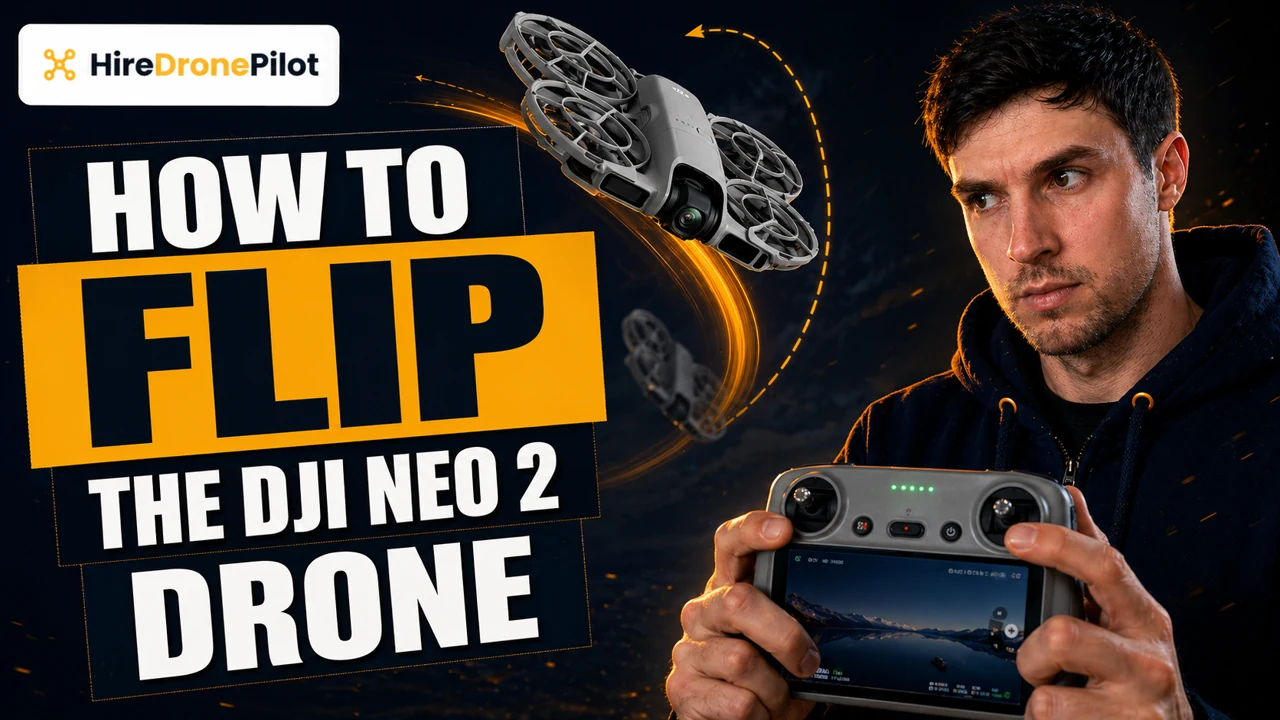
Flipping the DJI Neo 2 is a very specific operation with very specific hardware requirements. You cannot do it from the DJI RC-N3. You cannot do it from the DJI Fly Manual Control screen. The Flip move lives inside Easy ACRO, a set of immersive-flight actions that only runs when the DJI Neo 2 is paired with DJI Goggles N3 and the DJI RC Motion 3.
This guide walks through the three Easy ACRO actions, the hard requirements the DJI Neo 2 User Manual specifies before it will let you flip, and the exact joystick trigger on the Motion 3. Experienced drone pilots coming from the Avata 2 or the original DJI Neo will recognise the pattern — the implementation has been tightened around safety, and the menu has been restructured.
Every fact below traces back to §3.4 Immersive Motion Control and the Easy ACRO section of the DJI Neo 2 User Manual v1.2 (December 2025).
The Flip move lives inside Easy ACRO and Easy ACRO only runs in Immersive Motion Control
The DJI Neo 2 has two main control modes. RC Control uses the DJI RC-N3 and a phone running DJI Fly. Immersive Motion Control uses the DJI Goggles N3 and the DJI RC Motion 3 for first-person flight. Easy ACRO — and therefore the Flip move — is exclusive to Immersive Motion Control.
Inside the Goggles N3 shortcut menu you will find three Easy ACRO actions: Slide, 180° Drift, and Flip. The three share the same on/off toggle, and you switch between them with the dial on the side of the Motion 3. Only one is active at a time.
The manual flags two extra restrictions worth calling out up front. Easy ACRO cannot be enabled during video recording, it cannot run with Head Tracking enabled, and it is not supported when the DJI Neo 2 is flown with the separate DJI FPV Remote Controller 3. Turn recording off before you open Easy ACRO.
Why this is a Goggles and Motion 3 move, not a button on the drone
The Flip is an attitude-rate manoeuvre. The DJI Neo 2 rotates the full three hundred and sixty degrees in a single axis, which is only safe if the control stack can feed the flight controller a clean, high-rate stick input. The Motion 3 joystick is designed for that. The DJI Fly virtual joysticks and the RC-N3 flight-mode switch are not — and they do not expose Easy ACRO at all.
The Goggles N3 provide the other half. The shortcut menu, the mode indicator, and the Easy ACRO status live inside the headset display. You need the live FPV view to know where the drone is during a flip, because the camera will be pointing at the ground, then the sky, then the ground again, all inside a second or two.
The DJI Neo 2 will refuse to flip unless eight manual conditions are all satisfied
The manual lists a hard block-list for Easy ACRO. Miss any single condition and the Flip option is either greyed out in the menu or the drone will simply refuse to execute the move. This is not a bug — it is deliberate flight-safety logic.
The DJI Neo 2 will not enter Easy ACRO if:
| Condition | Manual requirement |
|---|---|
| Flight phase | Not during takeoff, hover start, landing, or Return to Home |
| Flight mode | Not in Sport mode |
| Battery | Above 35 % |
| Altitude | At least 1.5 m above the ground |
| Wind speed | 4 m/s or less |
| Positioning | Strong GNSS and vision positioning available |
| Zone | Not inside a Restricted Zone or Altitude Zone buffer |
| Distance | Not approaching the Max Flight Distance |
A few of these are worth emphasising. Obstacle avoidance is disabled for the duration of Easy ACRO. Vision-system detection only resumes once Easy ACRO is toggled off. That means the clear-space requirement is on you — the DJI Neo 2 will not brake automatically if something is in the flip path.
The manual also calls out a category it calls use Easy ACRO with caution. When the DJI Neo 2 attitude is changing quickly — during a fast accelerating turn, or when wind speed climbs above 2 m/s, or when you chain Easy ACRO actions together continuously — the drone may drift sideways and its altitude may not be stable after the move. You will need the height headroom to absorb that.
Peter's tip
The 1.5 m minimum altitude is a floor, not a target. I sit the DJI Neo 2 at a comfortable five to seven metres before I trigger a flip. The drone can drift sideways a metre or two on recovery, and I want altitude I can give back without worrying about clipping grass.
Same logic for wind. Four metres per second is the ceiling. If the gusts are touching three, I wait — chained flips are the scenario the manual flags as riskiest for altitude stability.
Get the DJI Neo 2 into the air on Immersive Motion Control first
The manual lays out the Immersive Motion Control startup in eight steps. You need to get through the first six before you can even open Easy ACRO. Here is the short version — our DJI Neo 2 power-on guide covers each device in more detail.
Place the DJI Neo 2 in an open flat area with the rear facing you
Same rule as RC Control. Rear of the drone toward the operator, open space in every direction, nothing overhead. This is doubly important for Immersive Motion Control because once the Goggles are on, your peripheral view of the site is gone.
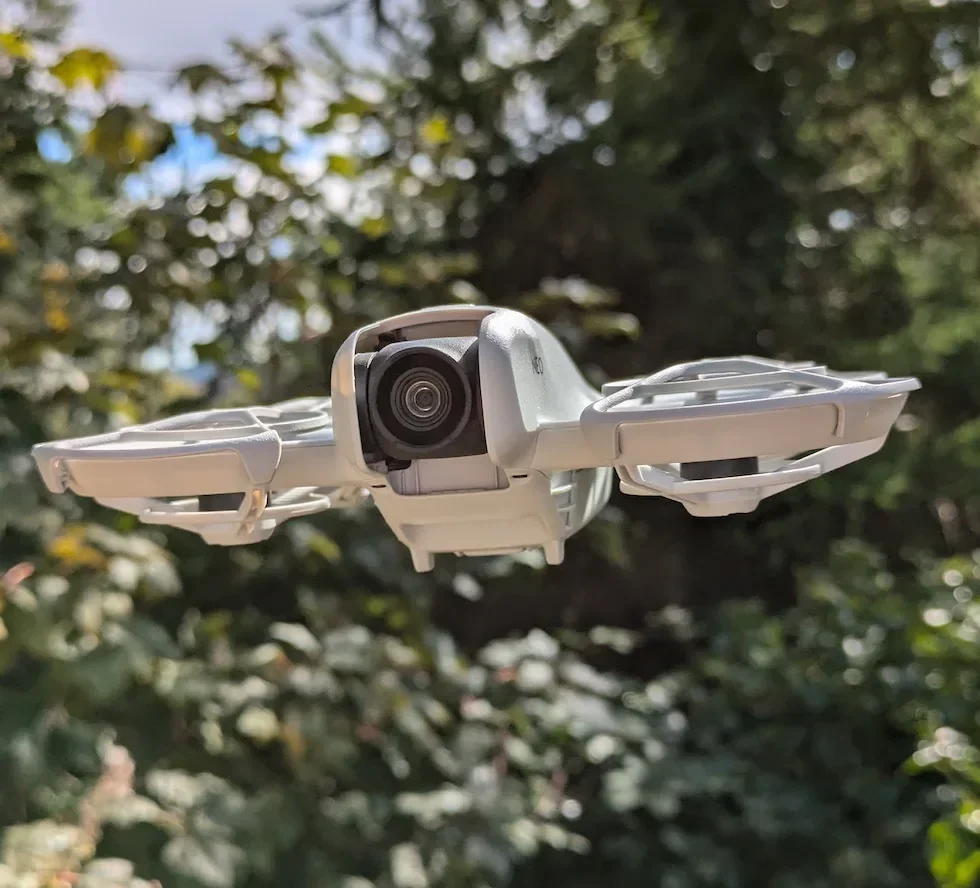
Power on the Goggles N3, the Motion 3, and the DJI Neo 2
Press, release, press and hold for two seconds on each one. Wait for the DJI Neo 2 Screen to light up before putting the Goggles on. The Motion 3 will chime when the link to the Goggles is live. See our shutdown guide for the reverse order once you are done flying.
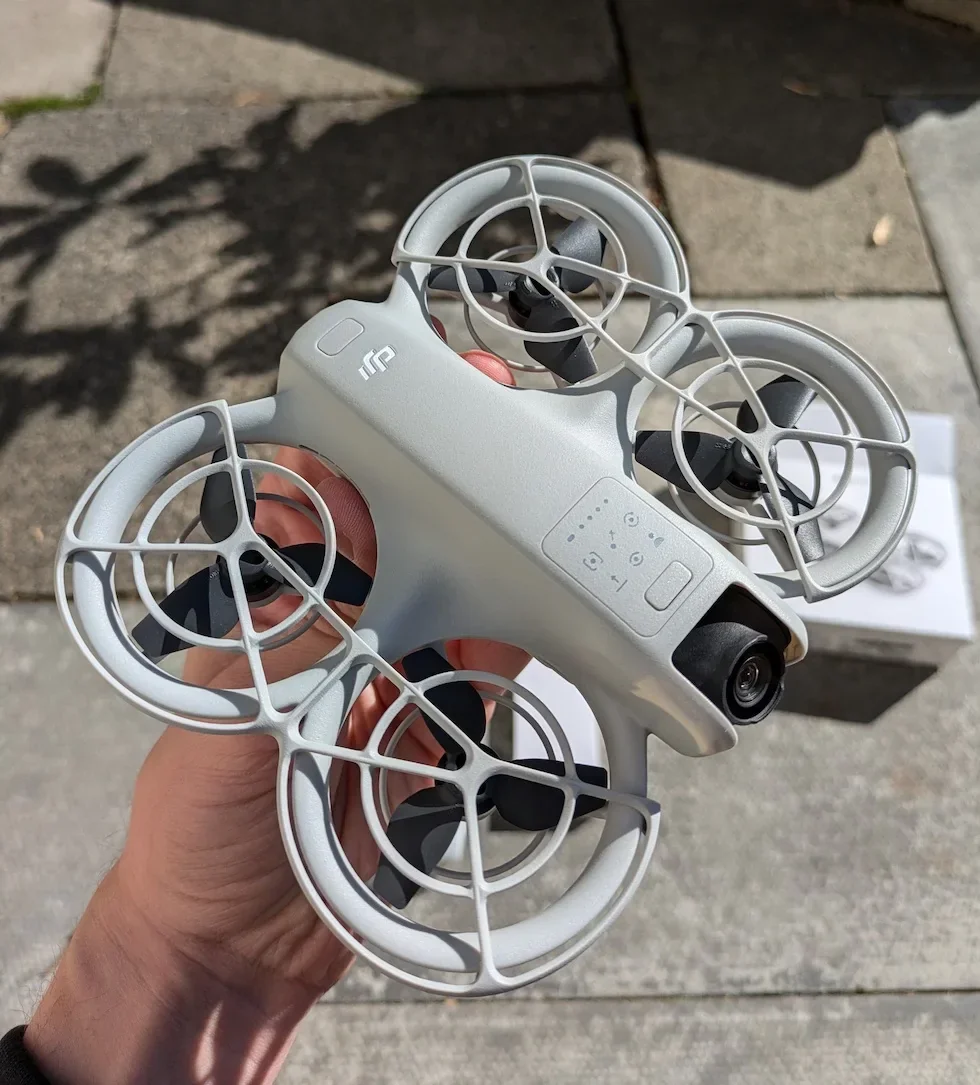
Check the Goggles liveview for warnings and strong GNSS
Put the Goggles on and scan the liveview. No amber warning banners, GNSS signal shown as strong, battery level at thirty five percent or higher, altitude and flight-distance limits set to sensible values. Any warning banner will also block Easy ACRO.
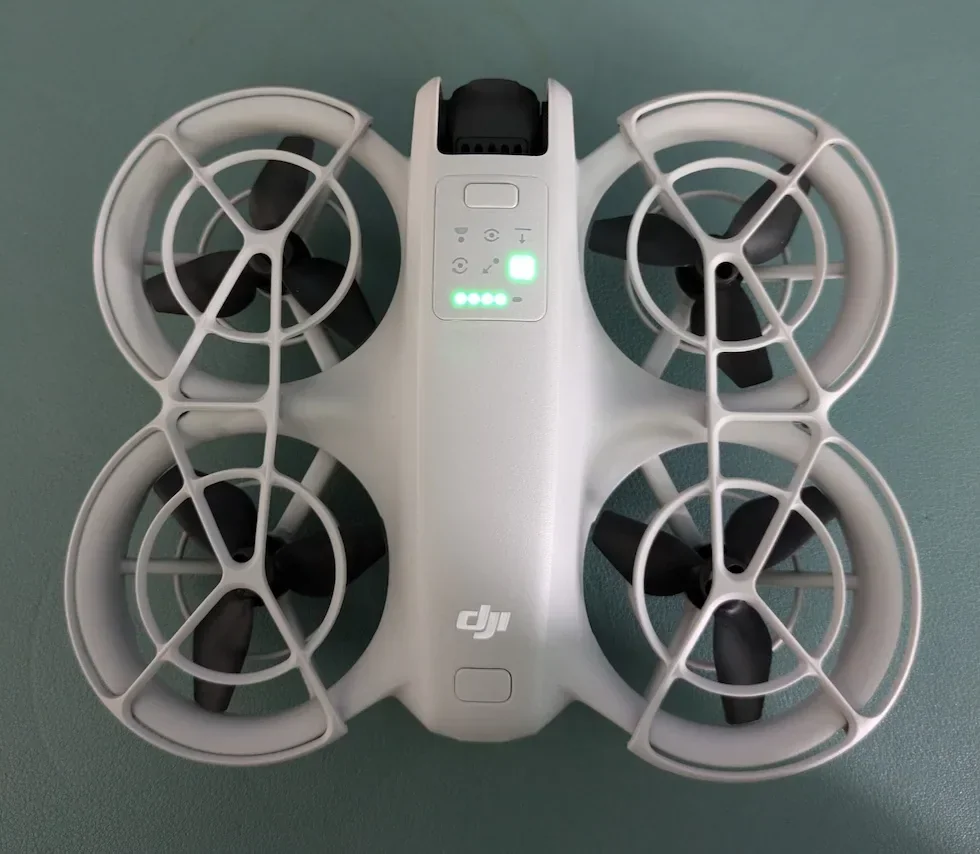
Start the motors and take off
Press the lock button on the Motion 3 twice to start the motors, then press and hold it to make the DJI Neo 2 take off. The drone ascends to approximately 1.2 metres and hovers. Slowly push the joystick up to climb above the 1.5 m Easy ACRO minimum before you open the menu.
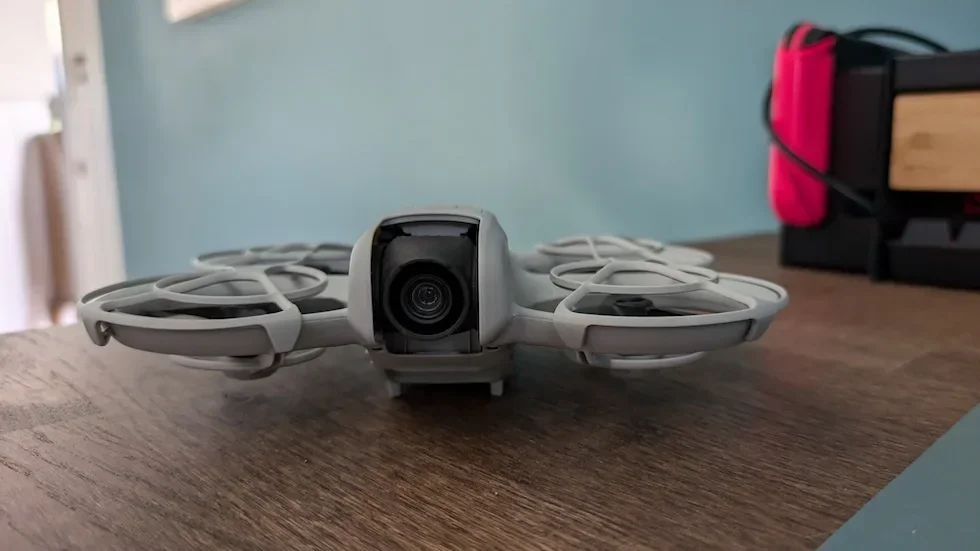
Peter's tip
Do not open Easy ACRO while the DJI Neo 2 is still climbing. The manual lists takeoff, hovering start, landing, returning to home all as blocking flight phases. Let the drone settle in a stable hover for a few seconds first. The moment it is holding position cleanly, Easy ACRO will unlock.
Open Easy ACRO in the shortcut menu and select the Flip action with the dial
With the DJI Neo 2 in stable hover, all eight conditions satisfied, and recording stopped, you can open Easy ACRO. The menu is inside the Goggles N3 shortcut menu, and it shows three actions on the left of the liveview.
Open the shortcut menu in the Goggles N3 liveview
Pull up the shortcut menu in the Goggles N3 display. The manual describes selecting Easy ACRO from that menu — when you do, the DJI Neo 2 will be in Easy ACRO mode, and the selected action appears on the left side of the liveview.
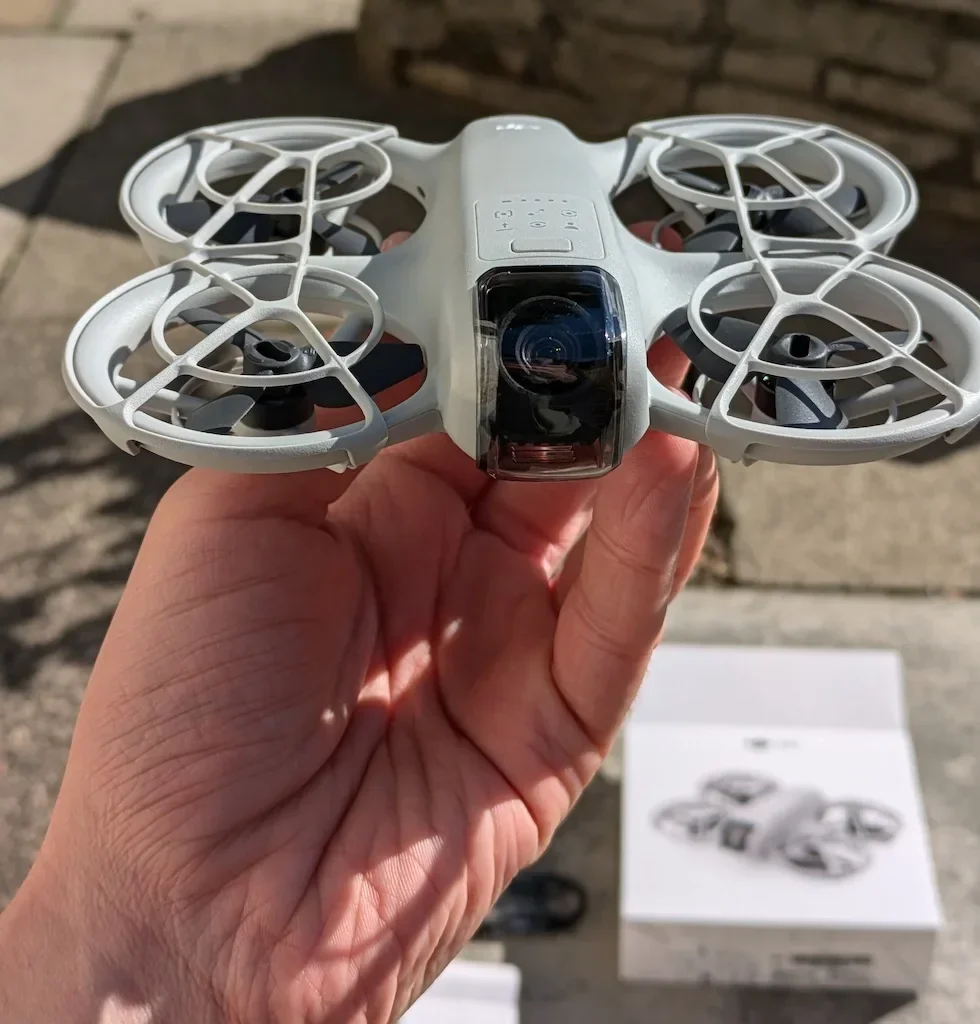
Use the dial on the Motion 3 to switch to Flip
The three Easy ACRO actions are Slide, 180° Drift, and Flip, listed in that order in the goggles overlay. Roll the dial on the side of the DJI RC Motion 3 to move the highlight down to Flip. The selected action name appears on the left side of the liveview.
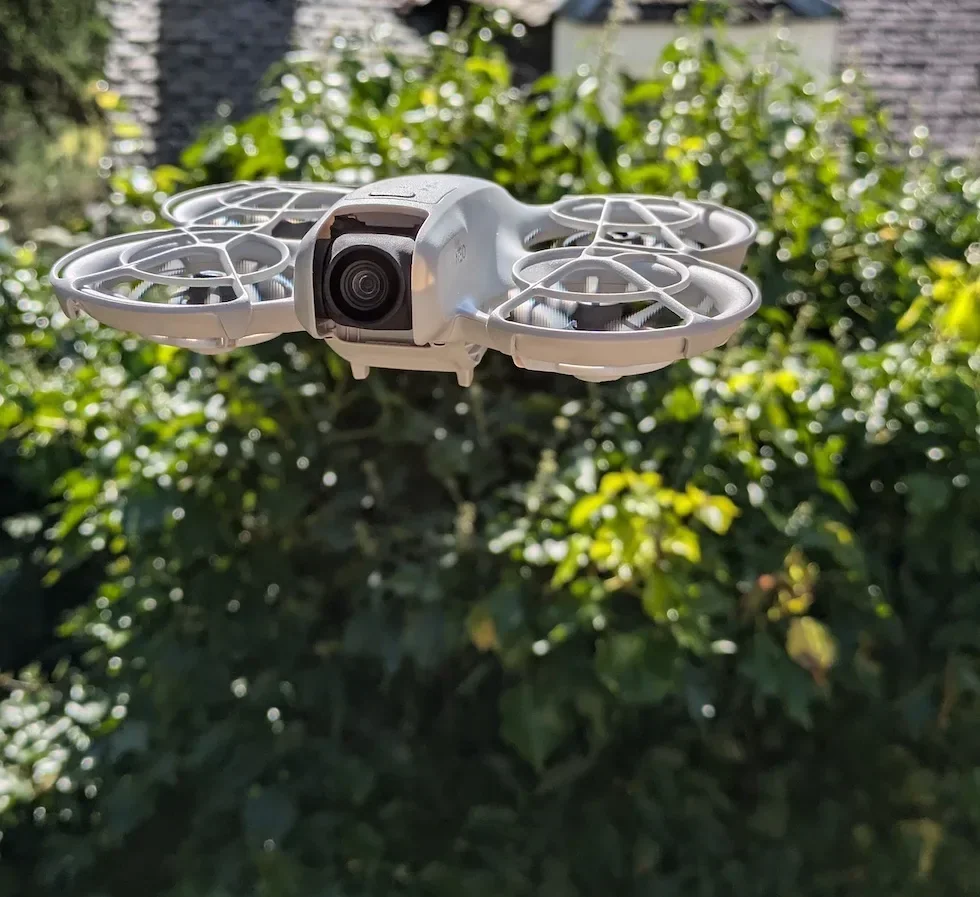
Push the joystick up or down for a front flip or back flip
Joystick up triggers a front flip. Joystick down triggers a back flip. The DJI Neo 2 rotates the full three hundred and sixty degrees and returns to level hover automatically. You do not need to hold the input — a single deliberate push is all the command needs.
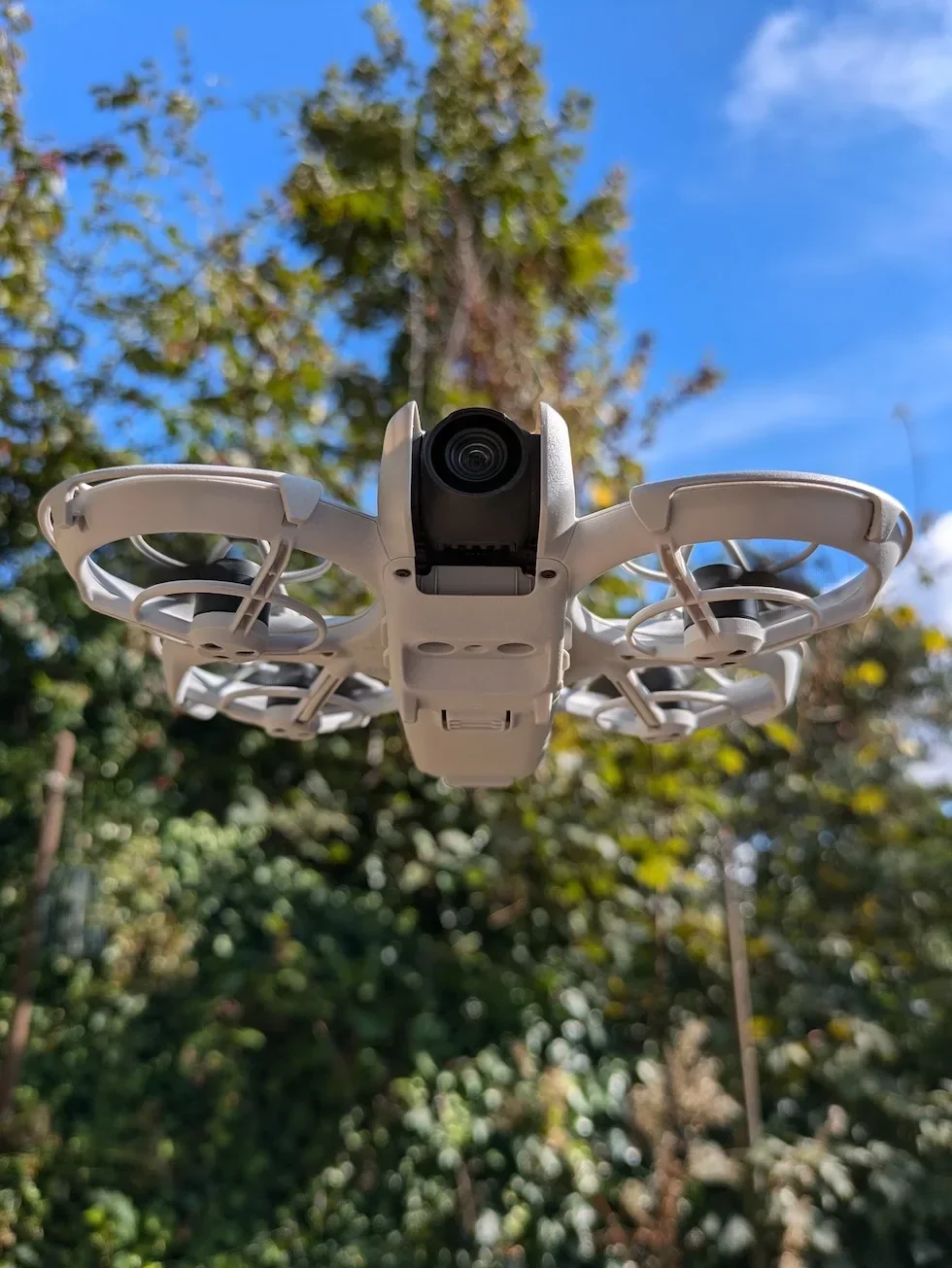
Push the joystick left or right for a single roll
Inside the Flip action, joystick left or right triggers a single roll in that direction. One input, one roll. This is different from Slide, where left and right move the drone laterally, and from 180° Drift, where left and right trigger a half-yaw drift.
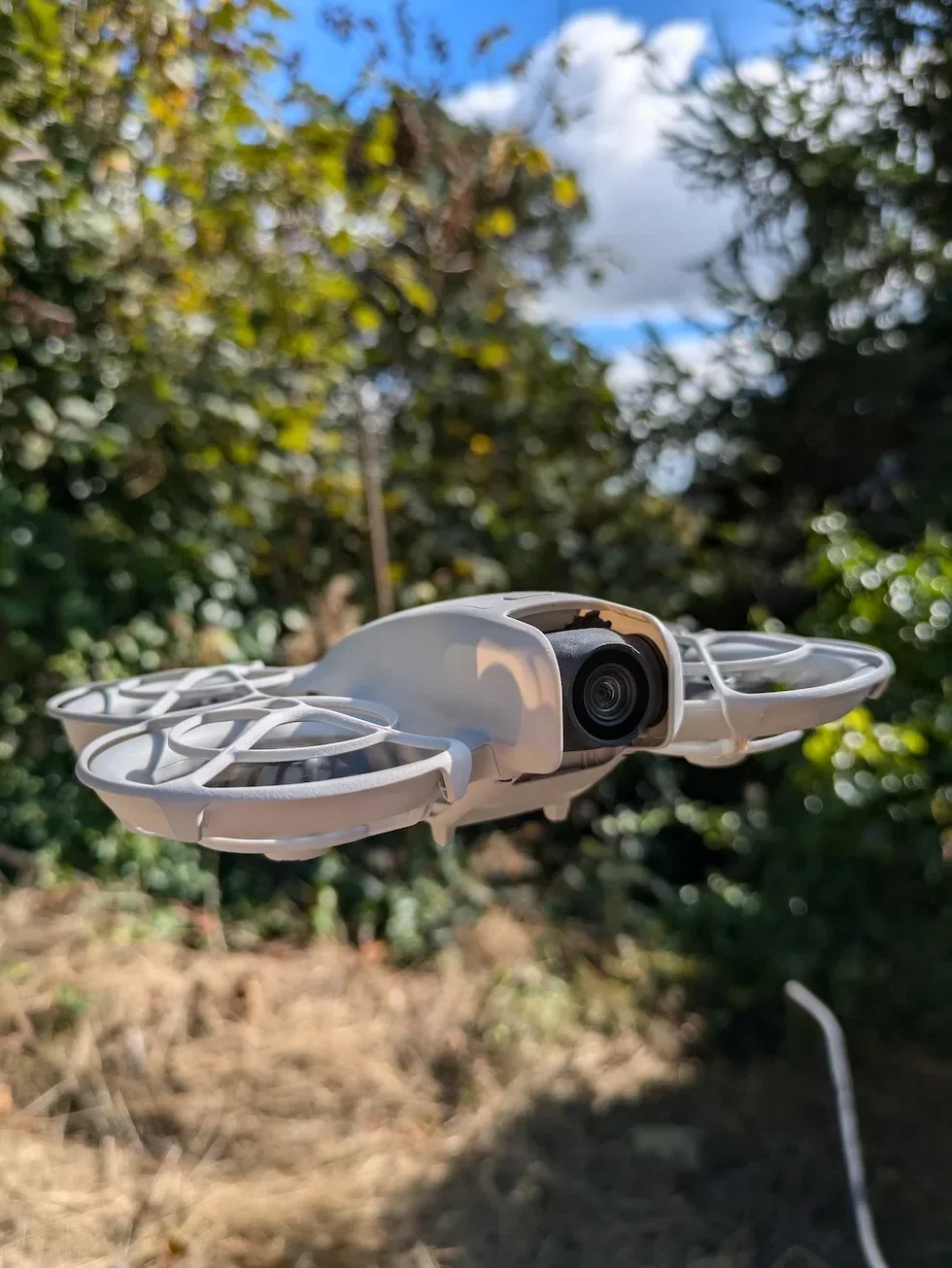
Peter's tip
Give the DJI Neo 2 a full two seconds between flips. The manual flags continuous Easy ACRO triggering as one of the situations where the drone may drift sideways and its altitude may not be stable after the action.
A back flip followed immediately by a front flip stacks the recovery drift. Pause, watch the liveview recover, then pick the next move.
How Flip, Slide, and 180° Drift all fit inside the same Easy ACRO menu
The three Easy ACRO actions share a single on/off toggle and a single dial-selected highlight. Understanding all three helps you pick the right one for the shot — and helps you remember which joystick input does what.
Slide
Joystick up or down makes the DJI Neo 2 ascend or descend. Joystick left or right makes it move horizontally. Slide is the flat, cinematic option — it lets you reframe without pushing the accelerator and without adjusting orientation.
180° Drift
Joystick left or right triggers a one hundred and eighty degree yaw drift left or right. Joystick up or down has no effect in this mode. Drift is the reveal move — the drone swings around one hundred and eighty degrees while keeping altitude.
Flip
Joystick up or down triggers a front flip or back flip. Joystick left or right triggers a single roll. Flip is the acrobatic move — three hundred and sixty degrees of rotation in a single axis, with automatic recovery to level hover at the end.
Only one action is active at any time. If you want to Slide out of a shot and flip at the end, you roll the dial to switch between them mid-flight.
Clear every direction of the flip path because obstacle avoidance is disabled
The hard safety rule for every Easy ACRO move is the same, and the manual is blunt about it. Obstacle avoidance is disabled when Easy ACRO is enabled. That cover all three actions. For a Flip the clear space is three-dimensional — you need height above, height below the hover point, and clear horizontal space for the recovery drift.
Do not flip indoors. Do not flip below the manual's 1.5 m altitude minimum. Do not flip in wind above 4 m/s. Do not flip inside the buffer zone of a Restricted Zone or an Altitude Zone. If any one of those is true, Easy ACRO is unavailable and the drone will tell you so in the liveview.
Flight above people is covered by the broader UK drone laws, and the distance-from-people rules in the Drone Code still apply in Immersive Motion Control. A flip over a crowd is not a flip you should be attempting — the manual's clear-space requirement is a floor, not a ceiling, and CAA rules sit on top of it.
Peter's tip
I walk the site before I fly FPV. A back flip recovers with the nose pointing at the ground and the drone drifting sideways a metre or two — and because the Goggles block your peripheral view, you cannot see that drift happening until the liveview catches up.
A visual observer standing next to me solves that. The Goggles N3 do not satisfy the UK visual-line-of-sight rule on their own. Fly with someone watching the drone directly.
Disable Easy ACRO to hand obstacle avoidance back to the DJI Neo 2
When the flips are done, disable Easy ACRO from the same shortcut menu you used to enable it. The manual's wording is direct: obstacle avoidance automatically resumes once Easy ACRO is disabled. Until you toggle it off, the DJI Neo 2 is still running without the vision-system brake.
Cruise back to your landing point in normal Motion Control flight, hover over a level surface, and press and hold the lock button on the Motion 3 to land automatically. Once the motors have stopped, power the drone off, then the Goggles, then the Motion 3.
Flipping the DJI Neo 2 is Easy ACRO on the Goggles N3 and Motion 3, with no manual shortcut
To recap: the Flip is an Immersive Motion Control move. You need DJI Goggles N3 and the DJI RC Motion 3. Easy ACRO lives inside the Goggles shortcut menu, and the Motion 3 dial selects between Slide, 180° Drift, and Flip. The DJI Neo 2 will refuse the move unless the manual's battery, altitude, wind, positioning, and zone conditions are all satisfied.
Once everything lines up, the joystick up or down is a front or back flip. Joystick left or right is a single roll. One input, one move, and automatic recovery to level hover.
If you have a specific Easy ACRO scenario you want me to cover — chained flips for a reveal, flips on a beach in marginal wind, anything where the safety envelope is tighter than the manual's defaults — drop a note to peter@hiredronepilot.uk and I will come back to you directly. If you prefer the video version of this guide, the comments are open on YouTube.
References
Primary source material for this article is the DJI Neo 2 User Manual. External links open in a new tab.
- DJI — Neo 2 User Manual v1.2 (December 2025) · Power procedure, activation, firmware update, Immersive Motion Control, Easy ACRO Flip
- UK CAA — The Drone and Model Aircraft Code (CAP2320) · UK flight safety requirements, visual line of sight, distance-from-people

Peter Leslie
Founder & GVC Drone Pilot
Peter is the founder of HireDronePilot. With thousands of logged commercial flight hours, he writes about drone technology, commercial surveying tactics, and UK aviation compliance.
Connect on LinkedIn