How To Connect A Drone To Its Controller

Peter Leslie
05 May 2026
Key Takeaways
- Most drones bought as a combo are factory-paired and need no linking action at all — only re-link when the saved pairing has actually been broken
- The universal linking pattern is the same on almost every consumer drone: open the app, tap Re-pair to Aircraft, then hold the drone power button until the battery LEDs blink in sequence
- A status LED that blinks during pairing and goes solid afterwards is the visual signal that the link has handshook successfully
- Re-linking is needed after a factory reset, after a second-hand purchase, or whenever you swap a controller between two drones of the same model
- The four common failure modes are firmware mismatch, low battery on either device, an active geo-zone block, and the controller sitting more than half a metre from the drone
Connecting a drone to its controller sounds like it should be a one-button job, and on a brand-new combo box it usually is — the two devices are paired at the factory and recognise each other the first time you power them on together. The reason this question keeps coming up is that the procedure looks completely different the moment something has broken the saved pairing: a factory reset, a second-hand purchase, a swapped controller. This guide walks the universal linking pattern that almost every consumer drone now follows, then uses the DJI Mini 5 Pro with the DJI RC 2 or DJI RC-N3 as the worked example so you have an exact button-for-button sequence to follow.
If you are reading this because the drone simply will not pair, jump to the failure-modes section near the end. A controller that refuses to connect is rarely a fault with the drone — it is almost always a flat battery, a stale firmware version, or a geo-zone the drone cannot escape from in the room you are standing in.
A drone bought as a combo box is already linked and needs no action from you
If you bought the drone and the controller in the same box, the two are already paired. This is true of every current DJI consumer combo, every recent Autel combo, and every Parrot Anafi combo. The factory writes the controller's serial number into the drone's flash memory and the drone's serial number into the controller's flash memory, and the pair survives full battery cycles, firmware updates, and most app version bumps.
All you have to do is power both devices on, plug your phone into the controller cable that matches your port, and launch the app. The first connection takes ten to fifteen seconds while the controller and the drone exchange handshakes; after that the live camera feed appears in the app and you are flying. No linking screen, no power-button hold, nothing.
The only reason to read further is if you have hit one of the scenarios where the saved pairing has been broken — and those are narrower than people think.
The universal linking pattern is app-led on the controller and button-led on the drone
Every consumer drone of the last six years uses a variation of the same four-step pattern. The controller side is led by the companion app — you tap something like Re-pair to Aircraft inside the camera-view menu, and that puts the controller into discovery mode. The drone side is led by a hidden link button, which on most consumer drones is the same physical button as the power button — you press and hold it for between four and seven seconds until the battery level LEDs start blinking in sequence. That sequence-blink is the drone announcing it is in linking mode and ready to be discovered.
Once both sides are in linking mode at the same time, the handshake completes inside a few seconds and the controller emits two confirmation beeps. The status LED on the controller — usually blue or amber while pairing — switches to solid green. The battery level LEDs on the drone stop their sequence-blink and return to their normal solid-on pattern. That is the link complete.
A method selector below shows where to find the trigger on the most common consumer drones. The exact wording inside the app menu and the exact hold time vary slightly by model — and if the drone you own is a DJI Neo with a controller rather than the Mini 5 Pro, the menu path is still the same but the worked-example numbers shift.
| What you have | App menu trigger | Drone side hold time | Confirmation |
|---|---|---|---|
| DJI Mini 5 Pro + DJI RC 2 | DJI Fly > three-dot menu > Control > Connect to Aircraft | Power button > four seconds | Two beeps, RC 2 status LED solid green |
| DJI Mini 5 Pro + DJI RC-N3 | DJI Fly > three-dot menu > Control > Re-pair to Aircraft | Power button > four seconds | Two beeps from the RC-N3 |
| DJI Neo + DJI RC-N3 | DJI Fly > three-dot menu > Control > Re-pair to Aircraft | Power button > four seconds | Two beeps, status LEDs stop blinking |
| DJI Neo 2 + DJI RC-N3 | DJI Fly > three-dot menu > Control > Re-pair to Aircraft | Power button > four seconds | Two beeps from the RC-N3 |
| DJI Mini 4 Pro + DJI RC 2 | DJI Fly > three-dot menu > Control > Connect to Aircraft | Power button > four seconds | Two beeps, RC 2 status LED solid green |
| DJI Air 3S + DJI RC 2 | DJI Fly > three-dot menu > Control > Connect to Aircraft | Power button > four seconds | Two beeps, RC 2 status LED solid green |
Worked example — linking a DJI Mini 5 Pro to a DJI RC 2 or DJI RC-N3 from scratch
The DJI Mini 5 Pro is the cleanest model to walk through because both the screen-based DJI RC 2 and the bring-your-own-phone DJI RC-N3 share an almost identical sequence — only the menu wording and the on-controller status LED differ. Run through these four cards in order if the saved pairing has been broken, or if you have just bought a controller separately from the drone.
Power on the DJI Mini 5 Pro and the controller, then launch DJI Fly
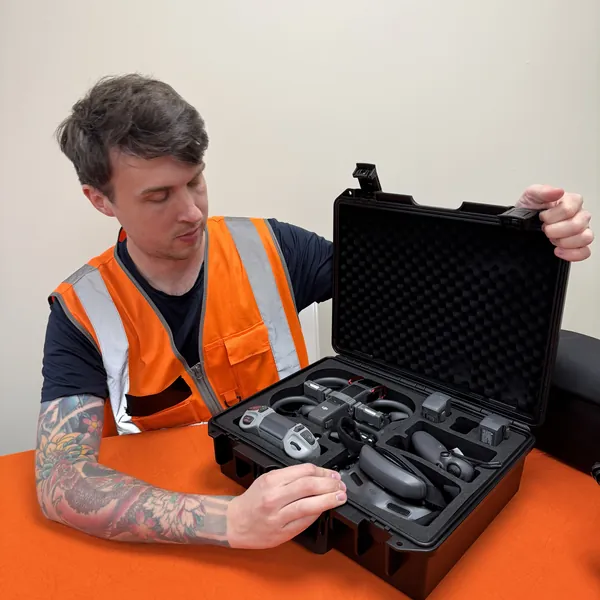
Set the DJI Mini 5 Pro down on a flat surface and power it on with the standard press-then-press-and-hold sequence. On the DJI RC 2, press, then press and hold the power button until the screen lights up. On the DJI RC-N3, mount the control sticks, pull out the phone holder, plug your phone into the cable that matches your port, and power on. Confirm both devices are above twenty per cent battery before going any further — a low battery on either side is the single most common reason a link fails to complete.
Open the camera view in DJI Fly and tap Connect to Aircraft
In DJI Fly, tap into the camera view. Open the three-dot menu in the top right corner and go to Control, then Connect to Aircraft on the DJI RC 2, or Control, then Re-pair to Aircraft on the DJI RC-N3 — the wording differs but the menu position is the same. The controller will start to beep and, on the DJI RC 2, the status LED will blink blue. That blue blink is the controller in discovery mode, searching for a DJI Mini 5 Pro to handshake with.
Press and hold the DJI Mini 5 Pro power button for more than four seconds
With the controller already beeping, pick up the DJI Mini 5 Pro and press and hold its power button for more than four seconds. The DJI Mini 5 Pro will beep once and the four battery level LEDs on the back of the drone will start to blink in sequence. That sequence-blink pattern is the DJI Mini 5 Pro signalling it is in linking mode and ready to be discovered. Set it back down on the surface — do not walk anywhere with it.
Wait for the two beeps that confirm the link has completed
Within a few seconds, the controller will beep twice, the battery level LEDs on the DJI Mini 5 Pro will stop sequence-blinking and return to their normal solid-on display, and DJI Fly will switch from a searching state into the live camera feed. On the DJI RC 2 the status LED turns solid green at the same moment. That is your confirmation. The controller is now linked to this specific DJI Mini 5 Pro and will reconnect automatically every time you power both devices on together.
Peter's tip
I keep the drone and the controller almost touching during step three — close enough that the rubber feet of the drone are nearly resting against the bottom edge of the controller. Half a metre is the published maximum, but anywhere within ten centimetres is the only distance I trust. A failed link almost always traces to placing the controller on the desk and then walking off to fetch something while the drone is still beeping.
If the link does not complete inside about ten seconds, do not retry from step three — go all the way back to step two, tap Connect to Aircraft again, and hold the power button again. Half-handshakes leave both devices in a confused state that a fresh attempt clears immediately.
What the LEDs and beeps mean during pairing — read them, do not guess
The biggest source of pairing anxiety is not knowing whether the lights you are looking at mean progress or failure. Every consumer drone uses a small vocabulary of LED and beep patterns, and once you know them the whole linking process becomes obvious.
On the drone, the four battery level LEDs are the linking display. A sequence-blink — LED one, then LED two, then LED three, then LED four, repeating — means the drone is in linking mode and waiting to be discovered. A solid-on display means the drone is powered on and idle, no linking activity. A simultaneous blink of all four LEDs together is the drone reporting a fault — usually a damaged battery or a critically low battery state. A red blink on the front status indicator means takeoff is disabled, often because the drone has not finished its self-diagnostic or the battery is too low.
On the controller, the status LED is the corresponding signal. Blue or amber blinking means the controller is in discovery mode and looking for a drone. Solid green means the link is complete and the drone is connected. No light at all on the status LED while the controller is powered on usually means the controller has not entered discovery mode — go back into the app menu and tap Re-pair to Aircraft again.
The audible cues matter too. A single beep on either device is an acknowledgement — "I am now in linking mode." A double beep on the controller is the success signal — "We are linked." A long, descending three-tone beep is a failure — usually a timeout because the two devices were too far apart, or because one of them ran out of battery mid-handshake.
Re-link only when the saved pairing has actually been broken — three specific scenarios
The reason most drone pilots panic about linking is that they assume it is a routine pre-flight step, and it is not. The pair is permanent until something explicitly breaks it, and the list of things that break it is short.
First, after a factory reset of either the drone or the controller. A reset wipes the saved pairing on the side that was reset, so the link has to be rebuilt from scratch. This is the only reason a long-running drone suddenly stops connecting after years of trouble-free use — somebody, sometimes the drone itself during a corrupted firmware update, has triggered a reset.
Second, after a second-hand purchase. The previous owner's pairing is still saved on the controller until you re-link it to your drone — the controller does not know it has changed hands. The same is true in reverse if you bought the drone alone and are pairing it to a controller you already own.
Third, when you swap a controller between two drones of the same model. The DJI RC-N3, like the DJI RC 2, will only hold one drone pairing at a time — pair it to a different drone and the previous link is automatically wiped. This catches out drone pilots who own two of the same model and try to share a single controller between them. There is no fix for this beyond re-linking each time you switch, which is why most working drone pilots own a controller per drone. The full button-by-button walk-through for the Neo 2 lives in the dedicated RC-N3 to DJI Neo 2 linking guide; the legacy Neo procedure is in the original DJI Neo controller connection article.
The four common failure modes — firmware, battery, geo-zone, distance
When linking fails, the cause is almost always one of four things. Work down the list in order before assuming the drone or the controller has a hardware fault.
Firmware mismatch is the most common silent failure. If the drone is on a newer firmware version than the controller — or the other way round — the handshake will not complete and the app will return a vague "cannot connect" error. The fix is to plug both devices into DJI Assistant 2 (or the equivalent vendor utility), update each to the latest firmware, then retry the linking sequence. App version matters too; if DJI Fly itself is two versions behind, update it from the App Store or Google Play before you start.
Low battery on either device will cause the link to time out mid-handshake. The drone enters a power-conservation state below about fifteen per cent battery and refuses to enter linking mode at all. The controller will enter linking mode at any battery level but will time out faster as the cell voltage drops. Always link with both devices above twenty per cent — twenty-five if it is cold.
An active geo-zone can prevent linking inside certain enclosed spaces. If you are trying to link inside a London flat directly under a Restricted Zone, or inside a building near a major airport, the drone may detect the GPS-fixed restriction during its self-diagnostic and refuse to enter linking mode. Move outside, or to a window where the drone can get a clean GPS lock and confirm it is in a flyable area before pressing the power button. Once linked, the geo-zone restriction still applies to flight — but it no longer blocks the pairing handshake.
Distance — more than half a metre between drone and controller — is the failure mode I see most often in person. The handshake uses a low-power short-range radio mode that is deliberately limited so that two drone pilots in the same room cannot accidentally pair to each other's drones. Set the controller down within ten centimetres of the drone and leave it there. If the controller is in your hands and you are pacing, you are probably too far.
Got a specific drone and controller combo you want me to walk through, or a stubborn no-link that none of these failure modes explains? Drop a note to peter@hiredronepilot.uk and I will come back to you directly. If you prefer the video version of this explainer, the comments are open on YouTube.
References
Primary source material is the DJI Mini 5 Pro User Manual (2025). External links open in a new tab.
- DJI — Mini 5 Pro User Manual and Quick Start Guide · §6.1 DJI RC 2 — Linking the Remote Controller (four-step pairing flow, four-second power-button hold, half-metre proximity, two-beep confirmation, status LED solid green); §6.2 DJI RC-N3 — Linking the Remote Controller (Re-pair to Aircraft menu path)
- UK CAA — The Drone and Model Aircraft Code (CAP2320) · Pre-flight checks and operator responsibilities for any drone in the Open Category
Peter Leslie
Founder & GVC Drone Pilot
Peter is the founder of HireDronePilot. With thousands of logged commercial flight hours, he writes about drone technology, commercial surveying tactics, and UK aviation compliance.
Connect on LinkedIn
