Controllers That Work With the DJI Neo: The Full Compatibility List

Peter Leslie
30 Oct 2025
Key Takeaways
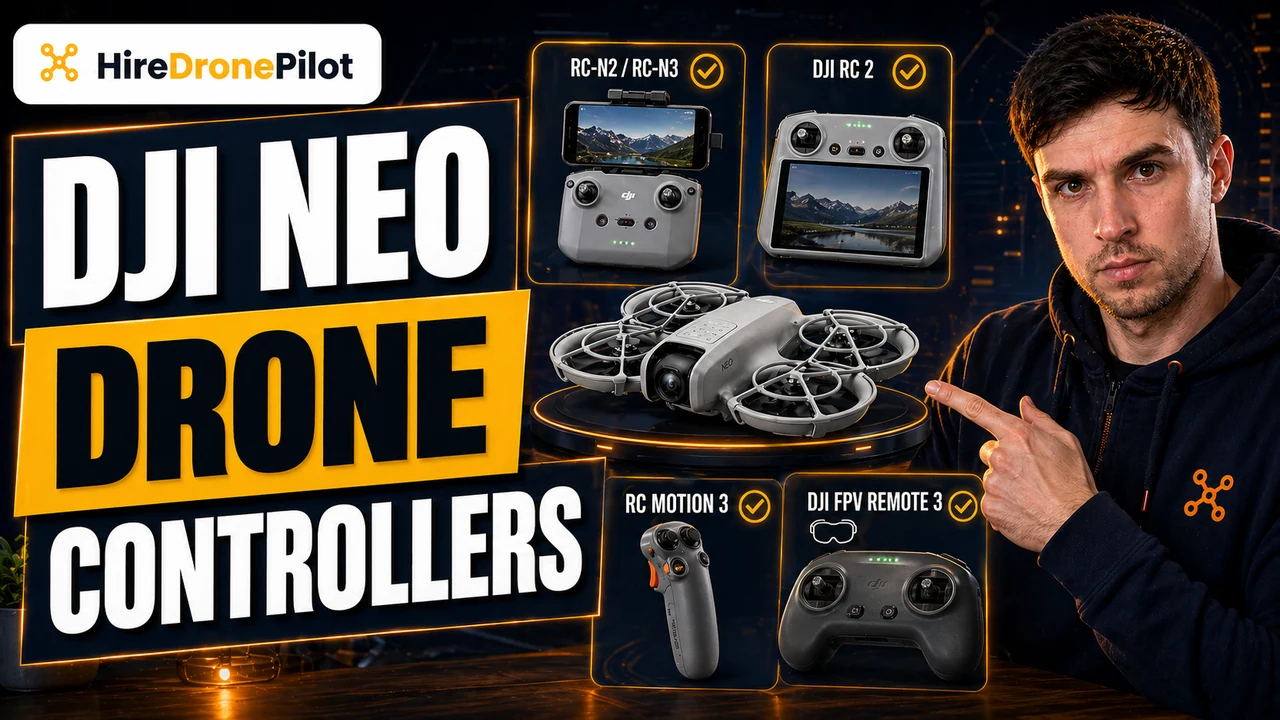
- The DJI Neo works with five physical controllers — the RC-N2, RC-N3, RC 2, RC Motion 3, and the DJI FPV Remote Controller 3 — all running the O4 transmission system
- For a traditional flight feel using your phone as the screen, the RC-N2 or the newer RC-N3 is the choice
- For an all-in-one setup without a phone, the RC 2 has a built-in screen and is the simplest workflow
- For gesture-based immersive flying with DJI Goggles 3, the RC Motion 3 is the controller — older motion controllers are not compatible
- For traditional dual-stick FPV including full manual mode, the DJI FPV Remote Controller 3 is the only supported option — again, only with DJI Goggles 3
The DJI Neo is an unusual drone in that it supports five physically different controllers, across three very different flight styles — a traditional sticks-with-phone setup, an all-in-one controller with a screen, and two different first-person-view combinations. Most drones force a single control scheme. The Neo lets you pick the one that fits how you want to fly.
This article is the short, sorted-by-use-case compatibility list — useful for a drone pilot buying their first controller, or a pilot upgrading an existing setup. Most commercial drone pilots pair the DJI Neo with a phone-mounted RC-N3, but the right choice genuinely depends on how you like to fly. All five options covered here are the ones DJI support confirms run the O4 transmission system, which is what the Neo uses for its video downlink. Older DJI controllers that preceded O4 are not compatible.
The DJI Neo supports five different controllers, covering three flying styles across a single transmission standard
Every controller that works with the DJI Neo communicates with the drone over the O4 transmission system — DJI's current-generation digital link used on the Neo and the most recent flagship models. Older DJI transmission generations (O3 and earlier) are not supported, which is why devices like the original DJI Smart Controller and the DJI FPV Remote Controller 2 cannot pair with the Neo regardless of firmware.
Within that single link standard, the DJI Neo supports three broad flight styles. The first is traditional sticks-and-phone flying, using an RC-N2 or RC-N3. The second is all-in-one flying with a built-in screen, using the RC 2. The third is immersive FPV flying with DJI Goggles 3, either gesture-based with the RC Motion 3 or stick-based with the DJI FPV Remote Controller 3.
DJI Neo controller compatibility at a glance
| Controller | Flight style | Extra kit needed |
|---|---|---|
| DJI RC-N2 | Classic sticks + phone | Smartphone running DJI Fly |
| DJI RC-N3 | Classic sticks + phone (newer) | Smartphone running DJI Fly |
| DJI RC 2 | All-in-one with built-in screen | None |
| DJI RC Motion 3 | Gesture-based FPV | DJI Goggles 3 |
| DJI FPV Remote Controller 3 | Dual-stick FPV / manual mode | DJI Goggles 3 |
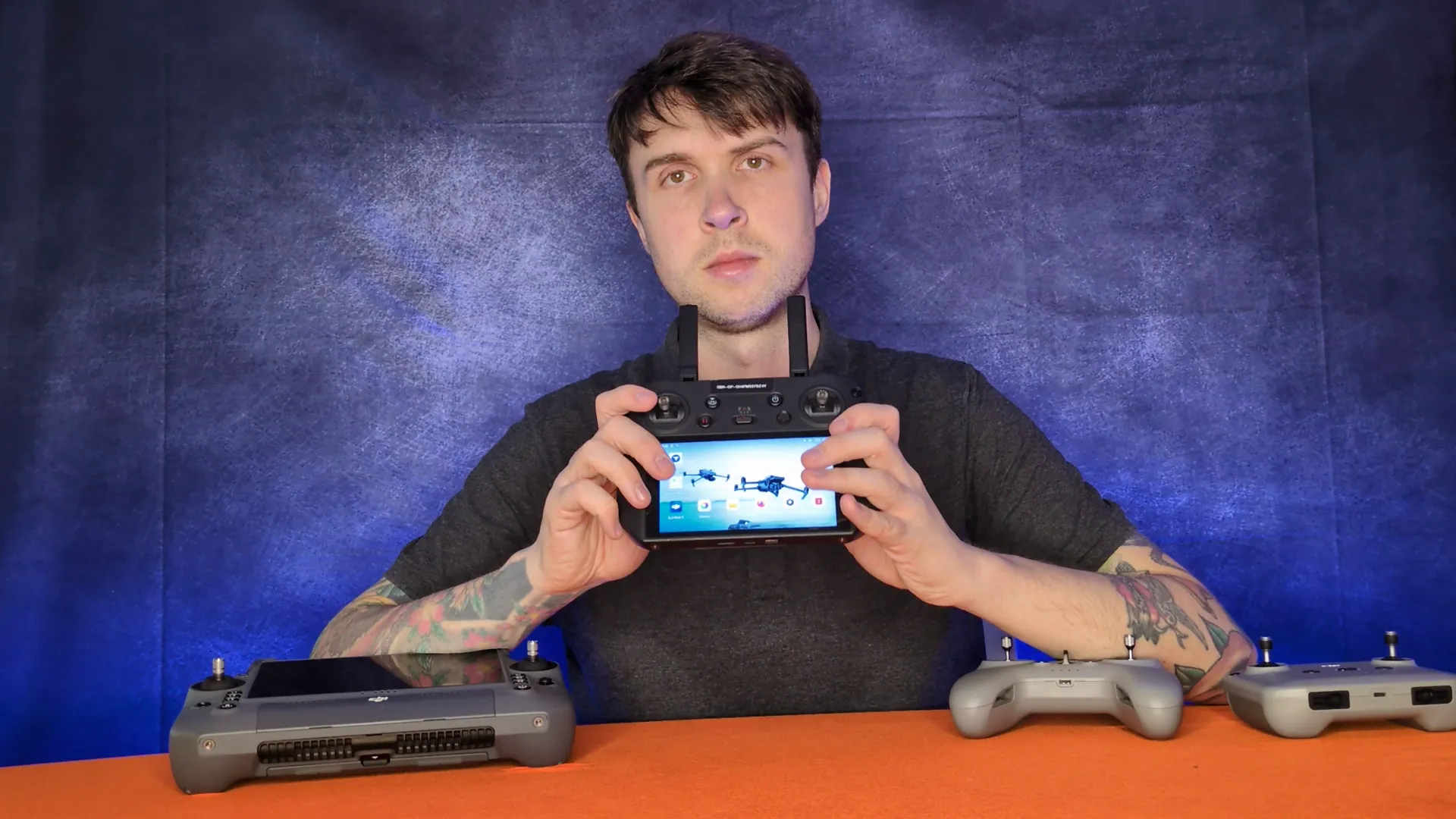
For a traditional flying feel with your phone as the screen, use the DJI RC-N2 or the newer RC-N3
If you are used to the classic DJI setup where your smartphone clamps into the top of the controller and runs the DJI Fly app, the RC-N2 and the newer RC-N3 are both compatible with the DJI Neo. Either will hand you a conventional two-stick layout, a mounted phone screen for live video, and full access to DJI Fly's settings menu.
The RC-N2 was the previous-generation controller, often bundled with earlier drones like the Mavic 3 family. The RC-N3 was launched alongside the DJI Neo and is the one you will see in current bundle deals. Functionally the two controllers are near-identical on the Neo — both run O4, both clamp the phone the same way, and both expose the same DJI Fly flight controls.
If you already own an RC-N2 from a previous drone, you do not need to replace it to fly the DJI Neo. If you are buying fresh, the RC-N3 is the newer option. Both need a phone with DJI Fly installed to actually fly the drone. If you have not set up the phone-side of that pair yet, our connect a phone to the DJI Neo walk-through covers the steps.
For an all-in-one setup with no phone to mount, the DJI RC 2 is the built-in-screen option
The DJI RC 2 is the controller for drone pilots who do not want to fly with a phone clamped to a controller. It has a bright built-in screen running DJI Fly natively, which removes the step of mounting and unmounting a phone at every take-off and means the screen stays reliable in direct sunlight far better than most smartphones do.
Because the RC 2 also uses the O4 transmission system, the pairing to the DJI Neo is straightforward once both devices are on up-to-date firmware. Note that the original, first-generation DJI RC — released alongside the Mavic 3 — is not compatible with the DJI Neo. Only the RC 2 falls inside the supported list.
For the drone pilot who mostly wants to get in the air quickly without managing a second device, the DJI RC 2 is the cleanest workflow of the five. Pair it up with our first-flight walk-through if this is your first time taking the DJI Neo into the air.
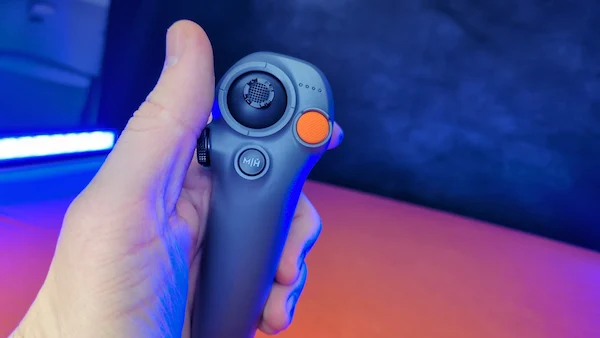
For immersive gesture-based FPV flying, the DJI RC Motion 3 is the controller — with DJI Goggles 3
The DJI RC Motion 3 pairs the DJI Neo with DJI Goggles 3 for a gesture-based FPV flight. You hold the motion controller in one hand, the goggles show the drone's view, and tilting or gesturing your wrist translates directly into flight input. It is a faster learning curve than traditional FPV sticks and, for the DJI Neo specifically, was designed as the default immersive flight experience.
The compatibility boundary here is tight. The RC Motion 3 requires the DJI Goggles 3. Older DJI goggles — the Goggles 2 and the Goggles Integra — use previous transmission generations and do not pair with the DJI Neo. Older motion controllers are also not compatible.
For a drone pilot who wants the immediacy of first-person-view flying without committing to dual-stick manual flight, the RC Motion 3 combined with Goggles 3 is the route the DJI Neo was designed around.
For dual-stick FPV with full manual control, the DJI FPV Remote Controller 3 is the only supported option
Drone pilots moving up to traditional FPV flying with joysticks — and particularly anyone wanting the full manual Acro flight mode — need the DJI FPV Remote Controller 3. This is the controller derived from the DJI FPV and DJI Avata ecosystem, now updated to run the O4 transmission system.
Like the RC Motion 3, the FPV Remote Controller 3 is only functional with DJI Goggles 3. The goggles are the display, so there is no screen-on-controller option in this flight style. Note that the earlier DJI FPV Remote Controller 2 is not compatible with the DJI Neo — it runs O3, not O4, so pairing is not possible regardless of firmware.
If you already fly FPV under DJI's newer platforms, the FPV Remote Controller 3 drops into a DJI Neo workflow without surprises. If you are new to FPV flying, the learning curve is real — traditional manual FPV is less forgiving than gesture control, and drone pilots are typically expected to fly within the relevant UK rules the same way any other flight is expected to. See the UK drone laws overview and the Visual Line of Sight explainer if FPV is new territory.
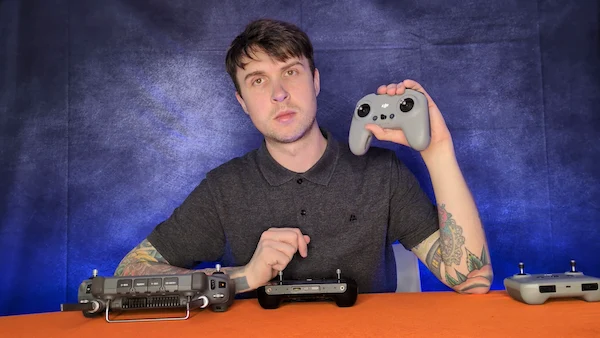
Pairing any of these controllers with the DJI Neo follows the same short workflow — firmware first, then power-on, then link
Regardless of which controller you own, the DJI Neo's pairing flow is consistent. First, update firmware on both the DJI Neo and the controller through the DJI Fly app — a surprisingly common cause of first-pair failures is the controller being on older firmware than the drone expects.
Second, power on both devices. In DJI Fly, navigate to the Connection Guide or settings, select Link Remote Controller, and follow the on-screen prompt. The DJI Neo's pairing mode is entered by holding the power button on the drone for around four seconds until it beeps.
If pairing fails, the issue is almost always one of three things: out-of-date firmware on one of the two devices, a previously paired remote still powered on nearby, or a DJI Fly app that has not been updated. For model-specific walk-throughs, see our DJI Neo controller connection article and the broader set up DJI Neo guide.
The DJI Neo is one of the rare small drones that genuinely does not force a single flight style on the drone pilot. The right controller is the one that matches the kind of flying you already enjoy — phone-mounted sticks if you are moving over from a Mavic workflow, the RC 2 if you want the cleanest setup, the RC Motion 3 for gesture FPV, or the FPV Remote Controller 3 if you are heading into traditional manual FPV.
Got a specific DJI Neo setup question or a controller you are thinking about buying? Drop a note to peter@hiredronepilot.uk and I will come back to you directly. If you prefer the video version of this explainer, the comments are open on YouTube.
References
Primary sources for this article. External links open in a new tab.
- DJI — DJI Neo product page · official compatible accessories list and controller bundles
- DJI Support — DJI Neo manuals and firmware · pairing procedures, firmware compatibility notes, O4 transmission details
- UK CAA — First Person View (FPV) rules · co-located observer requirement applicable to Goggles 3 flying
- UK CAA — The Drone and Model Aircraft Code (CAP2320) · general VLOS and flight rules applying to DJI Neo flights
Peter Leslie
Founder & GVC Drone Pilot
Peter is the founder of HireDronePilot. With thousands of logged commercial flight hours, he writes about drone technology, commercial surveying tactics, and UK aviation compliance.
Connect on LinkedIn