Key Takeaways
- Pairing the DJI RC-N3 removes the thirty-metre altitude cap and the fifty-metre distance cap that apply in Palm Control and phone-only flight
- The DJI RC-N3 holds the phone in the retractable mobile device holder on the back, connected through the supplied remote controller cable
- Linking runs from DJI Fly through three-dot menu, Control, Re-pair to Aircraft, or from the home screen Connection Guide with Connect with RC Only
- During linking, press and hold the power button on the DJI Neo for more than four seconds, then listen for the DJI RC-N3 to beep twice
- A linked DJI RC-N3 unlocks Return-to-Home, a three-position Flight Mode switch between Sport, Normal, and Cine, and a Flight Pause/RTH button
Pairing the DJI RC-N3 with the DJI Neo is the step that turns a clever palm-launched camera into a serious little drone. The altitude ceiling lifts off its default thirty-metre cap, the fifty-metre distance cap goes with it, and Return-to-Home becomes available — none of which you get with Palm Control or a phone alone.
For most drone pilots who bought the DJI Neo Fly More Combo, this is the pairing that matters. This guide walks the whole procedure in order, straight from the DJI Neo User Manual v1.2. If you have not unboxed the DJI Neo yet, the setup guide covers first use. If you are pairing a phone alone instead of an RC, jump to the phone-connection guide.
What you get when you fly with the DJI RC-N3 instead of Palm or App control
The manual is explicit about the limit difference. Under Palm Control and Mobile App Control, the DJI Neo is pinned to a max flight altitude of 30 metres and a max flight distance of 50 metres, and the manual adds that these limits cannot be changed in the DJI Fly app. Return-to-Home is also not supported in those modes.
Connect a DJI RC-N3 and the caps come off. Altitude and distance limits become configurable in the DJI Fly Safety menu so you can set them to what your site actually needs, and Return-to-Home is fully supported, including a dedicated Flight Pause/RTH button on the controller itself.
You also pick up proper stick control. Page seventeen of the manual lists the DJI RC-N3 hardware: two full-travel control sticks that stow into slots on the underside of the body, a three-position Flight Mode switch between Sport, Normal, and Cine, a Flight Pause/RTH button, a customisable Fn button, a gimbal dial, and a dedicated shutter/record button. For any flight that needs precision, the sticks beat virtual joysticks on a phone.
One last practical difference. The DJI RC-N3 carries its own transmission radios, and DJI Fly shows an optimal transmission zone indicator in camera view that warns you before the DJI Neo leaves a clean signal path. On phone-only Wi-Fi you get no such warning — the connection simply drops.
Preparing the DJI RC-N3 before you pair is three short jobs
Get the DJI RC-N3 itself ready before you try to pair it with the DJI Neo. Page eleven of the manual breaks this into three tasks under Preparing the Remote Controller, and all of them need to be done in order.
Mount the control sticks and pull out the mobile device holder
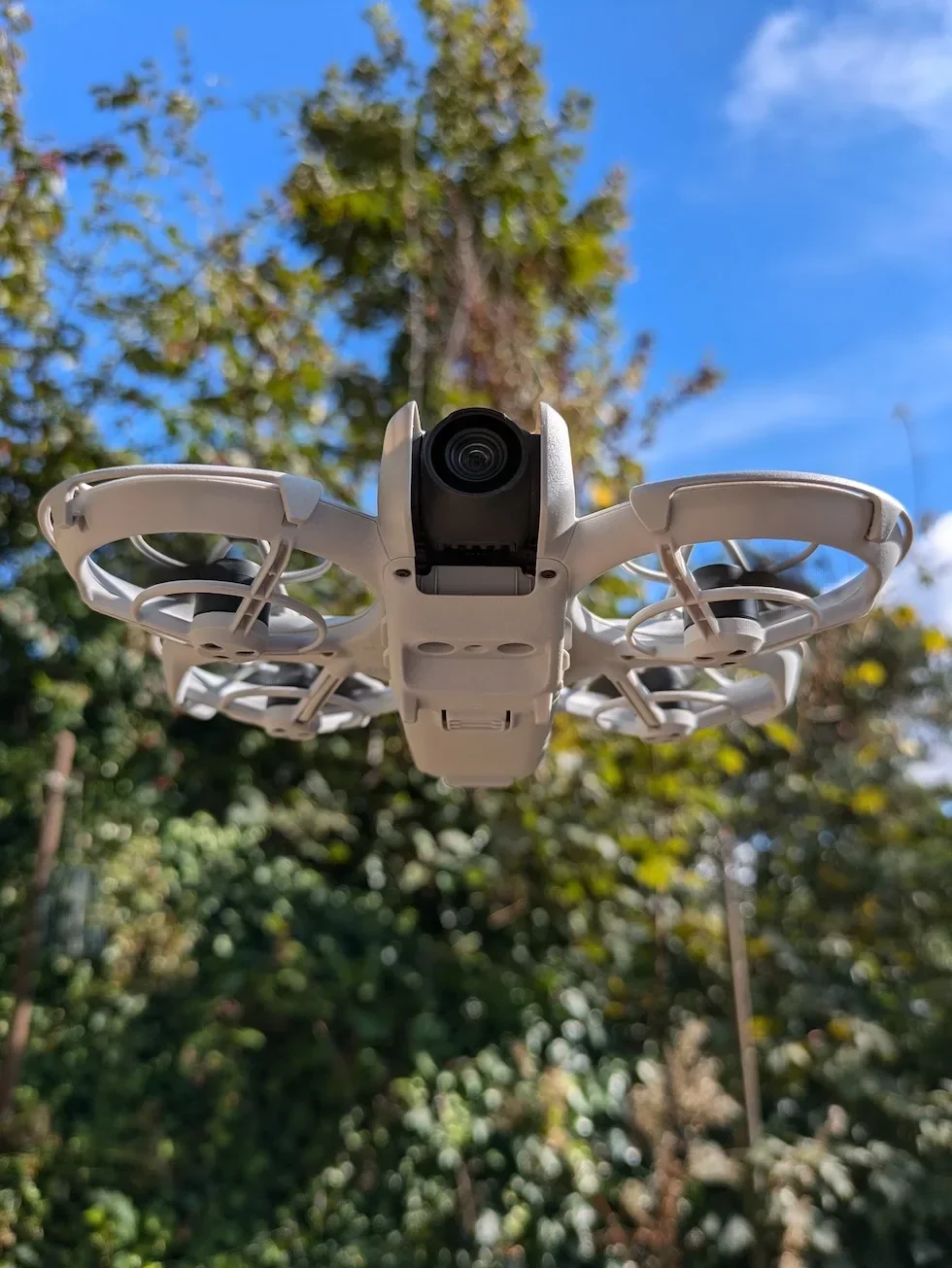
The DJI RC-N3 ships with the control sticks stored in two slots on the underside of the body, the pattern shared across the DJI Neo controller family. Remove each stick from its storage slot and screw it into the matching threaded receiver on the top of the DJI RC-N3. Then pull the retractable mobile device holder out of the back of the DJI RC-N3. It spring-clamps onto the phone once you slide it in.
Plug the correct remote controller cable into the phone
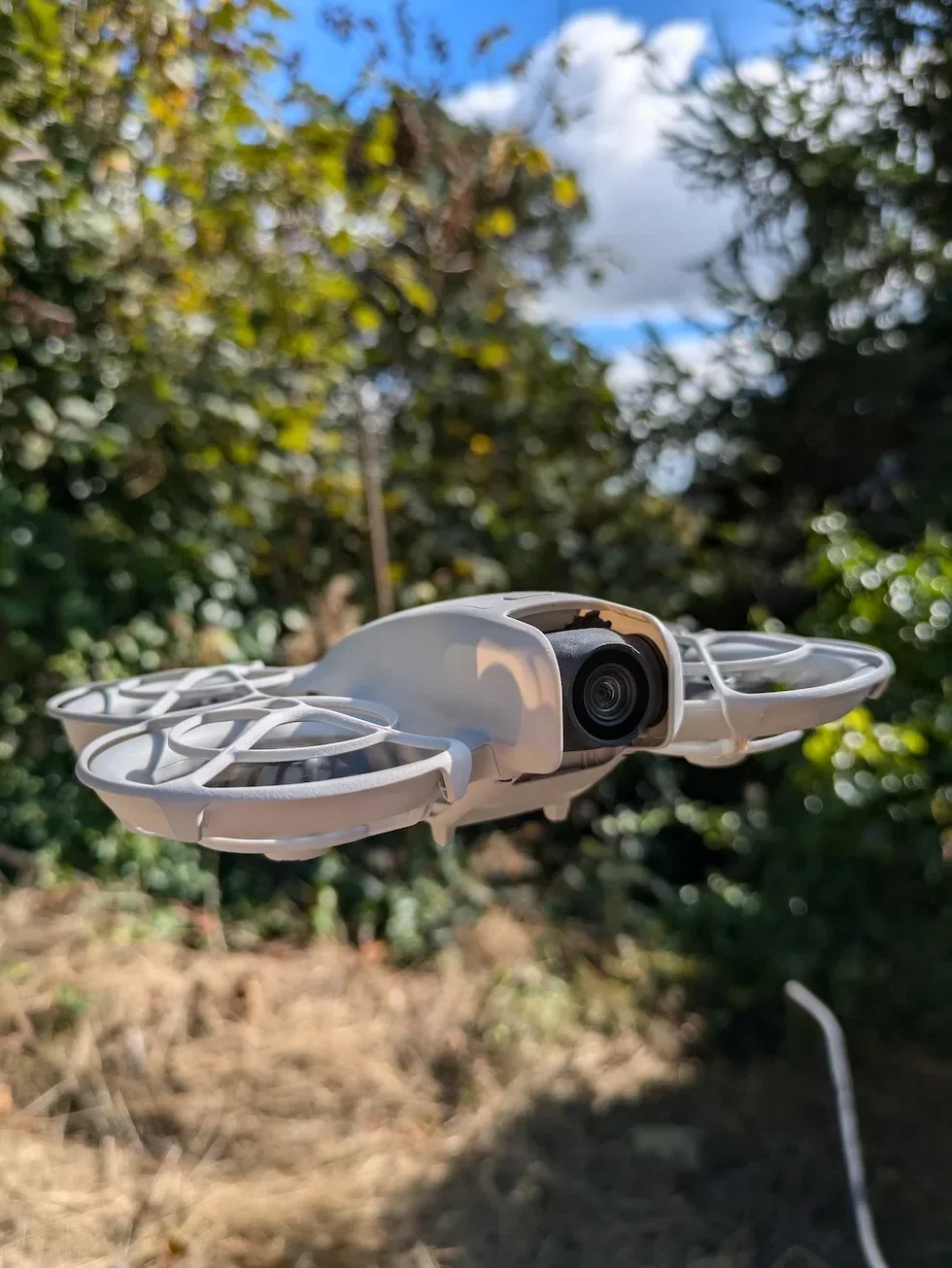
Inside the DJI RC-N3 is a small cable compartment. The manual notes that the default cable is USB-C to USB-C. Swap it for the Lightning or alternative USB-C cable that matches your phone if needed. Plug the end without the remote controller logo into the phone, and leave the logo end in its socket on the controller. The manual warns that if a USB connection prompt appears on an Android phone, select the charge-only option. Any other option causes the connection to fail.
Check the battery and power on the DJI RC-N3
Press the power button on the DJI RC-N3 once to check the current battery level on the four LEDs. If the battery is low, plug a charger into the USB-C port on the controller before you continue. When you are ready, press the power button once and then press and hold for two seconds to power on — the same press-then-hold sequence the DJI Neo uses.
Peter's tip
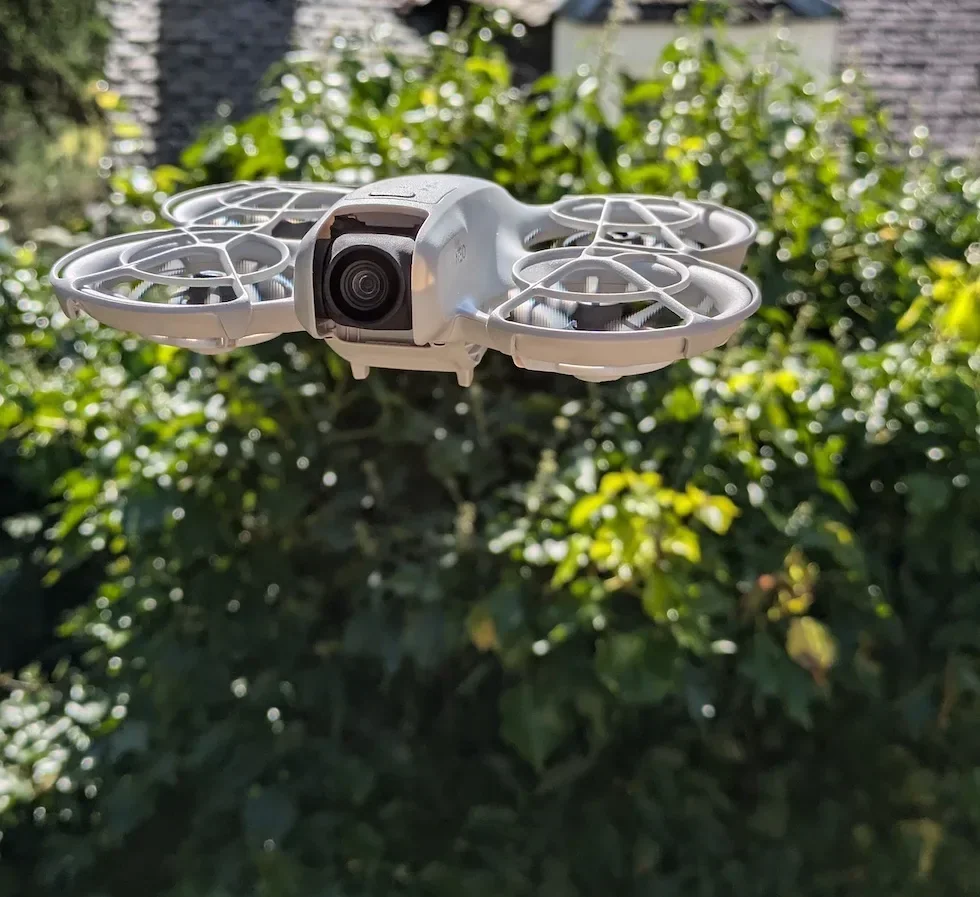
Screw the sticks in properly. Hand-tight is enough, but a quarter turn past finger-tight is what I do. Loose sticks have a tiny amount of play in the thread that you will feel as a dead zone around centre, and on a drone as small as the DJI Neo that dead zone is enough to make a precise hover feel wobbly.
Also check the mobile device holder adjusts to fit your phone without rocking — the manual flags that a loose holder can cause the cable to disconnect mid-flight.
Pairing the DJI RC-N3 with the DJI Neo for the first time
The manual notes that the DJI RC-N3 is already linked to the DJI Neo when bought together as the Fly More Combo, so most combo owners never need to pair manually. You will only run this procedure if you bought the DJI RC-N3 on its own, if the link has been broken by a factory reset, or if the DJI Neo has been linked to a different controller in the meantime.
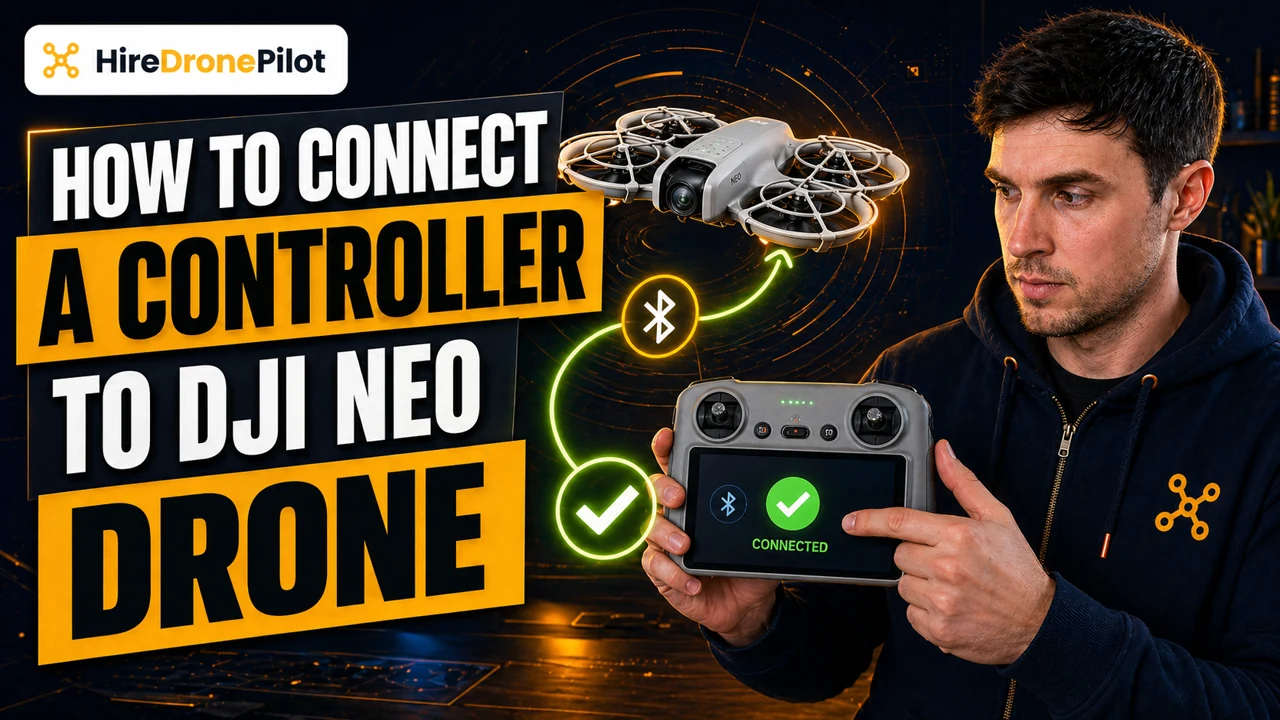
When you do need it, the linking procedure uses the Re-pair to Aircraft menu path inside DJI Fly. Four steps.
Power on the DJI Neo and the DJI RC-N3, and place them close together
Press once and then press and hold for two seconds to power on both the DJI Neo and the DJI RC-N3. Set the DJI Neo on a flat surface with the gimbal protector removed, and put the DJI RC-N3 next to it. Keep the two devices close during linking — the DJI Neo broadcasts its linking signal at short range, and the handshake completes fastest when the two units are within arm's reach.
Launch DJI Fly on the phone cabled to the DJI RC-N3
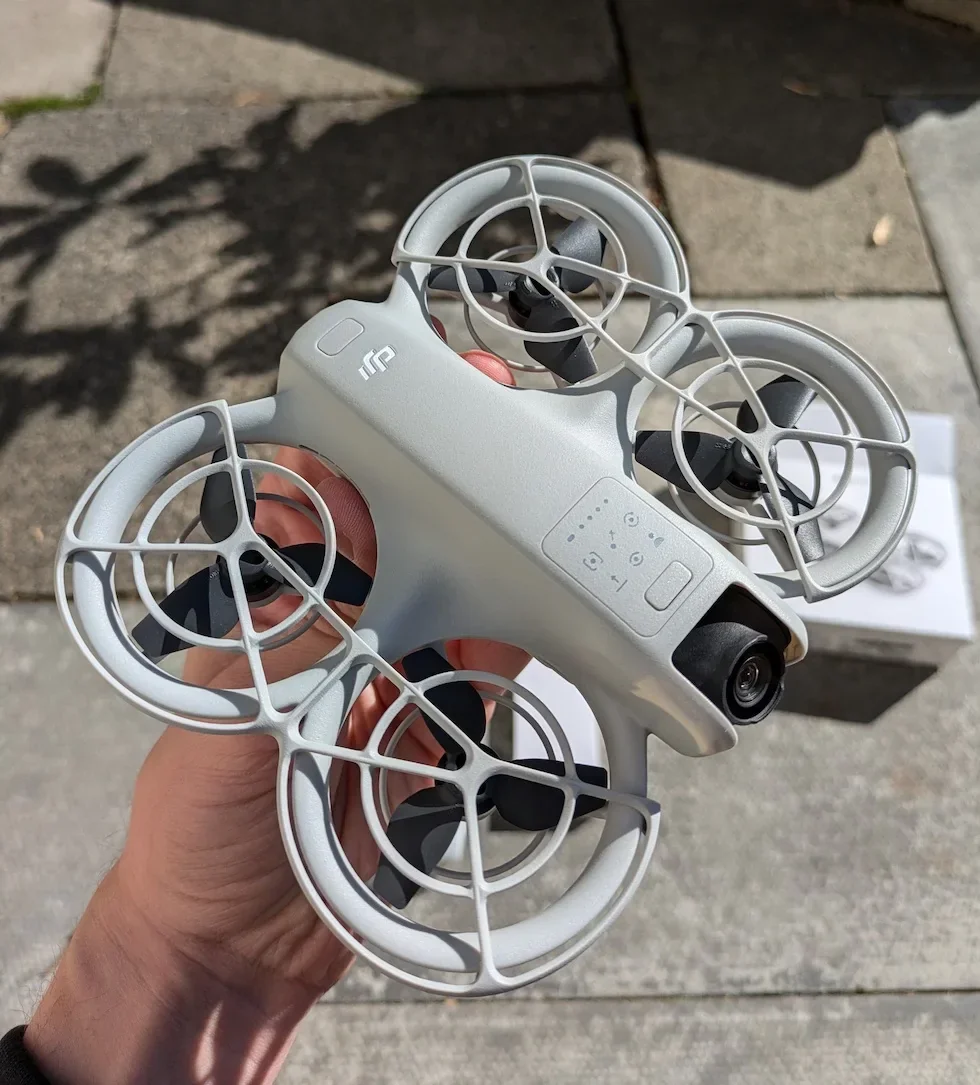
Open the DJI Fly app on the phone that is sitting in the DJI RC-N3 holder and connected by the remote controller cable. Tap through to the camera view for the DJI Neo. If the DJI Neo and the DJI RC-N3 are already linked, the live feed appears directly and you are done — no linking needed. If they are not linked, the camera view opens in a disconnected state, which is the cue to start the re-pair flow.
Tap three-dot menu, then Control, then Re-pair to Aircraft
In camera view, tap the three-dot menu in the top right corner. Navigate to Control > Re-pair to Aircraft — the literal DJI Fly menu label. The DJI RC-N3 will beep as it enters linking mode. The manual also names an alternative path for first-time pairing: from the DJI Fly home screen, tap Connection Guide, select the DJI Neo from the drone list, and choose Connect with RC Only to start the same handshake.
Press and hold the power button on the DJI Neo for more than four seconds
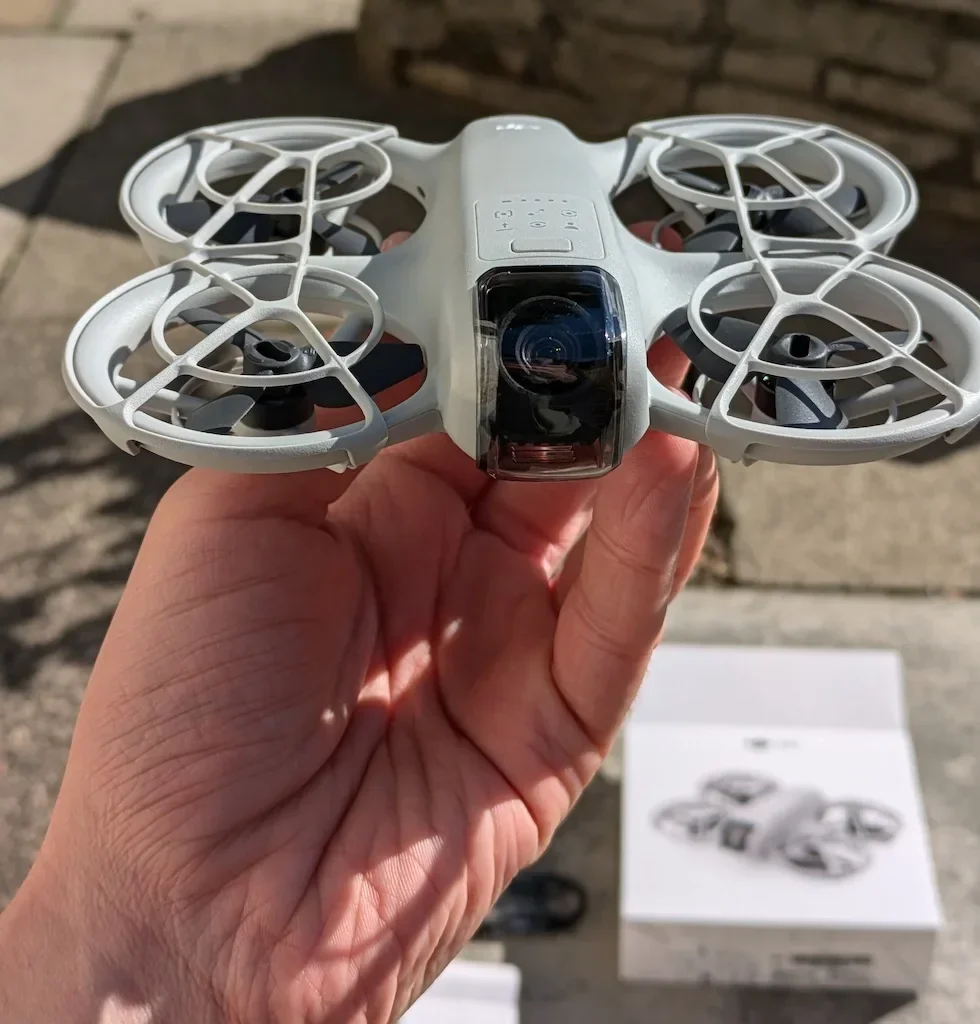
With the DJI RC-N3 in linking mode and beeping, press and hold the power button on the DJI Neo for more than four seconds. The DJI Neo will beep once and the battery level LEDs on the back will blink in sequence to show it is ready to link. After a moment, the DJI RC-N3 will beep twice and the camera live feed will appear on the phone — the manual-specified success signal that the link is complete.
Peter's tip
The more than four seconds part is the bit that catches people out. A shorter press and hold will simply power the DJI Neo off instead of triggering link mode. Count to five in your head while pressing and do not release early.
And if you link the DJI Neo to a new DJI RC-N3 later, it will automatically unlink from the old one. The DJI Neo can only be bound to one controller at a time.
Activating the DJI Neo through the DJI RC-N3 and DJI Fly
If the DJI Neo has never been activated before, the act of linking to the DJI RC-N3 and opening DJI Fly is what triggers the activation flow. Page fifteen of the manual covers this explicitly under Fly More Combo activation.
Power on the DJI Neo and the DJI RC-N3 with the press-then-hold sequence. Make sure the phone is sitting in the DJI RC-N3 holder, cabled, and connected to the internet over mobile data or Wi-Fi. Open DJI Fly. The manual instructs you to make sure the smartphone is connected to the remote controller, and then follow the on-screen prompts to activate the aircraft using DJI Fly. The app walks through the activation prompts, binds the DJI Neo to your DJI account, and then offers any pending firmware update.
Run the firmware update when prompted. The battery firmware is bundled inside the DJI Neo firmware, so skipping the update leaves the battery on an older revision and can cause odd behaviour on the first flight. Let it finish before you fly.
The manual also flags an alternative order: you can also follow the method for activating DJI Neo in the previous section — meaning activate over phone-Wi-Fi first by following the phone-connection path, and then link the DJI RC-N3 afterwards. Either order works, but activating through the DJI RC-N3 is the simpler one if you bought the Fly More Combo.
Confirming the link and running a quick transmission-quality check
A successful link gives you three signals at once: the DJI Neo stops beeping, the battery level LEDs stop blinking in sequence, and DJI Fly switches from a disconnected state to a live camera view. If any one of those three is missing, the link has not completed — repeat step four of the pairing procedure.
Before you take off, run a short quality check on the transmission itself. Hold the DJI RC-N3 so the antennas point upward and slightly forward, which is the orientation DJI Fly flags as optimal. The app has a built-in optimal transmission zone indicator in camera view — if the signal is weak, the app flags it and asks you to adjust the antenna angle. Keep other wireless devices that share the same frequency band away from the DJI RC-N3 during linking and flight, because they can cut into the transmission.
Once the link is confirmed and transmission reads clean, move on to the takeoff procedure, and when the flight is done come back to the landing guide for the RC landing flow. Before tapping the takeoff icon, go into the Safety menu and set Max Altitude, Max Distance, and Auto RTH Altitude. Set the RTH altitude above the tallest obstacle within your flight area — the DJI Neo has no obstacle sensing, so an RTH set lower than surrounding trees will fly the DJI Neo straight into them.
Peter's tip
A common trap: if the DJI RC-N3 is powered on but sitting idle and not connected to anything, it will sound an alert after a while and then power itself off. People think the controller has failed when really they left it sitting on the boot of the car for twenty minutes while they walked the site.
Move a stick or press any button to cancel the alert and the DJI RC-N3 stays on.
A linked DJI RC-N3 turns the DJI Neo from a toy into a precision tool. Altitude and distance become yours to set, Return-to-Home does its job, and the transmission diagnostics give you an early warning before a link drops. For anyone stepping up from phone-only flight, the difference on the sticks is immediate — the DJI Neo feels planted instead of twitchy.
The whole procedure — prep, link, activate, confirm — takes about five minutes the first time, and roughly thirty seconds from that day on. Got a pairing error this guide did not cover? Drop a note to peter@hiredronepilot.uk and I will come back to you directly. If you prefer the video version of this guide, the comments are open on YouTube.
References
Primary source material for this article is the DJI Neo User Manual v1.2 (November 2024). External links open in a new tab.
- DJI — Neo User Manual v1.2 (November 2024) · Preparing the Remote Controller, Fly More Combo activation, DJI RC-N3 overview, RC Control takeoff flow
- DJI — Neo Quick Start Guide v1.0 · First-use connection overview and power-on press-then-hold sequence
- UK CAA — The Drone and Model Aircraft Code (CAP2320) · UK flight safety requirements that apply to every DJI Neo flight

Peter Leslie
Founder & GVC Drone Pilot
Peter is the founder of HireDronePilot. With thousands of logged commercial flight hours, he writes about drone technology, commercial surveying tactics, and UK aviation compliance.
Connect on LinkedIn