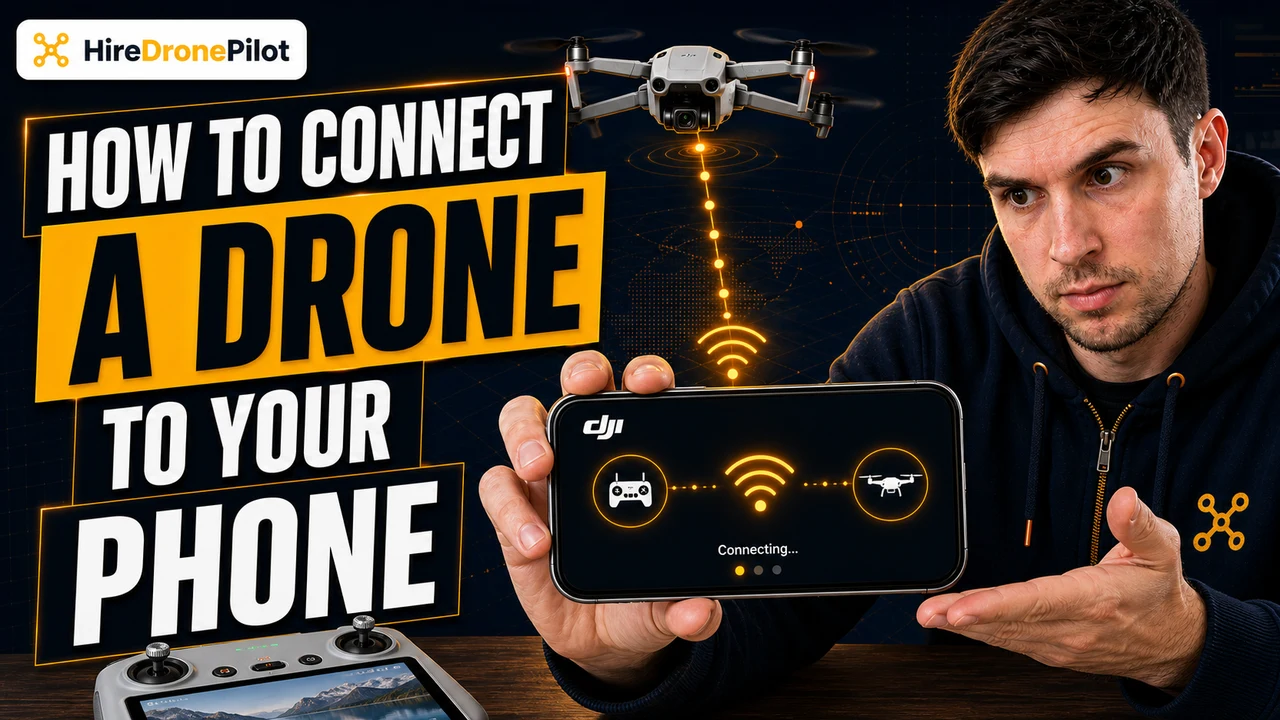
How To Connect A Drone To Your Phone

Peter Leslie
05 May 2026
Key Takeaways
- There are three ways to connect a drone to your phone: a wired controller cable, a Wi-Fi direct link from the drone, or a USB-C OTG cable straight from the drone to the phone
- The wired controller route is the most reliable for serious flying — the cable carries telemetry, camera feed, and stick input through a single low-latency link
- Wi-Fi direct (controllerless) only works on drones that explicitly support it, like the DJI Neo and DJI Neo 2 — most camera drones do not have a built-in Wi-Fi flying mode
- For the DJI Mini 5 Pro, the standard route is the RC-N3 controller cable into your phone running the DJI Fly app, paired and activated over the internet on first use
- Camera-feed connection happens automatically once the controller is linked to the drone and DJI Fly is open — there is no separate camera pairing step on consumer DJI drones
Whether you are setting up a brand new drone or troubleshooting one that has stopped showing the camera feed, the question is the same. How do you actually connect a drone to your phone? The answer depends on the drone in your hand, but the routes themselves come down to three options that cover almost every consumer model on the market.
This guide walks through how to connect a drone to your phone generically — controller-tethered, Wi-Fi direct, and USB-C on-the-go — and then drops into a full step-by-step using the DJI Mini 5 Pro with the RC-N3 controller and the DJI Fly app, because that is the setup most new owners are working through right now. If your drone refuses to talk to the phone at all, the troubleshooting section at the end of this guide covers the cable, app-permission, and relink fixes that solve the vast majority of dead-feed cases.
There are only three real ways to connect a drone to your phone, and which one you use depends on what hardware you have
When people search "how to connect drone to phone", what they usually have in front of them is one of three setups. A drone with a remote controller and a phone holder. A drone with no controller, where the phone is supposed to do everything. Or a drone with a USB-C port that connects directly to the phone with a cable. Each route uses a different physical link and a different app behaviour, but the goal is the same — get the drone, the controller, and the DJI Fly (or equivalent) app talking so the camera feed shows up on screen and the sticks fly the drone.
Most modern DJI drones — the Mini 5 Pro, the Mini 4 Pro, the Air 3S, the Mavic 4 Pro, and even the entry-level DJI Neo when paired with a controller — use the controller-tethered route by default. The drone links to the controller over the dedicated O-series video transmission radio. Your phone sits in the controller's holder and connects to the controller (not the drone directly) via a short USB-C cable. The DJI Fly app reads the live feed and telemetry through that cable. Drone pilots running this setup get the longest range, the lowest latency, and the most stable camera feed of the three options.
| What you have | Connection method | Best for | |
|---|---|---|---|
| Drone + controller + phone | Controller cable to phone (RC-N3 or similar) | Range, stability, real flying | Jump to steps |
| Drone with built-in Wi-Fi mode + phone only | Wi-Fi direct from drone to phone | Quick palm shots, close-range | Jump to steps |
| Drone + phone, no controller (USB-C) | USB-C OTG cable, drone to phone | Activation, firmware, file transfer | Jump to steps |
The controller cable is the standard way to connect your drone camera to your phone for real flying
This is the route the DJI Mini 5 Pro uses out of the box, and it is what most search results mean when they talk about how to connect your drone camera to your phone. The phone clips into the controller's holder, a short cable runs from the controller's port to the phone's USB-C or Lightning port, and DJI Fly handles everything else once the drone and controller are linked.
The cable is doing two jobs at once. It is a data link carrying the live 1080p camera feed from the controller to the phone, and it is a power feed keeping the phone topped up during the flight. There is no Wi-Fi or Bluetooth pairing step between the drone and the phone in this setup. The drone talks to the controller over its own dedicated radio, and the phone is just a screen and an app for the controller to render onto.
Step-by-step on the DJI Mini 5 Pro with the RC-N3 controller
The DJI Mini 5 Pro ships with either the RC-N3 (the controller without a screen, that uses your phone) or the DJI RC 2 (the controller with a built-in screen, no phone needed). If you have the RC 2, you can skip this section — there is no phone-to-controller connection because the screen is built in. If you have the RC-N3, this is the procedure. The same RC-N3 cable approach works for any DJI drone that supports the controller — for the Neo specifically, see our breakdown of the DJI Neo compatible controllers.
Install DJI Fly on your phone before you do anything else
DJI Fly is not on the iOS App Store or the Google Play Store in the UK. Go to dji.com/uk/downloads/djiapp/dji-fly on your phone and download the app from there. On Android, you will need to allow installation from unknown sources for the package to install. On iOS, install via the link DJI provides. Open DJI Fly once and accept the permissions so the app is ready before you plug anything in.

Mount your phone in the RC-N3 holder and pick the right cable
Pull the spring-loaded mobile device holder out of the top of the RC-N3. The DJI Mini 5 Pro box ships with three short cables: USB-C to USB-C, USB-C to Lightning, and a USB-C to USB-C with the Android-side connector. Pick the one that matches your phone's port. The cable with the DJI logo on the end goes into the controller — the unbranded end goes into the phone.
Peter's tip
If you are on Android and you see a USB connection prompt asking whether the phone should charge only or transfer files, choose charge only. The DJI Fly app will not connect to the controller if you pick file transfer.
I have seen this trip up brand new drone pilots more times than I can count. The phone defaults to file-transfer mode on a lot of Android handsets and the connection silently fails until you pull down the notification shade and switch it.
Power on the controller, then power on the DJI Mini 5 Pro
Press the controller's power button once, then press and hold for two seconds to power it on. Do the same on the DJI Mini 5 Pro — the user manual specifies a single press, then a long press. Unfolding the right rear arm will also auto-power the DJI Mini 5 Pro by default. The drone's battery LEDs flash through self-diagnostics for a few seconds.

Open DJI Fly and follow the activation prompts
DJI Fly will detect the controller through the cable and open the activation flow. Activation requires an internet connection, so make sure your phone has mobile data or Wi-Fi available. Sign in to your DJI account, accept the privacy and safety prompts, and let DJI Fly run any firmware update it asks for. The activation is one-time per drone — you will not have to repeat it on future flights.

Confirm the live camera feed appears in DJI Fly's camera view
Tap Go Fly on the DJI Fly home screen. The camera view opens and you should see the live feed from the DJI Mini 5 Pro's gimbal camera, the connection status in the top bar reading connected, and the GPS, battery, and signal-strength indicators populated. If the feed is black, see the troubleshooter linked at the end of this guide.

Peter's tip
Once you have activated and flown the DJI Mini 5 Pro a couple of times, the connection becomes invisible — you plug the cable in, power on, and the camera view is up in under ten seconds. The whole "connect a DJI drone to phone" question only feels difficult on day one. After that, the cable just works and you stop thinking about it.
Wi-Fi direct works for connecting a drone to your phone without a controller, but only on drones built for it
If you are searching how to connect drone to wifi, this is usually what you actually want — a way to fly a drone with the phone alone, no controller in the picture. Wi-Fi direct only exists on drones that ship with the feature built in. The DJI Neo and DJI Neo 2 are the obvious examples, with their virtual-joystick app mode and palm-launch flight. Most other DJI drones, including the DJI Mini 5 Pro, the Mini 4 Pro, the Air 3S, and the Mavic line, do not support a controllerless Wi-Fi flying mode at all. They need the controller.
Where Wi-Fi direct does work, the procedure is the same across models. The drone broadcasts its own Wi-Fi network when it powers on. You go into the phone's Wi-Fi settings, join that network using the password printed on the drone or its battery (or scan the QR code), then open DJI Fly and the app finds the drone automatically. Camera feed and virtual sticks appear on screen. The full DJI Neo phone-pairing walkthrough covers this exact procedure on a controllerless DJI drone.
Peter's tip
Wi-Fi direct sounds appealing because it cuts the controller out of the kit list, but the trade-off is severe. Range is typically capped at fifty metres, altitude at thirty metres, and Return-to-Home is not supported on Wi-Fi-only flight modes.
If your drone does not have a built-in Wi-Fi mode and you are trying to make one work over Wi-Fi anyway, you are fighting the hardware. Use the controller route — it is what the drone was designed for.
USB-C OTG connects the drone directly to your phone for activation, firmware, and file transfer
The third route is a USB-C cable straight from the drone to the phone, bypassing the controller entirely. This is the route DJI calls QuickTransfer on the consumer line, and it is the route the DJI Mini 5 Pro user manual references for moving photos and videos off the drone without taking the SD card out. It is also the route DJI Assistant 2 uses on a desktop computer to flash firmware. On a phone, USB-C OTG plus DJI Fly will let you activate the drone, run firmware updates, and pull media off the SD card.
USB-C OTG is not for flying. The cable is short, the drone has to be sat on a surface with the cable plugged in, and the connection drops the moment you unplug. Use it for one-off setup tasks: first-time activation, a firmware update when you are away from a controller, or a quick photo offload after a flight when you do not want to find your card reader.
When the camera feed does not appear, the cause is almost always the cable, the app permissions, or the controller link
If you have run through the steps above and the DJI Fly app is open but the screen is black, work through these in order. Cable first. Pull the cable out of the controller, blow into the port to clear any pocket lint, plug it back in firmly, and try a different cable from the box. The cables that ship with the controller are short and DJI-branded — third-party cables, especially data-only or charge-only ones, will not carry video.
If the cable is good, check the app permissions. DJI Fly needs camera, location, microphone, and storage permissions, plus on Android the USB permission that pops up the first time the cable is connected. Force-close DJI Fly, unplug the cable, plug it back in, and re-open the app — the permission prompt should reappear. On Android, also confirm the USB connection mode is charge only, not file transfer, in the notification shade.
If the app sees the controller but the camera feed is still black, the controller has lost its link to the drone itself, and the drone-not-connecting-to-controller troubleshooter walks through the deeper diagnostic checks. The DJI Mini 5 Pro user manual specifies the relink procedure — in DJI Fly's camera view, tap the three-dot menu, then Control > Re-pair to Aircraft. Press and hold the drone's power button for more than four seconds and watch the battery LEDs blink in sequence. The controller will beep twice when the link is re-established. The same procedure fixes most cases of a drone not connecting to its controller.
Peter's tip
Always carry a spare cable in your kit. The cable is the single most common point of failure on the controller-to-phone link, and it is the cheapest, lightest, and most replaceable component in the entire kit. I keep a spare USB-C-to-USB-C cable in the lid of my drone case at all times.
Before you fly, the same UK rules apply whether the drone is connected to a controller, a phone, or both
Connecting the drone to your phone is a setup step, not a permission to fly. Once you are airborne, the UK drone laws still set the boundaries: the 120 metre height ceiling, the 50 metre distance from uninvolved people for most consumer drones, and the requirement to keep the drone in visual line of sight at all times. If you are flying commercially or you want to find someone who already has the qualifications and insurance to fly for you, our directory of vetted drone pilots covers every region of the UK.
The DJI Mini 5 Pro is a sub-250g class-marked drone, which puts it in the friendliest UK regulatory bracket. That does not mean the rules go away — the sub-250g rules still require an Operator ID for any drone with a camera, and the airspace and privacy rules apply just like on any other drone. Get the connection sorted, get the activation done, and then read the rules before you take off.
Connecting a drone to your phone comes down to picking the right route for the hardware in your hand and going through the steps in order. The controller cable is the standard. Wi-Fi direct is for drones built for it. USB-C OTG is for setup and file transfer. Once you have done it once, the muscle memory takes over and the connection becomes background noise — which is exactly where it should sit so you can focus on the flying.
Got a specific drone-and-phone setup that is not behaving? Drop a note to peter@hiredronepilot.uk and I will come back to you directly. If you prefer the video version of this guide, the comments are open on YouTube.
References
Primary source material for this article is the DJI Mini 5 Pro User Manual v1.0 (September 2025) and the UK Civil Aviation Authority. External links open in a new tab.
- DJI — Mini 5 Pro User Manual v1.0 (September 2025) · RC-N3 setup, mobile device cable, activation, linking the remote controller, firmware update
- DJI — DJI Fly app download (UK) · Direct download for the DJI Fly app on iOS and Android
- UK CAA — The Drone and Model Aircraft Code (CAP2320) · UK flight safety requirements referenced in the pre-flight section
Peter Leslie
Founder & GVC Drone Pilot
Peter is the founder of HireDronePilot. With thousands of logged commercial flight hours, he writes about drone technology, commercial surveying tactics, and UK aviation compliance.
Connect on LinkedIn